

Picking the wrong way to create a quiz in WordPress costs more than a wasted afternoon. It can mean a broken results page in front of your students, a lead-generation quiz nobody finishes, or a “free” plugin that locks your own quiz data behind a paywall the moment you need to export it.
I’ve built quizzes in WordPress more ways than I’d like to admit — clunky shortcode plugins, form builders bent into a quiz shape they were never designed for, and a couple of tools that quietly broke the moment I tried to add a timer. One approach turned out to need far less patience than the rest, and it wasn’t the first one I tried.
This guide walks through that approach from a blank WordPress dashboard to a published, working quiz — every step, every setting, and every question type explained in plain English. By the end you’ll also know how to configure a quiz in WordPress for real use cases: timed exams, lead-capture surveys, certificates, and even selling access to your content.
Quick answer: the fastest way to create a quiz in WordPress without touching code is QuizPress. It builds quizzes, timed exams, surveys, and polls from one three-step wizard, includes a free tier with 9 question types, a question bank, a leaderboard, and manual grading, and its Pro add-ons let you issue certificates and sell access through WooCommerce. Other WordPress quiz tools exist — form builders like WPForms and Gravity Forms bolt a quiz mode onto a form plugin, and some dedicated quiz plugins charge a subscription before you can even try their free tier — but none of them bundle all four content types and this much free functionality into a single plugin the way QuizPress does. The full walkthrough starts below.
Why Add a Quiz to Your WordPress Site?
A quiz does something a blog post can’t: it asks the visitor to participate instead of just scroll.
That participation pays off in measurable ways. A 2026 quiz benchmark report from Interact found that quizzes convert people who start them into leads at an average rate of 40.1% — meaning roughly 4 out of every 10 visitors who click “Start” end up handing over their contact details to see their result.
That’s a strong number for any kind of on-site content. Most static contact forms don’t come close.
Teachers use quizzes to check understanding without grading a stack of papers by hand. Course creators use them to gate a certificate behind a passing score. Marketers use them to segment an audience and build an email list at the same time. HR teams use them for compliance checks. None of that needs a developer if you pick the right plugin from the start.
A blog post about a topic gets read once and forgotten. A quiz on the same topic gets shared, because people like showing off a result. That’s the mechanic behind almost every viral “which X are you” quiz you’ve ever seen shared on social media — it’s not a gimmick, it’s a completion-and-share loop that a plain article can’t replicate.
The same logic applies outside marketing. A short knowledge check placed at the end of a training article measurably increases how much of that article people actually retain, compared to reading it with no check at all. That’s why compliance training, onboarding docs, and course platforms lean on quizzes so heavily — the act of answering a question locks the information in far better than reading alone.
Why QuizPress for This Tutorial
Every step in this guide uses QuizPress, so it’s worth being upfront about why, instead of assuming you’ll just take it on faith.
Most WordPress quiz tools fall into one of two camps. The first camp is form builders with a quiz mode bolted on — Gravity Forms, Formidable Forms, WPForms. They’re powerful for forms, but a quiz is a secondary feature wearing a form’s interface. The second camp is dedicated quiz plugins that only do quizzes, so you still need a separate tool for surveys, polls, or timed exams.
QuizPress builds quizzes, timed exams, surveys, and polls from the same three-step wizard, which is the main reason it’s the one used throughout this walkthrough. A full feature-by-feature comparison against eight of the most common WordPress quiz tools, including exact question-type counts and pricing, sits in the complete WordPress quiz plugin comparison if you’re still weighing your options before committing to one.
If you already know you want to build quizzes, exams, surveys, or polls, the rest of this guide covers everything from installation to publishing.
What You Need Before You Start
You don’t need much to follow along.
A self-hosted WordPress site (WordPress.com’s free plan won’t allow plugin installs, so this needs a site where you can install plugins yourself). Admin access to that site’s dashboard. About 15-20 minutes for your first quiz, less for every one after that.
You do not need any coding knowledge. Nothing in this guide touches PHP, HTML, or a code editor.
If you plan to add certificates later, you’ll also need the free aBlocks plugin active — that’s covered in Step 5 below, and it’s worth knowing about now so it doesn’t come as a surprise.
On compatibility: as of this guide, QuizPress requires WordPress 6.8 or later and PHP 7.4 or later, and is tested up to WordPress 6.9.4. If your host is running an older PHP version, updating that first will save you a confusing installation error later. Because the quiz itself is placed using a standard Gutenberg block or a shortcode, it works with any theme that supports either of those — which today is effectively every actively maintained WordPress theme, block-based or classic.
Step-by-Step: How to Create a Quiz in WordPress
Here’s the full process, start to finish. Each step below reflects what’s actually in the plugin’s current builder, not a simplified version of it.
For a rough sense of the time commitment before you dive in: installation takes about two minutes, a ten-question quiz takes roughly ten to fifteen minutes to write and configure, and embedding plus testing adds another five. A first quiz, done carefully rather than rushed, realistically takes 20-25 minutes start to finish. Every quiz after that is faster, since the settings from Step 4 tend to carry over as habits rather than fresh decisions each time.
Step 1: Install and Activate QuizPress
From your WordPress dashboard, go to Plugins → Add New Plugin → Upload → Select Quizpress → Upload Now → Install → Active
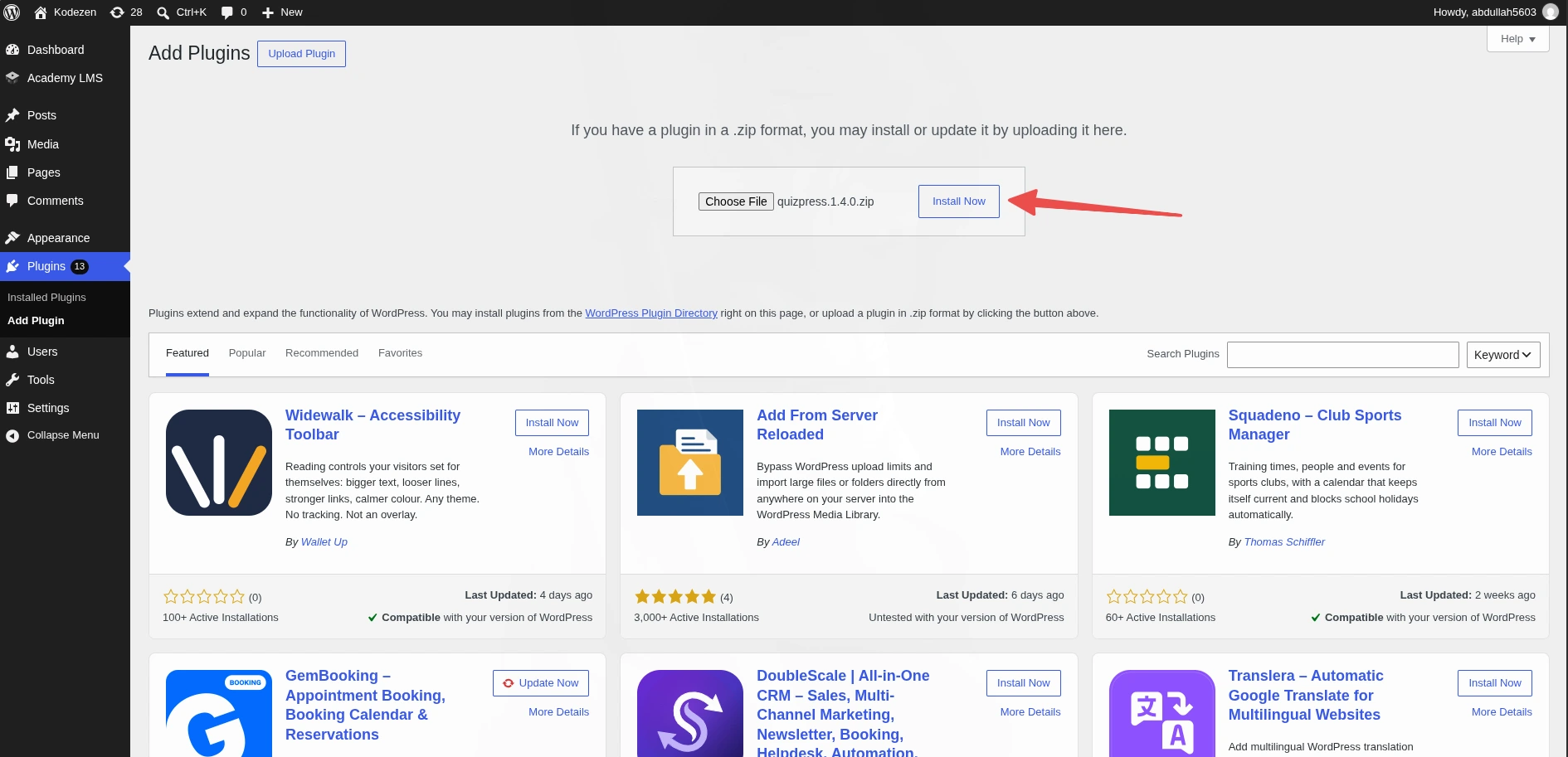
A new “QuizPress” menu item appears in your left sidebar after activation. The plugin’s own quick-start walkthrough of this same first stretch lives in the installation and activation documentation, which also covers entering a Pro license key if you’ve purchased one.
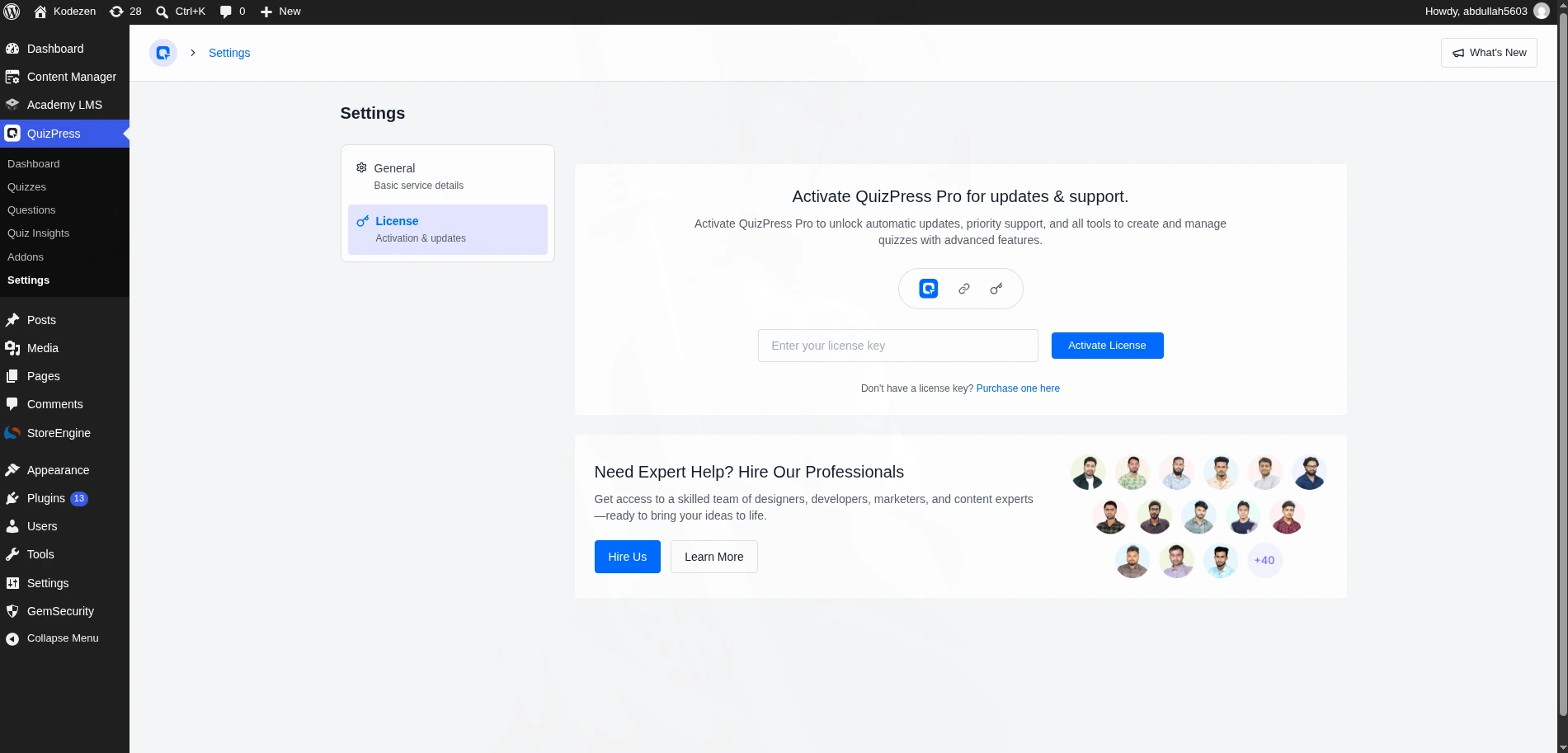
If you bought a Pro plan, activate your license before moving on — several settings mentioned later in this guide (certificates, WooCommerce selling, guest attempts, five extra question types) only appear once a valid license is active.
Step 2: Start a New Quiz and Choose a Format
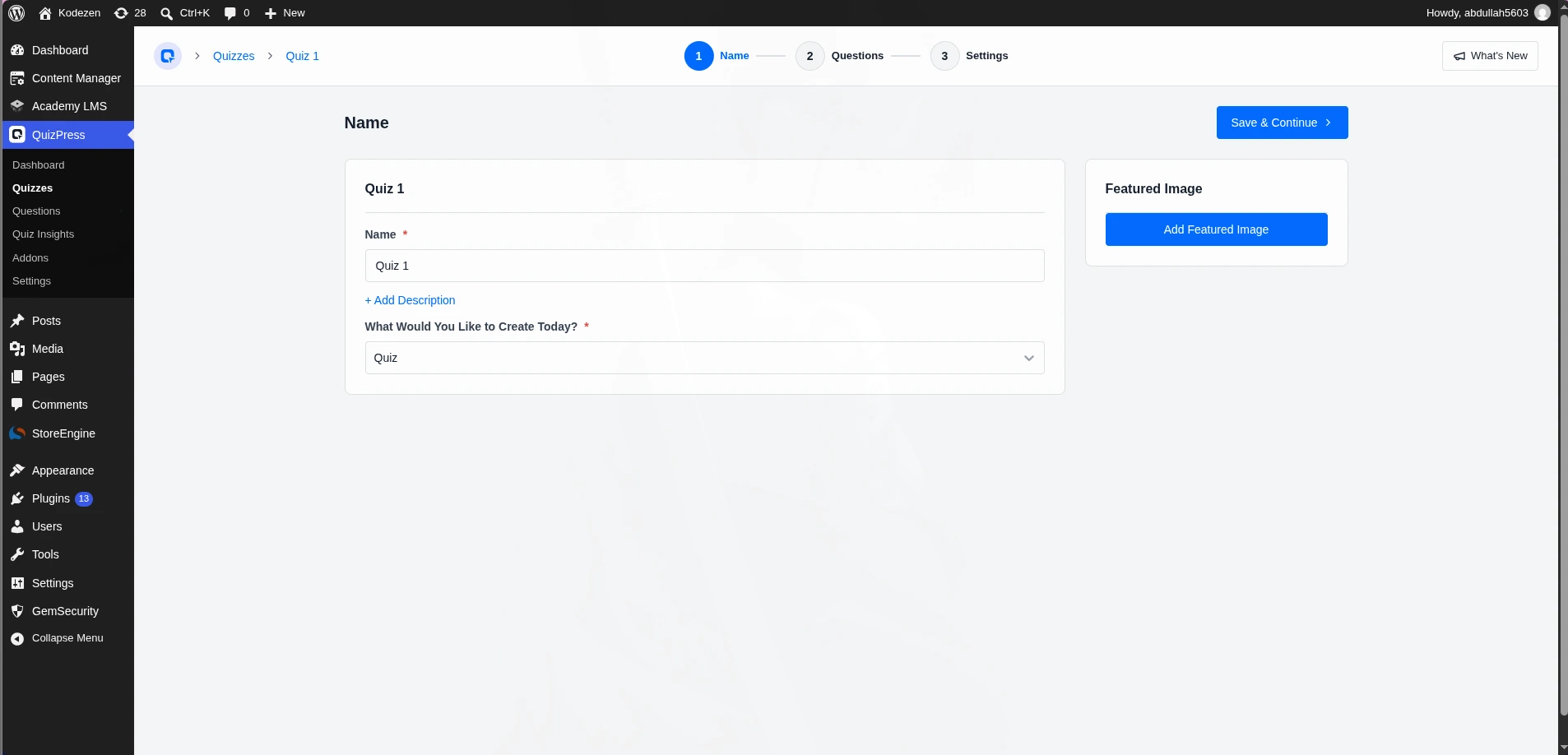
Inside the QuizPress dashboard, click Create New. This opens the builder’s first step, labeled “Name.”
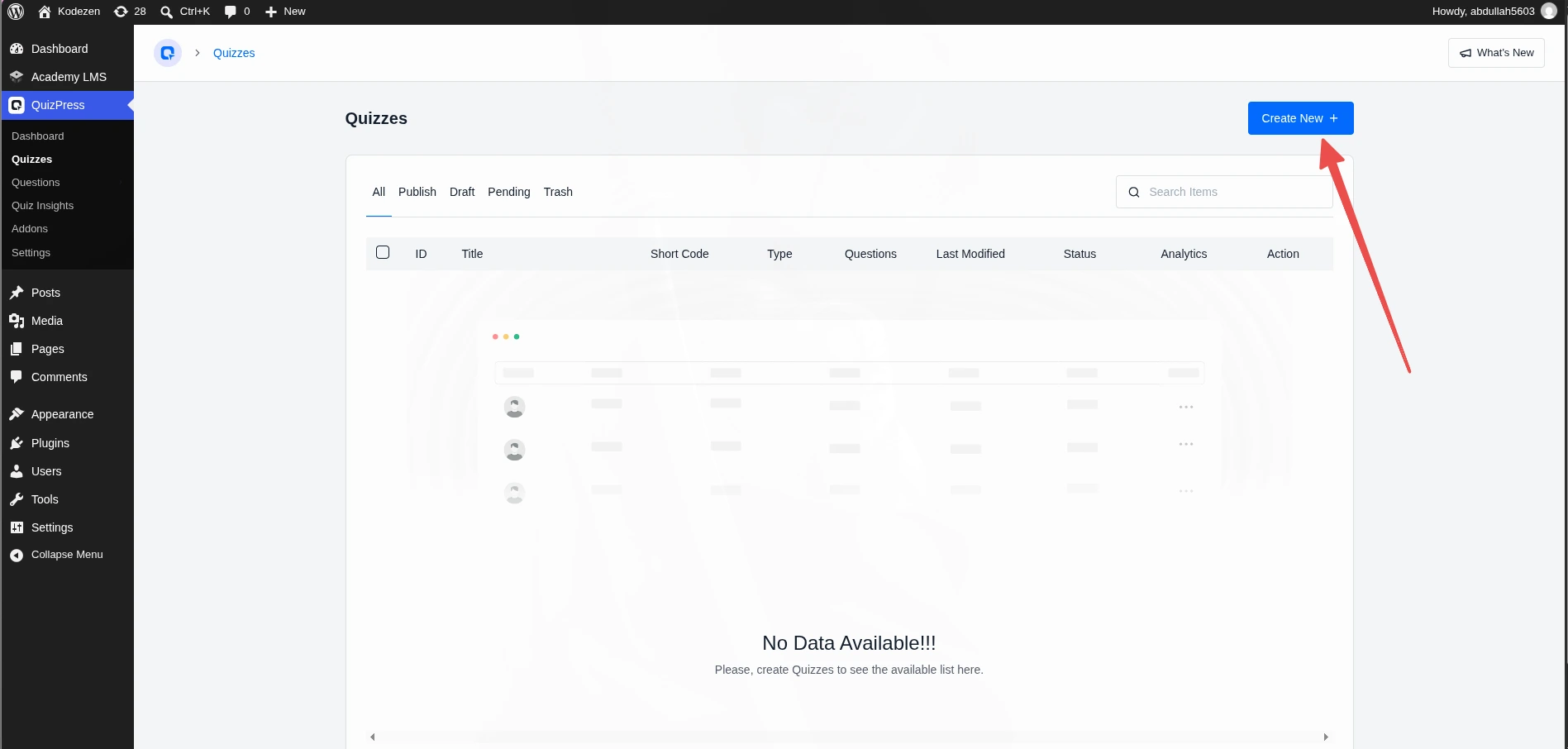
Here’s something most tutorials skip entirely: QuizPress doesn’t just build quizzes. The format dropdown on this first screen offers four distinct content types:
Pick the one that matches your actual goal, since it changes which settings appear later in Step 4. A more detailed breakdown of when to use each format is in the Choosing the Right Quiz Format section further down this guide.
Give the quiz a title, an optional description, and a featured image if you want one to show wherever the quiz gets shared. Click Save & Continue.
Step 3: Add Your Questions
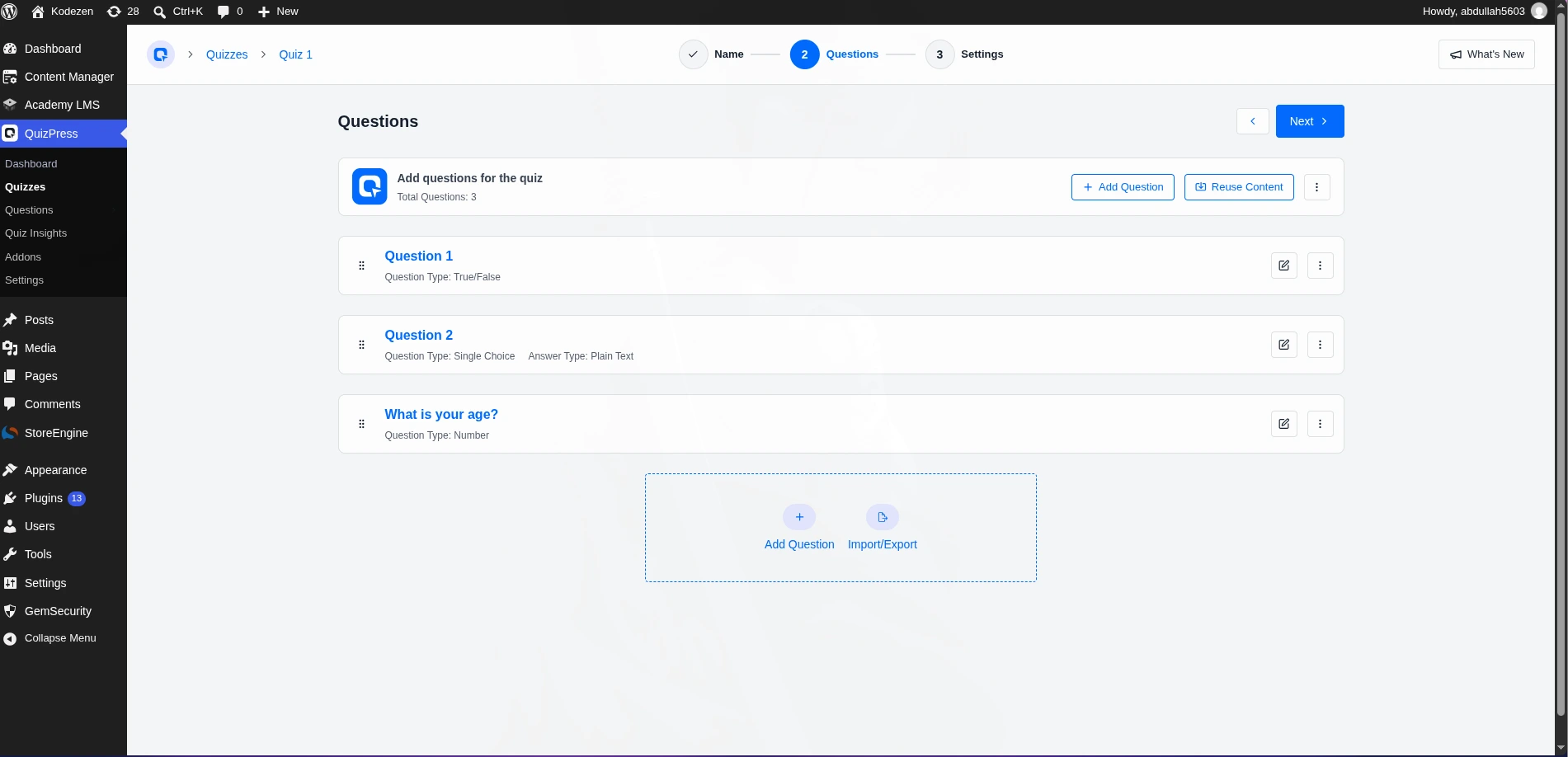
This opens the “Questions” step, where you’ll spend most of your setup time.
Click Add Question. Type your question text, then pick a question type from the dropdown. The free plan includes 9 types out of the box: Single Choice, Multiple Choice, Single Choice (Horizontal), Multiple Choice (Horizontal), True/False, Date, Number, Short Answer, and Paragraph.
For each answer option, mark which one (or ones, for Multiple Choice) counts as correct. QuizPress grades these automatically the moment someone submits an answer — no manual review needed unless the question is open-ended text.
Repeat for every question, using Duplicate on an existing question if a new one is similar, which saves retyping shared settings.
There are 10 more question types available on Pro, including the newest additions: Ordering, Puzzle, Matching, Pin, Image Marking, Range, and Graph. Every type — free and Pro — gets its own explanation with screenshots in WordPress quiz question types explained, which is worth reading in full before you commit to a question set, since a couple of these formats (Matching, Image Marking especially) can replace two or three plain multiple-choice questions with one better one.
Already have questions written somewhere else? The Questions step includes an import option, so you can bring in a spreadsheet of questions instead of typing each one by hand.
Click Next once your question list is done.
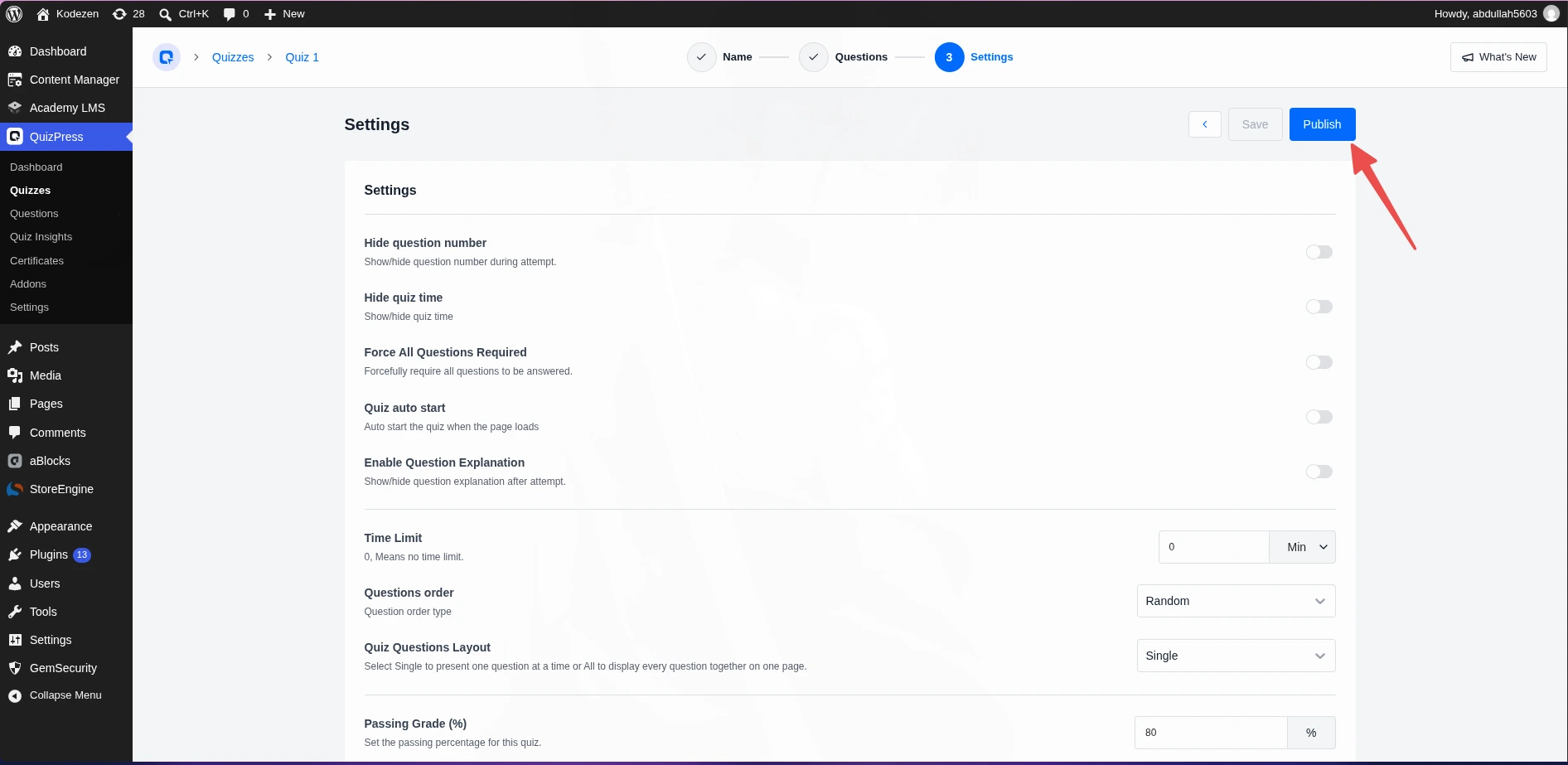
Step 4: Configure Your Quiz Settings
This is the step most guides gloss over, and it’s exactly where “how do I configure a quiz in WordPress” questions usually come from. The “Settings” step controls how the quiz behaves once someone starts taking it — not just how it looks.
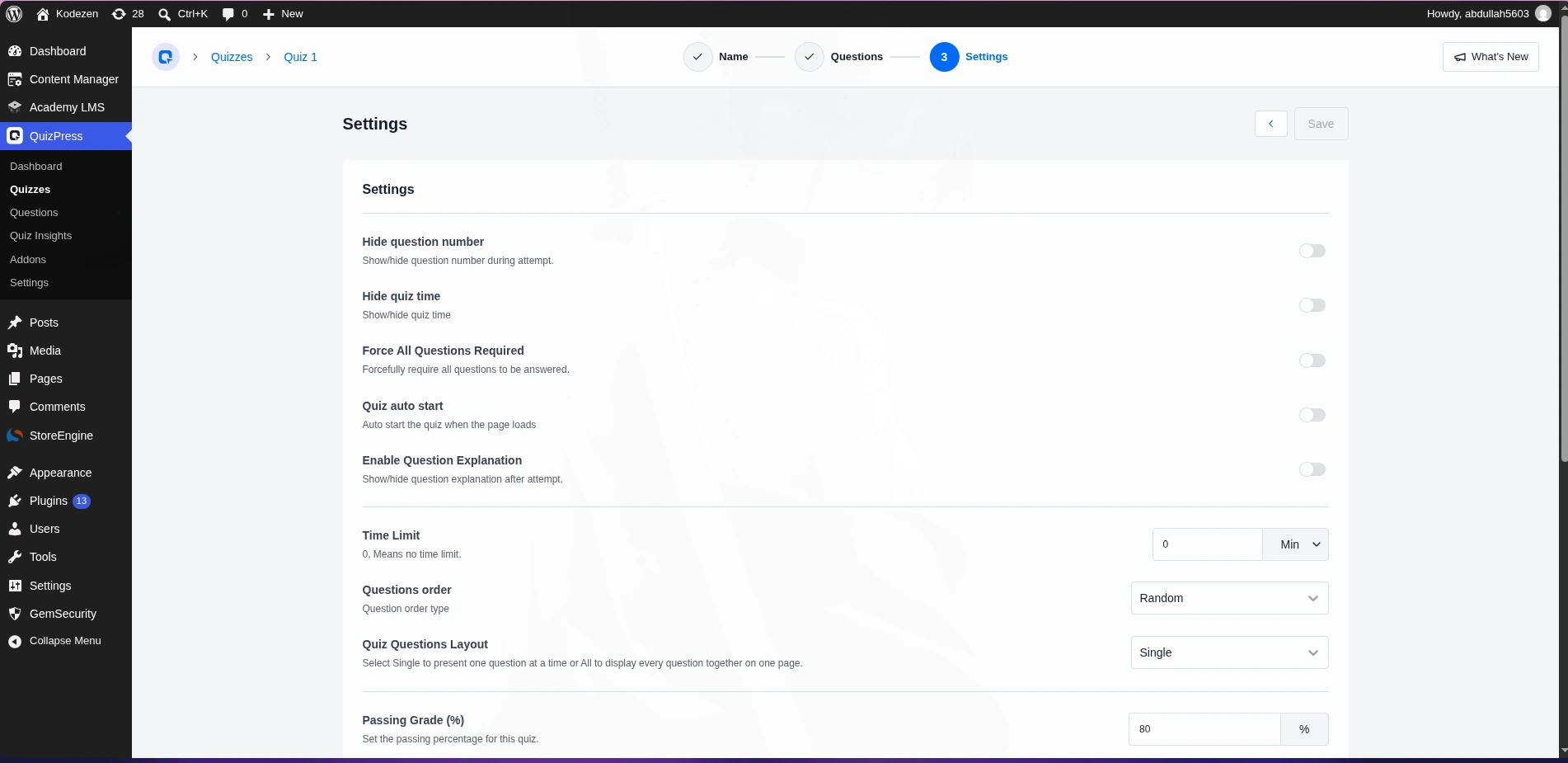
Here’s every setting on this screen, and what it actually does:
Hide question number. Turn this on to stop showing “Question 3 of 10” style counters during the attempt. Some quiz designs read better without a visible countdown; most benefit from keeping it on.
Hide quiz time. Similar idea, but for the running clock instead of the question counter. Useful if you want a timer running in the background (for scoring or a hard cutoff) without making the test-taker watch it count down and feel rushed.
Force All Questions Required. Switch this on and nobody can submit the quiz with a blank answer. Off by default, which matters most for Survey and Poll formats where skipping a question is often intentional.
Quiz auto start. Starts the quiz the moment the page loads, instead of showing a “Start Quiz” button first. Good for a quiz embedded on its own dedicated page; usually left off for a quiz mixed into a longer article.
Enable Question Explanation. Shows a short explanation text after each question once it’s answered, useful for anything meant to teach as it tests (an eLearning quiz, a training compliance check).
Time Limit. Set a number and a unit (minutes, typically). Enter 0 for no time limit at all. This is the actual timer control — the setting used to build any timed exam.
Questions order. Random, Ascending, or Descending. Random is the standard choice if you’re worried about people sharing answers with each other; it shuffles the question sequence per attempt.
Quiz Questions Layout. Single shows one question per screen (better for mobile, better for longer quizzes). All shows every question on one long page (faster for a short quiz, and easier to scan back and forth).
Passing Grade (%). Only appears for Quiz and Exam formats, since Survey and Poll don’t have a pass/fail state. Set the percentage score needed to pass — this number is also what triggers a certificate later, if you’ve set one up.
Quiz Feedback Mode. Two options here. Default shows correct answers only after the whole quiz is finished. Retry Mode lets someone try a missed question again instead of locking it in immediately, with an accompanying Max Attempted Allowed field to cap how many tries they get in total.
Maximum Question Allowed to Answer. Set a number lower than your total question count, and QuizPress will randomly pull that many questions from your full set for each attempt. Enter 0 to use every question every time. This is how you build a large question pool that shows a smaller, randomized subset per attempt — useful for practice quizzes where you don’t want the same 10 questions memorized after two tries.
Allow Re-Attempt After Pass. Lets someone retake a quiz they’ve already passed. Off by default, which makes sense for a certification exam; on makes more sense for a practice quiz meant to be run repeatedly.
Hint Text. A short prompt shown to guide the test-taker, separate from the per-question explanation text above.
There are two more settings worth knowing about that live outside this per-quiz wizard, under the plugin’s main Settings screen instead: an “Additional Field” toggle (collects a name, email, or other custom field from someone before they start any quiz — the closest thing to a lead-capture form built into the plugin) and an “Enable anonymous quiz attempt” toggle, which is Pro-only and lets people take a quiz without being a logged-in WordPress user first. If your quiz is public-facing rather than for logged-in members, that second one is worth switching on.
Click Save or Publish once you’re happy with these.
Step 5: Add Certificates (Optional but High-Value)
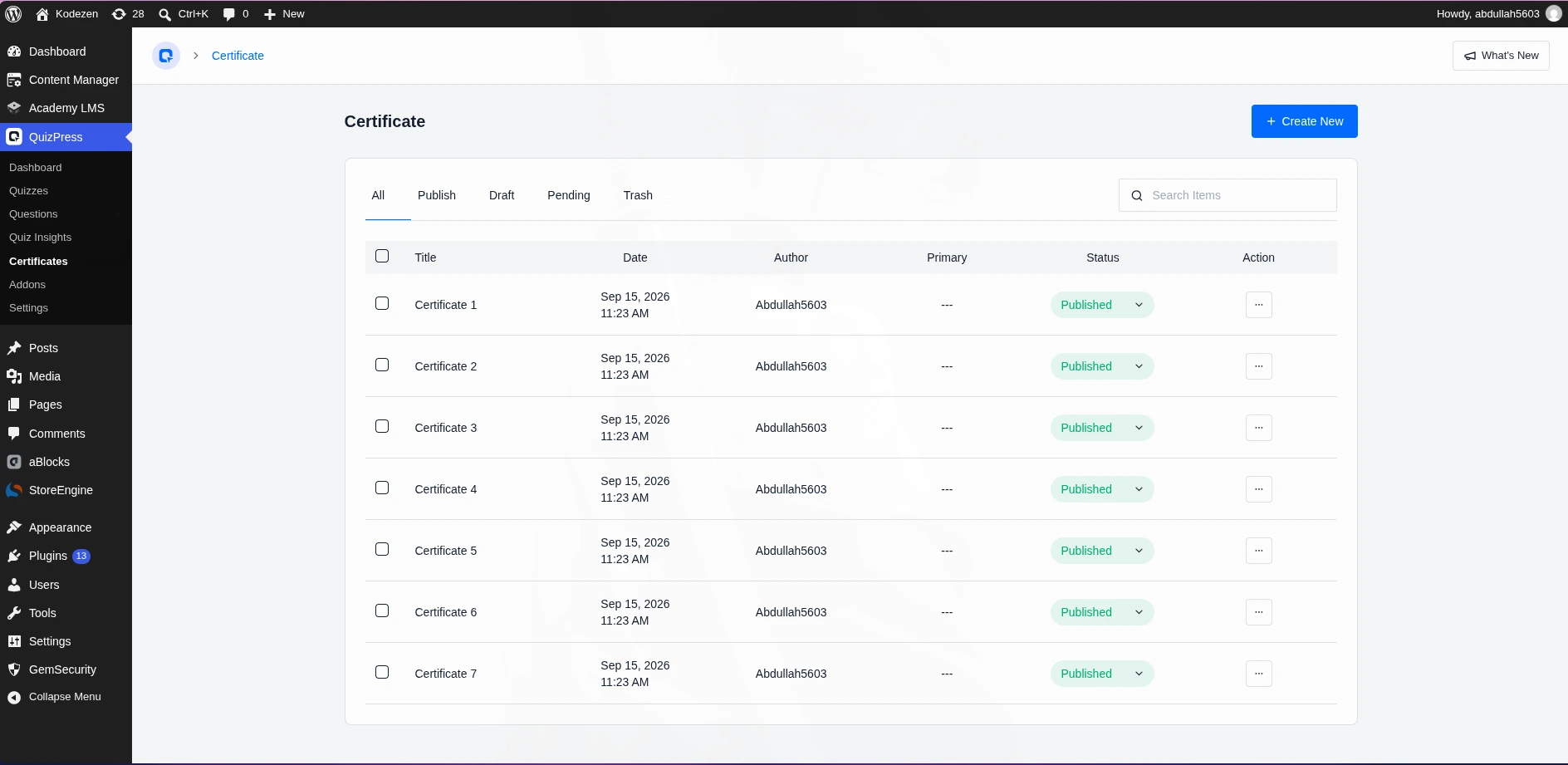
Certificates are a Pro feature, and they require one more free plugin — aBlocks — to be installed and active, since QuizPress uses aBlocks’ visual builder to design the certificate layout.
Once aBlocks is active, a Certificate option appears in the QuizPress add-ons screen. From there you can design a certificate template — logo, signature, recipient name, score, date — without writing any code, and set the passing grade from Step 4 as the trigger for when it’s issued automatically.
The full walkthrough, including template design tips, is in how to use the QuizPress certificate builder.
If certificates aren’t relevant to what you’re building, skip this step entirely — nothing else in the setup depends on it.
Step 6: Publish and Embed Your Quiz
Publishing the quiz itself (via the same Publish control as any WordPress post) makes it exist, but it won’t appear anywhere on your site until you embed it somewhere. QuizPress gives you a shortcode and a dedicated block for this.
To embed inside a page or post using the block editor, add the QuizPress block from the block inserter and select your quiz from the dropdown. To use the shortcode instead, copy it from the top of the quiz’s edit screen and paste it into a Shortcode block, a widget area, or a template file if your theme supports it.
Every placement method — page, post, widget, template — is covered in more depth in the Quiz Show documentation, including how to control the block’s width and alignment through the native block editor controls, since QuizPress doesn’t have a separate “design” screen of its own — layout and color customization happens through the same block settings panel you’d use for any other Gutenberg block.
Step 7: Test Your Quiz Before Sharing It
Open the published page in a private/incognito browser window (so you’re not viewing it as a logged-in admin, which can hide certain settings) and take the quiz yourself from start to finish.
Check that the pass/fail threshold behaves the way you expect, that the timer counts down correctly if you set one, that a certificate generates if you configured one, and that the results screen shows what you intended. It’s much easier to catch a misconfigured passing grade before a real visitor hits it than after.
Settings: Time Limit set to 15 minutes — enough for ten questions without making it a race. Questions order set to Random, since this quiz gets reused across a full team and answer-sharing would defeat the point. Passing Grade set to 80%, since a support team representing the product should know it well, not just adequately. Quiz Feedback Mode left on Default rather than Retry Mode, since the goal is measuring actual knowledge, not letting someone brute-force their way to a pass. Enable Question Explanation turned on, so even a wrong answer teaches the correct fact immediately afterward.
Certificate: Set up through aBlocks, issued automatically at 80% or above, with the person’s name and completion date pulled onto a simple branded template.
Publishing: Embedded on an internal, password-protected page rather than a public one, using the standard QuizPress block.
None of this is the only correct way to build this particular quiz — a different team might reasonably swap in more Short Answer questions, or drop the certificate entirely. The point of walking through it is showing how the settings from Step 4 actually map onto a real decision, instead of staying abstract.
Choosing the Right Quiz Format: Quiz vs Exam vs Survey vs Poll
Since QuizPress builds all four from one tool, it’s worth being specific about when each one actually fits, instead of defaulting to “Quiz” out of habit.
Quiz is the general-purpose choice: right and wrong answers, a score at the end, ideal for knowledge checks, lead magnets, and personality-style content where a result still needs to be calculated.
Exam uses the identical gradable structure as Quiz but is the better label when the stakes are formal — a certification test, a compliance check, a graded classroom assessment. Time limits and passing grades matter most here, and a full walkthrough of building a properly timed one is in how to make an online exam in WordPress with a timer, which goes deeper into timer-specific settings than this guide does.
Survey drops the pass/fail concept entirely. Every answer is valid, there’s no scoring, and the point is collecting opinions, feedback, or self-reported information. A dedicated walkthrough for this format, covering question phrasing that works better for open opinions than graded content, is planned at how to create a survey in WordPress with QuizPress.
Poll is the lightest of the four — usually one question, built for a quick, low-commitment vote rather than a full assessment. A focused guide for setting one up sits at how to create a poll in WordPress with QuizPress.
If your actual goal is a standalone survey or poll tool rather than a quiz plugin that happens to support those modes, it’s worth also looking at dedicated WordPress plugins for surveys and polls to compare against a broader field before deciding.
Every Question Type You Can Use
Nineteen question types exist across QuizPress’s free and Pro tiers, and picking the right one changes how engaging (and how accurately gradable) a quiz feels.
The 9 free types cover most standard use cases: Single Choice and Multiple Choice for classic quiz questions, their Horizontal variants for a more compact layout, True/False for quick fact checks, Number and Date for structured data collection, and Short Answer and Paragraph for open-ended text responses.
The 10 Pro types add real depth. Dropdown, Fill-in-the-Blanks, and File Upload round out the “standard” formats. The newer interactive set — Ordering, Puzzle, Matching, Pin, Image Marking, Range, and Graph — goes further: Image Marking lets someone click a specific spot on a photo, Graph places a point on a coordinate grid, and Ordering and Puzzle use genuine drag-and-drop instead of a dropdown pretending to be interactive.
Here’s a one-line description of every type, so you’re not guessing what a label means before you’ve tried it.
Free tier:
Pro tier:
Every type gets a dedicated section with visual examples and setup notes in WordPress quiz question types explained: all 19 types — it’s the resource to read before finalizing a question set for anything beyond a basic quiz.
Tracking Results: Analytics, Leaderboard, and Manual Grading
A quiz that no one reviews the results of is only half-finished.
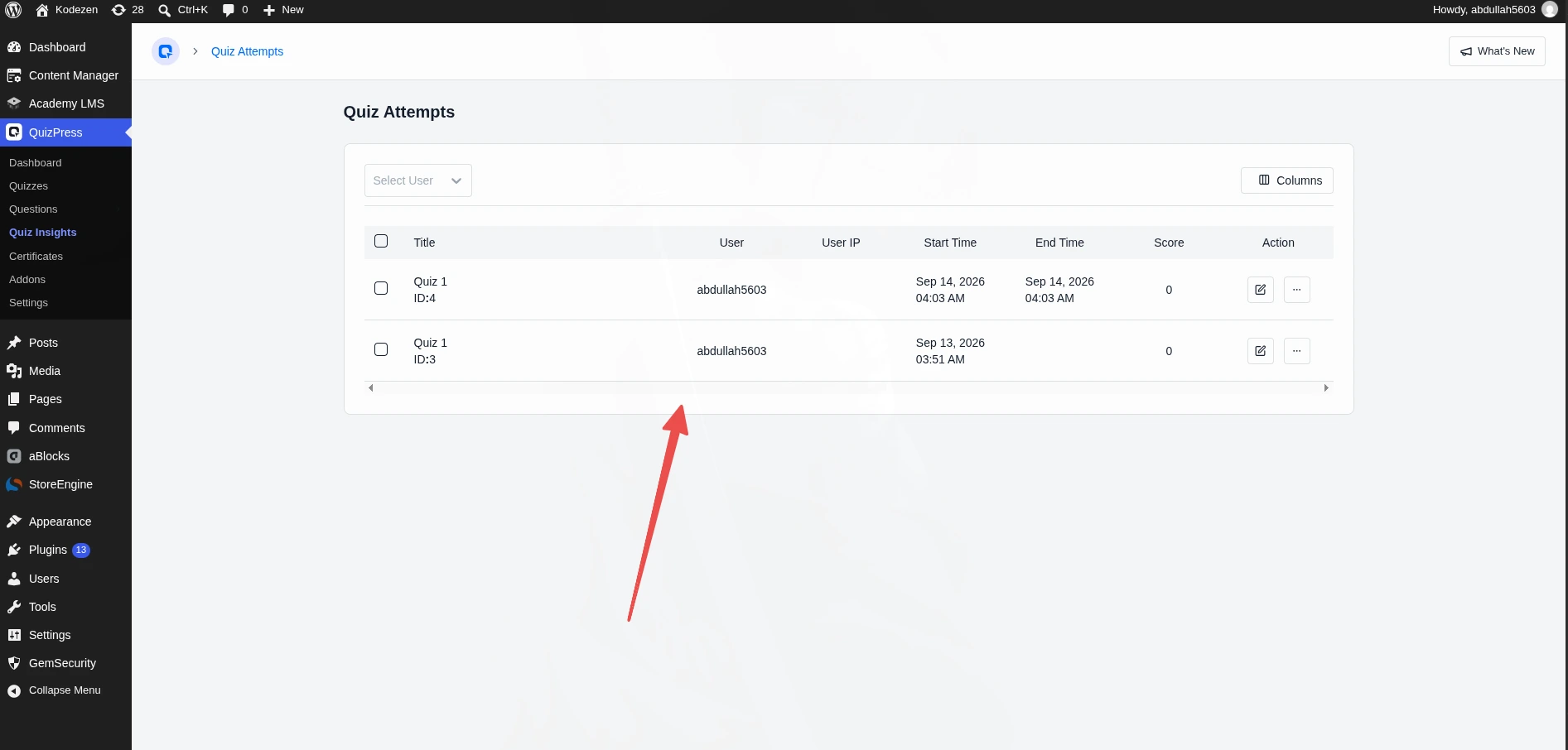
QuizPress’s dashboard shows total quizzes, total attempts, average scores, and completion rates without any extra setup. A dedicated Leaderboard widget ranks top scorers, which works well for anything with a competitive angle — corporate training, classroom quizzes, gamified lead-gen content.
Every individual attempt can be reviewed in detail: who took it, when, their score, and a question-by-question breakdown of what they answered. For open-ended question types like Short Answer, Paragraph, and File Upload, where there’s no single “correct” string to check automatically, there’s a manual review action built into the attempt details screen — you read the response and mark it correct or incorrect yourself. All of this is free-tier functionality; none of it requires a Pro license.
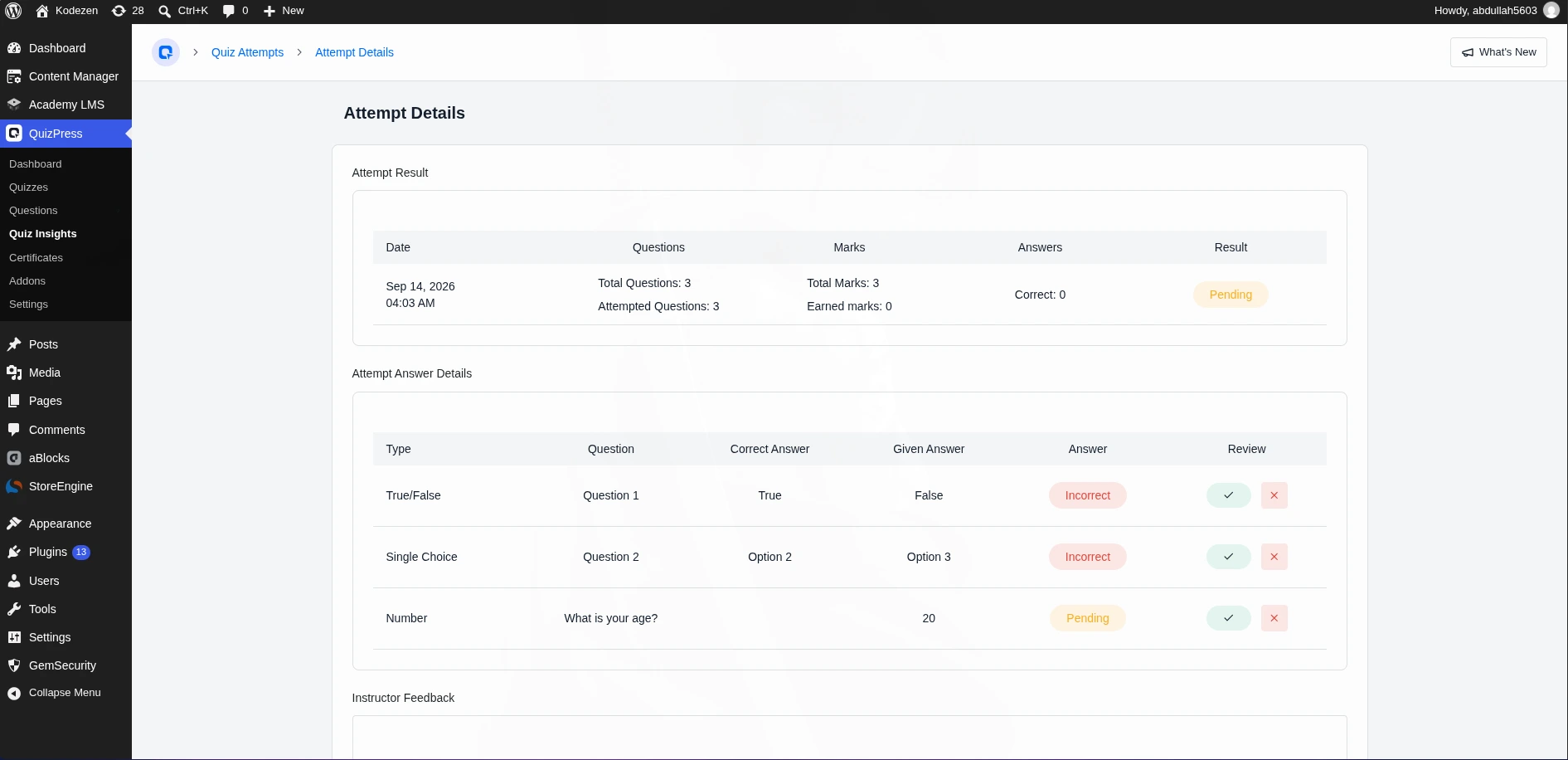
The numbers on this dashboard are more useful as a revision tool than most people treat them. A low average score on one specific question, repeated across dozens of attempts, almost always means the question itself is worded ambiguously rather than every test-taker genuinely not knowing the material.
A high drop-off rate partway through points at a quiz that’s simply too long, or a question placed too early that discourages people from continuing. Checking these numbers a week after publishing, rather than assuming the first draft of a quiz is the final one, catches problems no amount of self-review before launch will surface.
Turning Your Quiz Into Revenue
Once a quiz is built and working, selling access to it — or to a certificate it awards — is a natural next step for course creators and membership sites.
QuizPress’s WooCommerce integration is a Pro add-on that connects a WooCommerce product to a specific quiz. In practice, this means checking a “For QuizPress” box when creating a WooCommerce product, then selecting which quiz that product unlocks. Once that’s connected, the quiz automatically switches from free access to paid. The exact configuration steps are covered in the WooCommerce integration documentation.
Selling the certificate itself, rather than the quiz attempt, is just as common — someone takes the quiz for free, then pays for the certificate proving they passed. A broader look at whether this model fits your site, including pricing approaches that have worked for other WordPress creators, is covered in can you sell quizzes on WordPress?, and the dedicated hub for this entire monetization path — currently in progress — will live at how to sell quiz certificates in WordPress with WooCommerce.
If your monetization plan centers on membership access rather than one-off sales, the best WordPress quiz plugin for membership sites covers that specific angle in more depth than this guide does.
On pricing strategy: selling the certificate rather than the quiz attempt itself tends to work better psychologically, since a visitor can try the quiz for free and only pays once there’s something concrete to show for it — a real certificate with their name on it, not a promise of value before they’ve seen any of the content. Gating the entire quiz behind a paywall upfront usually converts worse, since nobody’s paying for a product they haven’t previewed at all.
Free vs Pro: What’s Included at Each Tier
Here’s exactly where the free/paid line sits, verified against the plugin’s own code rather than assumed from marketing copy.
|
Feature |
Free |
Pro |
|
Quiz, Exam, Survey, Poll formats |
Yes |
Yes |
|
Question types |
9 |
10 more (19 total), including Ordering, Puzzle, Matching, Pin, Image Marking, Range, Graph, Dropdown, Fill-in-the-Blanks, File Upload |
|
Timer |
Yes |
Yes |
|
Leaderboard |
Yes |
Yes |
|
Global Question Bank |
Yes |
Yes |
|
Manual grading of open-ended answers |
Yes |
Yes |
|
Guest attempts (no WordPress login required) |
No |
Yes |
|
Certificates (requires the free aBlocks plugin) |
No |
Yes |
|
Selling access via WooCommerce |
No |
Yes |
|
Pricing |
Free, no cap found on quiz count |
One-time lifetime license, from $79 |
Pricing checked on quizpress.pro at the time of writing and can change — confirm the current figure on the plugin’s own pricing page before buying. A full breakdown of what free actually gets you compared against seven other WordPress quiz tools, not just QuizPress’s own two tiers, is in free vs paid WordPress quiz plugins compared.
Switching From Another Quiz Plugin
If you’re not starting from zero — you’ve already got quizzes built in another tool and you’re evaluating a move — the process looks a little different from a first-time setup, and it’s worth planning rather than winging.
Start with your questions, not your settings. Most quiz plugins let you export questions as a CSV or spreadsheet. Pull that export first, clean it up if the formatting is messy, and use QuizPress’s question import (mentioned in Step 3) to bring the whole set in at once rather than re-typing each question by hand.
Don’t expect a 1:1 settings match. Every quiz plugin names its own settings slightly differently, and some concepts don’t map cleanly at all — a “conditional logic” feature in a form-builder-based quiz tool, for instance, doesn’t have a direct QuizPress equivalent, since QuizPress is built around straightforward question sequencing rather than branching form logic. Rebuild the intent of a setting, not its exact label.
Keep your existing URLs if SEO matters to you. If your current quiz lives at a URL that already ranks or gets shared traffic, embed the new QuizPress quiz on that same page rather than a new one, so you’re not starting a new page’s search visibility from zero.
Run both in parallel briefly before fully cutting over. Rather than deleting the old plugin the same day you finish setup, leave the old quiz live but unlinked for a week or two while you confirm the new one is working exactly as intended for real visitors, not just in your own testing.
Check what happens to historical attempt data. Attempt records from your old plugin typically don’t transfer automatically to a new one, since each plugin stores that data in its own database structure. If historical completion numbers matter for reporting, export that data from the old plugin before deactivating it, even if you don’t plan to import it anywhere.
Maintaining Your Quiz After It’s Live
Publishing a quiz isn’t the finish line if it’s meant to keep working for months or years, which most quizzes are.
Revisit the analytics dashboard covered earlier every few weeks, not just once right after launch. A question that performed fine in your own testing can reveal a wording problem only once dozens of real visitors have attempted it — the pattern usually shows up clearly in the per-question score breakdown.
If your quiz references dates, prices, product names, or anything else that changes over time, put a recurring reminder on your own calendar to review it. A quiz still asking about last year’s pricing tier, or a product that’s since been discontinued, damages credibility fast once a visitor notices the mismatch.
After any WordPress theme change or major plugin update on your site, re-check that the embedded quiz still displays and functions correctly. A block-based quiz embed is generally stable across theme changes, but it’s a five-minute check worth doing rather than assuming, especially right after switching to a new theme.
Quiz Ideas by Use Case
“Create a quiz” means something different depending on who’s asking, so here are concrete starting points for the situations that come up most often.
Education and training. A weekly comprehension check at the end of a lesson, built as a Quiz with Enable Question Explanation turned on so a wrong answer still teaches the right one. A final unit exam built as an Exam with a strict time limit and a passing grade tied to a certificate, so a student has proof of completion to show elsewhere.
Marketing and lead generation. A personality-style quiz (“Which [product category] fits your needs?”) built as a Quiz, using the Additional Field setting to collect an email address before revealing the result. Given the 40.1% average start-to-lead conversion rate cited earlier, this is usually the highest-return use case on this entire list for anyone running a mailing list.
HR and corporate training. A compliance quiz built as an Exam, Random question order to reduce answer-sharing across a large team, and a certificate that doubles as an audit record proving each employee completed the training.
Course creators and membership sites. A module quiz gating access to the next lesson, or an end-of-course exam issuing a certificate sold or bundled as part of the course itself through the WooCommerce integration covered earlier.
Coaches and consultants. A short self-assessment Survey (no pass/fail, just self-reported answers) used as a lead magnet or an intake tool before a first client call, giving the coach real information before the conversation even starts.
Blogs and media sites. A lightweight trivia Quiz related to a recent article, or a single-question Poll asking readers to weigh in on a topic — both add an interactive element to otherwise static content with very little setup time.
None of these require different plugins or a different setup process. They’re the same three-step builder from earlier in this guide, aimed at different goals through different combinations of format, question type, and settings.
Best Practices for Creating a Quiz People Actually Finish
Keep it short enough to finish in one sitting. Ten to twenty questions is the sweet spot for most quizzes. Past that, completion rates drop fast, no matter how good the content is.
Write one clear idea per question. A question that’s really asking two things at once (“Which of these is both cheap and fast?”) confuses people and produces answers that don’t mean what you think they mean.
Match the question type to the content, not the other way around. Don’t force a concept that’s naturally a sequence into a multiple-choice format when Ordering exists specifically for that. The right type makes a question feel obvious instead of tricky.
Give feedback that actually teaches something. A one-line explanation after each question, using the Enable Question Explanation setting from Step 4, turns a quiz from a test into something people learn from even when they get an answer wrong.
Test on a phone before you publish. More quiz traffic than most site owners expect comes from mobile. The Single question-per-page layout tends to hold up better on small screens than showing every question at once.
Set a passing grade that means something. A passing grade set too low makes a certificate worthless; set too high, it discourages anyone from finishing. Somewhere around 70-80% works for most knowledge checks, though this depends entirely on how hard your actual questions are.
Put your easiest question first, not your hardest. The first question sets the tone for whether someone commits to finishing. A confusing or overly difficult opener causes more abandonment than the same question buried in the middle would.
Use randomized ordering if the same quiz gets reused often. A classroom quiz taken by thirty students in the same room, or a certification exam retaken across a team, benefits from the Random setting in Step 4 specifically to reduce answer-sharing between attempts.
Common Mistakes to Avoid
Publishing without embedding it anywhere. A quiz can be fully built and published in the QuizPress dashboard and still be invisible to every visitor, because publishing a quiz and placing it on a page are two separate steps (Steps 6 and 7 above).
Leaving the time limit at a number that doesn’t match the question count. A five-minute limit on a twenty-question exam guarantees frustration, not a fair test. Time it yourself first.
Forgetting to test the pass/fail threshold. It’s easy to set Passing Grade during setup and never actually confirm the number produces the pass/fail split you intended. Take the quiz yourself and check.
Using Multiple Choice for everything. It’s the default most people reach for out of habit, but a lot of content fits Short Answer, Ordering, or Matching far better, and variety alone keeps a longer quiz from feeling monotonous.
Skipping the mobile check. A layout that looks fine on a desktop monitor can break entirely on a phone screen, particularly with the “All questions on one page” layout option.
Writing questions that test memorization instead of understanding. A question that only works if someone memorized an exact phrase from your source material rewards recall over comprehension. Rephrasing the same concept in a new sentence tests whether the idea actually landed.
Ignoring the explanation field. Enable Question Explanation costs nothing to turn on and adds real value to every wrong answer, yet it’s one of the most commonly skipped settings simply because it’s easy to overlook during setup.
Troubleshooting: Common Issues When Creating a Quiz in WordPress
The quiz doesn’t show up on the page. Confirm you actually embedded it using the block or shortcode from Step 6 — building and publishing a quiz in the QuizPress dashboard doesn’t place it anywhere automatically.
The timer isn’t counting down. Check that Time Limit in Step 4 isn’t set to 0, which means “no limit,” and confirm Hide quiz time is off if you expect to see the countdown itself rather than just have it enforced silently.
A certificate isn’t generating after a passing score. Confirm aBlocks is installed and active, that a certificate template is actually assigned to that specific quiz, and that the Passing Grade setting matches the score you’re testing with.
Correct answers aren’t being detected properly. Double-check that the right answer option is actually marked as correct for that question type — this is the single most common setup mistake, especially on Multiple Choice questions where more than one option needs to be checked.
Open-ended answers show as “ungraded.” That’s expected behavior, not a bug, for Short Answer, Paragraph, and File Upload questions — they need a manual review from the attempt details screen described earlier in this guide, since there’s no single correct string for QuizPress to check automatically.
A drag-and-drop question type isn’t behaving on a mobile device. Ordering, Puzzle, Matching, Pin, Image Marking, and Range all rely on touch or click interaction that can behave inconsistently on very old mobile browsers. Testing on an actual phone, not just a resized desktop browser window, catches this before a real visitor hits it.
The certificate design looks broken or unstyled. This almost always means aBlocks itself isn’t active, even if QuizPress is — the certificate builder is powered by aBlocks’ editor, so QuizPress alone can’t render a template without it.
A setting you changed doesn’t seem to have taken effect. Confirm you clicked Save & Continue (or the equivalent save action) on that specific step before navigating away — like most multi-step WordPress wizards, changes on an unsaved step don’t persist if you leave before saving.
How This Guide Was Verified
Every setting name, question type, and free/Pro distinction in this guide was checked directly against QuizPress’s own current source code, not against older marketing copy or a competitor’s description of the plugin — including catching a couple of spots where the plugin’s own readme file lags behind what’s actually shipped (WooCommerce selling, for one, has moved from “coming soon” to fully available since that file was last updated).
Pricing was pulled directly from the plugin’s live pricing page rather than an older cached figure, and is noted as subject to change, since that’s true of every software product’s pricing.
Final Thoughts
Creating a quiz in WordPress without touching code comes down to picking a tool built for the job, then working through setup deliberately instead of rushing past the settings step. The steps above cover that whole path — install, build, configure, publish, and test — using settings and question types verified directly against what the plugin actually ships today, not older marketing copy.
If you’re still comparing tools before committing, the full WordPress quiz plugin comparison and the plugin’s own feature list and pricing page are worth a look before you install anything.
One honest gap worth repeating from earlier: five of the most capable question types — the interactive drag-and-drop and click-based formats — sit behind the Pro license, not the free plan. If those specific formats are the reason you’re building a quiz in the first place, budget for that before you start rather than discovering it partway through Step 3.
Frequently Asked Questions
Do I need coding skills to create a quiz in WordPress?
No. Every step in this guide uses the plugin’s visual builder — no PHP, HTML, or code editor involved at any point.
Is there a free way to create a quiz in WordPress?
Yes. QuizPress’s free tier includes 9 question types, unlimited quizzes with no cap found on quiz count, a timer, a leaderboard, a global question bank, and manual grading for open-ended answers, all with no license required.
How many questions can I put in one quiz?
There’s no hard cap in the plugin itself. Practically, 10-20 questions keeps completion rates high; beyond that, consider using the Maximum Question Allowed to Answer setting to randomly serve a smaller subset from a larger question pool instead of showing every question every time.
Can I add a timer to my quiz?
Yes, through the Time Limit setting in Step 4 above. Set it in minutes, or leave it at 0 for no time limit at all.
Can someone retake a quiz after passing it?
Only if you turn on Allow Re-Attempt After Pass in the quiz’s settings. It’s off by default, which fits a one-shot certification exam better than a practice quiz.
Can I sell access to my quiz or its certificate?
Yes, through the Pro WooCommerce integration, which connects a WooCommerce product directly to a specific quiz or to the certificate it awards.
Which question types are available, and are any of them free?
19 total. 9 are free (Single Choice, Multiple Choice, both Horizontal variants, True/False, Date, Number, Short Answer, Paragraph). The remaining 10, including Dropdown and the newer interactive types like Ordering and Matching, are Pro.
Can I collect a name or email before someone starts the quiz?
Yes, using the “Additional Field” toggle in the plugin’s main Settings screen, separate from the per-quiz wizard — it collects a custom field from the test-taker before they begin.
Do I have to require a WordPress login for someone to take my quiz?
No, but by default attempts are tied to a logged-in user. If your quiz needs to be open to anonymous public visitors, the Pro “Enable anonymous quiz attempt” setting removes that requirement.
Can I build a survey or a poll instead of a graded quiz?
Yes — Survey and Poll are both built-in formats selectable in Step 2, using the same builder as a standard quiz but without the scoring and pass/fail logic.
Can I embed the same quiz on more than one page?
Yes. The shortcode and block both reference the same underlying quiz, so pasting the same shortcode (or re-inserting the same block selection) on multiple pages shows the identical quiz on each one, with attempts tracked centrally regardless of which page someone took it from.
Does the plugin work with any WordPress theme?
It works with any theme that supports the standard block editor or shortcodes, which covers essentially every actively maintained WordPress theme today, whether it’s a classic theme or a full block theme.
Is my quiz data stored on my own site, or somewhere else?
On your own site. Quiz content and attempt data are stored in your WordPress database, not on a third-party server, which matters if data residency or privacy compliance is a concern for your use case.
Can I duplicate an entire quiz instead of building a new one from scratch?
No dedicated “duplicate quiz” button was found in the current version — only individual questions can be duplicated inside the builder. The practical workaround for reusing a full question set is pulling existing questions from the Global Question Bank into a new quiz instead of retyping them.
Can I limit how many times someone can attempt a quiz?
Yes. The Max Attempted Allowed field, which appears once Quiz Feedback Mode is set to Retry Mode, caps the total number of tries. For a one-shot exam, leaving Feedback Mode on Default and Allow Re-Attempt After Pass switched off achieves the same restriction from the other direction.
What happens if I edit a quiz after people have already taken it?
Existing attempt records aren’t retroactively rescored against a settings or question change — they reflect the quiz as it existed at the time each person took it. Only new attempts taken after your edit are scored against the updated version.