

Ask the wrong ten questions and you get feedback nobody trusts. Ask the right ten questions on a survey nobody finishes, and you get nothing at all.
That’s the real risk with WordPress surveys. It’s not that the tools are hard to find — it’s that most of them either bolt a hosted, off-site form onto your theme, or they hand you a generic form builder that treats a survey like a contact form with extra fields. Neither one is built for what a survey actually needs: no scoring, no pressure, and a clean way to read the answers once they come in.
I spent a stretch of time this year testing exactly how far a WordPress-native builder could go before I’d have to reach for a hosted alternative. One plugin got me through the entire loop — questions, settings, embedding, and results — without ever leaving wp-admin, and it changed how I’d recommend doing this to anyone else.
QuizPress is the plugin I ended up using, and it’s what this walkthrough is built around. It ships Survey as one of four content formats in the free version, doesn’t restrict which question types a survey can use, and gives every response its own visual breakdown once results start coming in. If you just want the short version: install it, choose Survey instead of Quiz when you start a new entry, and the rest of this guide walks through every screen you’ll hit along the way.
Why Run a Survey on Your Own WordPress Site
A survey embedded in a page you already own behaves differently than one hosted somewhere else.
Visitors don’t get redirected off your domain, which means you don’t lose the visit, the branding, or the trust a stranger has already extended to your site. A form that suddenly points to a different URL is a small but real reason people abandon it halfway through.
You also own the data outright. Every response lands in your own WordPress database, not a third-party dashboard you’re renting access to. That matters for GDPR-style consent record-keeping, and it matters if the tool you’re using ever changes its pricing, its export limits, or shuts down.
And a survey isn’t a quiz wearing a costume. A quiz grades answers against a correct one; a survey collects opinions, and pretending otherwise is exactly how badly-designed forms end up asking a customer to “pass” a satisfaction check. The tool needs to treat those as genuinely different jobs, not the same form with the scoring turned off cosmetically.
That distinction is also why this guide exists separately from the fuller walkthrough of building a quiz in WordPress — the two content types share a builder, but the settings, question phrasing, and results screens that matter for a survey are different enough to deserve their own steps.
A WordPress Survey Plugin vs a Hosted Form Tool
Most people’s first instinct is to reach for a hosted survey tool — something like Google Forms, Typeform, or SurveyMonkey — because it’s fast to spin up and doesn’t require installing anything.
That speed comes with trade-offs that only show up later. A hosted tool means the survey lives on someone else’s domain, which usually means a redirect click, a different visual style than the rest of the site, and a results dashboard that’s a separate login away from everything else. Free tiers on hosted tools also tend to cap response counts or question counts, which is a limit you don’t discover until a survey is already popular.
A WordPress-native survey doesn’t have that ceiling. Responses land in the same database as everything else on the site, there’s no per-response fee creeping in as a survey grows, and the page a respondent sees never leaves the domain they were already trusting.
|
Fecar |
WordPress-Native Survey (e.g. QuizPress) |
Hosted Form Tool (e.g. Google Forms, Typeform, SurveyMonkey) |
|
Where responses live |
Same WordPress database as the rest of the site |
Third-party platform, separate login |
|
Visitor experience |
Stays on your domain, matches your site’s design |
Usually redirects to the tool’s own domain and styling |
|
Response/question limits |
No plugin-imposed cap |
Free tiers commonly cap responses or questions |
|
Ongoing cost as usage grows |
No per-response fee |
Often tiers up once free limits are hit |
|
Setup time |
Requires installing and configuring a plugin |
Fastest to spin up, no install needed |
|
Best fit |
Customer-facing, ongoing, or brand-tied surveys |
One-off internal polls needing zero setup |
None of that makes a hosted tool the wrong choice for every situation — a one-off internal poll that needs zero setup time is a reasonable case for grabbing whatever’s fastest. But for anything customer-facing, ongoing, or tied to a brand a visitor already recognizes, keeping the survey inside WordPress is the stronger default.
QuizPress isn’t the only WordPress-native option built for this, either — a wider look at the WordPress plugins built specifically for surveys and polls is worth a read if the plugin choice itself is still an open question rather than settled.
What You Need Before You Start
Three things, and none of them are complicated:
A self-hosted WordPress site (WordPress.org, not the free WordPress.com plan) with admin access, since you’ll need to install a plugin. A list of the questions you actually want answered — five to ten focused questions beat twenty vague ones, and I’ll come back to why later in this guide. And an idea of who’s going to see the survey: logged-in members, or anyone who lands on the page, since that decides one specific setting in Step 4.
No code, no page builder, and no separate hosting account for form data. Everything below happens inside the WordPress dashboard you already have.
Step-by-Step: How to Create a Survey in WordPress
Here’s the full path, screen by screen.
Step 1: Install and Activate QuizPress
From your WordPress dashboard, go to Plugins → Add New Plugin → Upload → Select Quizpress → Upload Now → Install → Active. The free version is enough to complete every step in this guide — nothing here requires a paid tier.
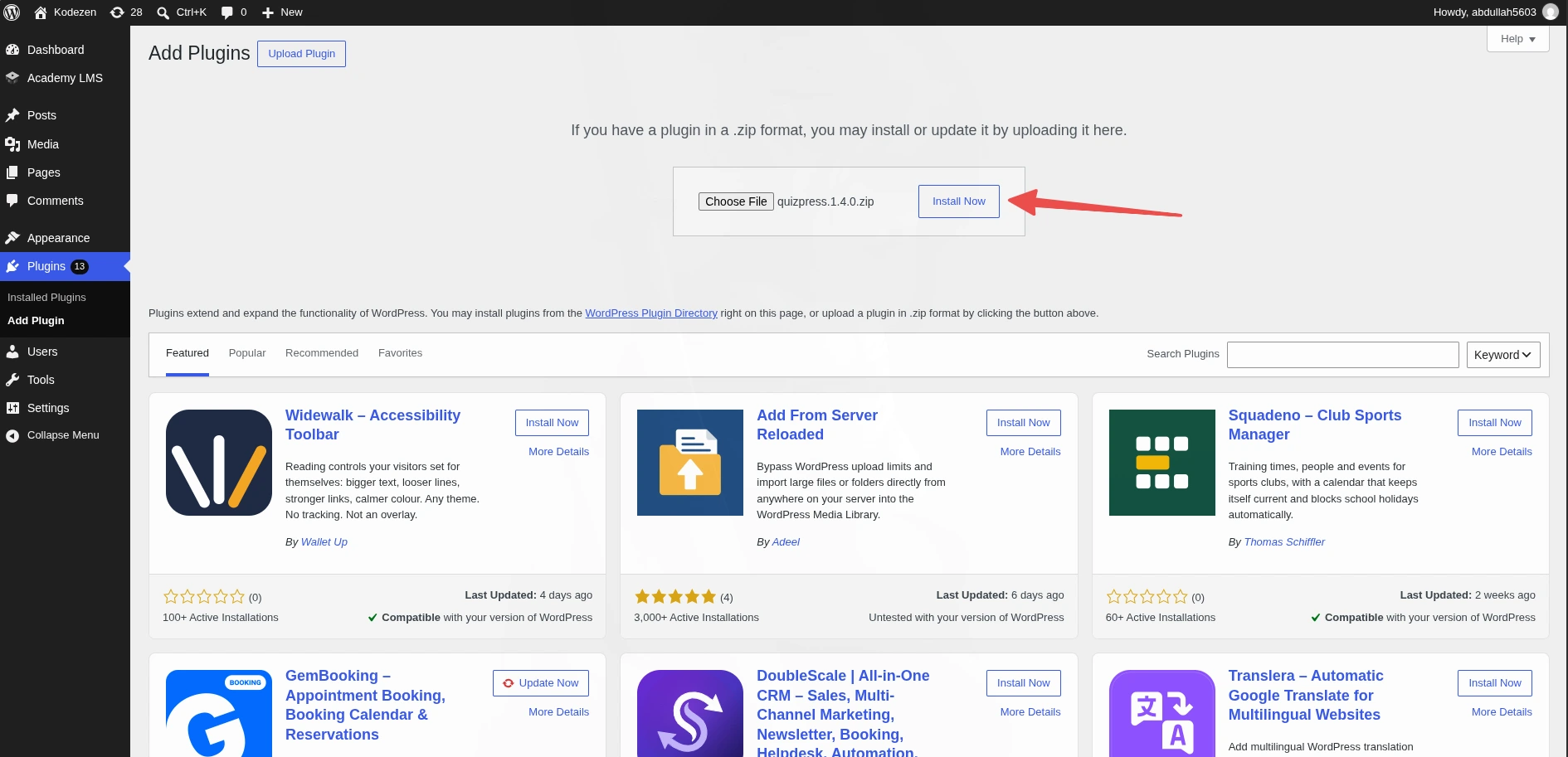
If you’d rather see every install method (including manual upload) or you’re setting up a Pro license key, the installation and activation guide covers both paths in more detail than I’ll repeat here.
Step 2: Start a New Entry and Choose Survey as the Format
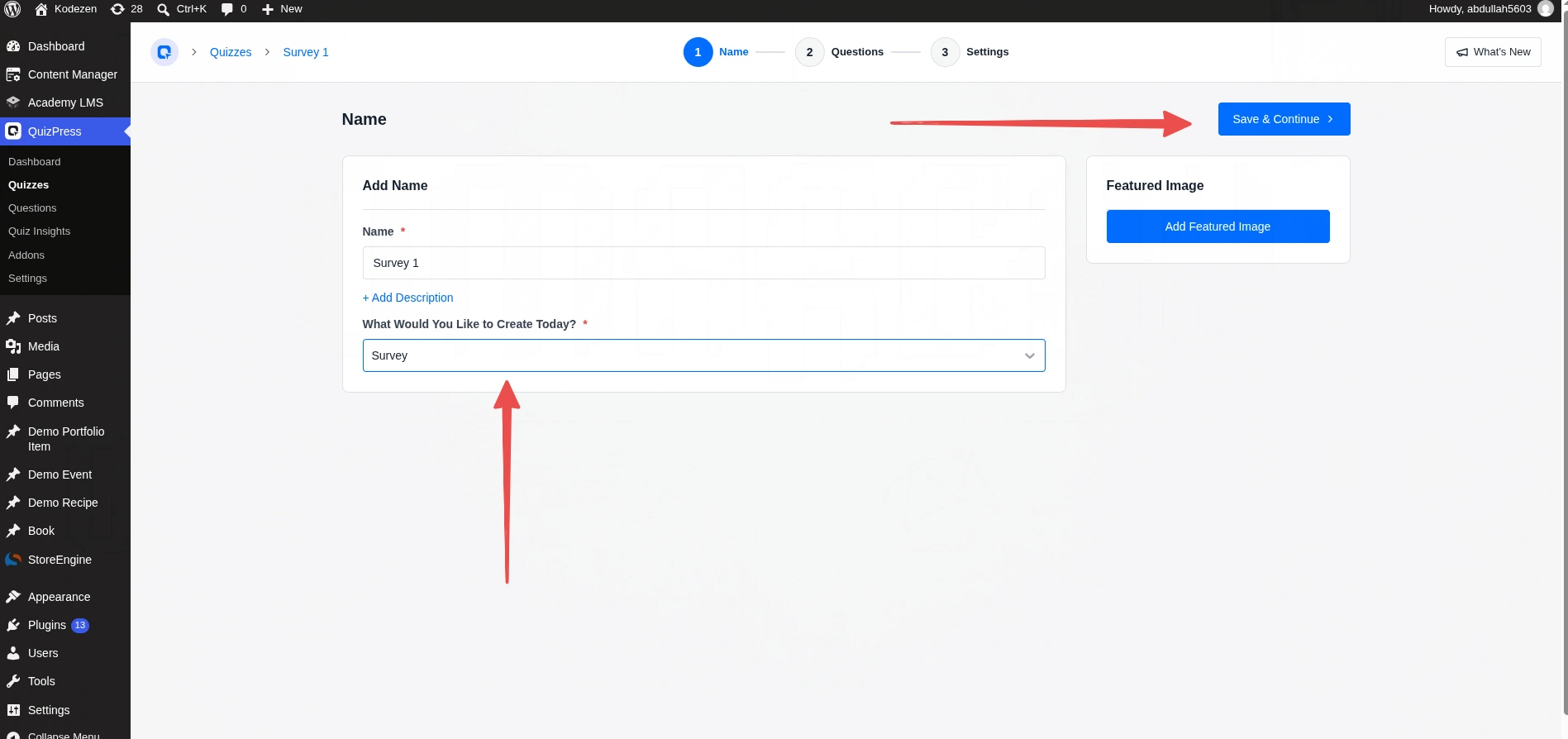
Inside the plugin, click Add New. The first screen asks “What Would You Like to Create Today?” with four options: Quiz, Survey, Poll, and Exams.
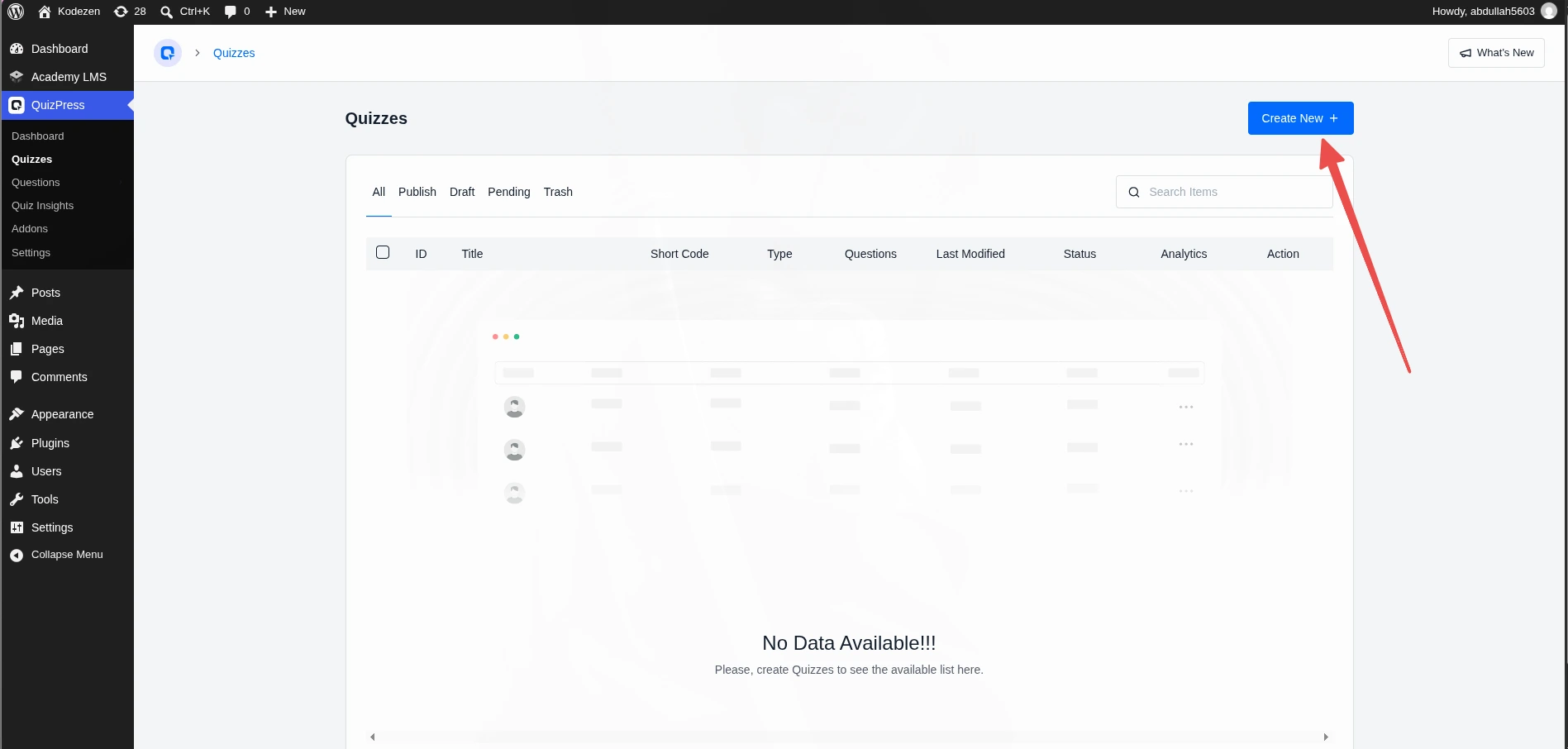
Pick Survey. This single choice is what tells the builder to drop the scoring UI later and treat every answer as an opinion instead of something to grade.
It’s worth being precise about the difference between the four, since people often reach for the wrong one:
A Quiz grades answers and shows a score or pass/fail result. An Exam is the same idea with stricter settings layered on — usually a hard time limit and a single attempt. A Poll is a survey’s leaner sibling: it’s built for one quick opinion question and restricts you to five choice-based question types (Single Choice, Multiple Choice, and their horizontal layouts, plus True/False) since a poll isn’t meant to carry a multi-question form. A Survey is the open format: no scoring, no restriction on question types, and no assumption that you’re only asking one thing.
If a poll is genuinely what you need instead — one quick opinion question rather than a full feedback form — building a poll in WordPress with QuizPress is a leaner version of this same walkthrough, worth using as a launchpad once the concept here feels familiar.
Give the survey a name and, optionally, a description. The name becomes the slug automatically, so make it something a respondent will actually recognize on the page.
Step 3: Add Your Survey Questions
This is where survey mode is genuinely more flexible than most people expect.
A Poll in QuizPress is capped at five question types because it’s meant to stay a single, fast opinion prompt. A Survey has no such cap. Every question type in the builder is available, which means a single survey can freely mix:
Free, no license required: Single Choice, Multiple Choice (each with a horizontal layout option for shorter option lists), True/False, Short Answer, Paragraph (for open-ended feedback), Number, and Date.
Pro: Drop Down, Fill In The Blanks, File Upload, Range (a slider — this is the closest thing QuizPress has to a rating-scale question, and it’s a natural fit for satisfaction or NPS-style questions), plus the fully interactive set: Ordering, Puzzle, Matching, Pin, and Image Marking.
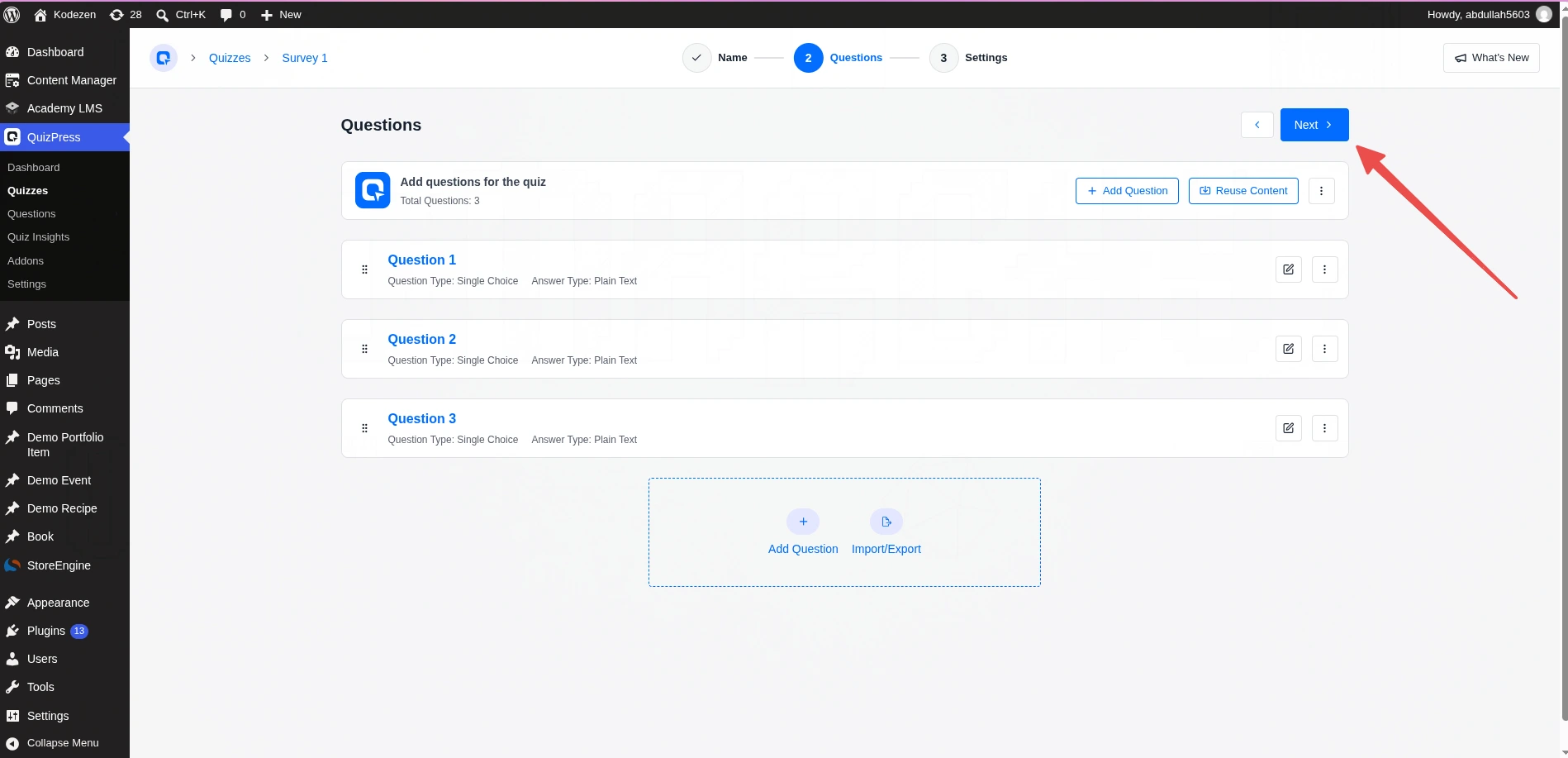
For each question, you’ll fill in the Question/Title field, add whatever answer options the type calls for, and adjust that question’s own settings — things like whether it’s required, or how many characters a text answer allows.
Since there’s no correct answer to mark, you won’t see a “Set Answer” toggle the way you would in a graded quiz. The question settings that do carry over — required, randomized options, character limits on open text — all still apply.
Step 4: Configure Your Survey Settings
Click through to the settings screen and you’ll notice the panel is shorter than a quiz’s. Anything related to scoring — pass marks, retry mode, correct-answer explanations — simply doesn’t apply to a survey and doesn’t show up.
Here’s what does, and what each one actually does for a survey specifically:
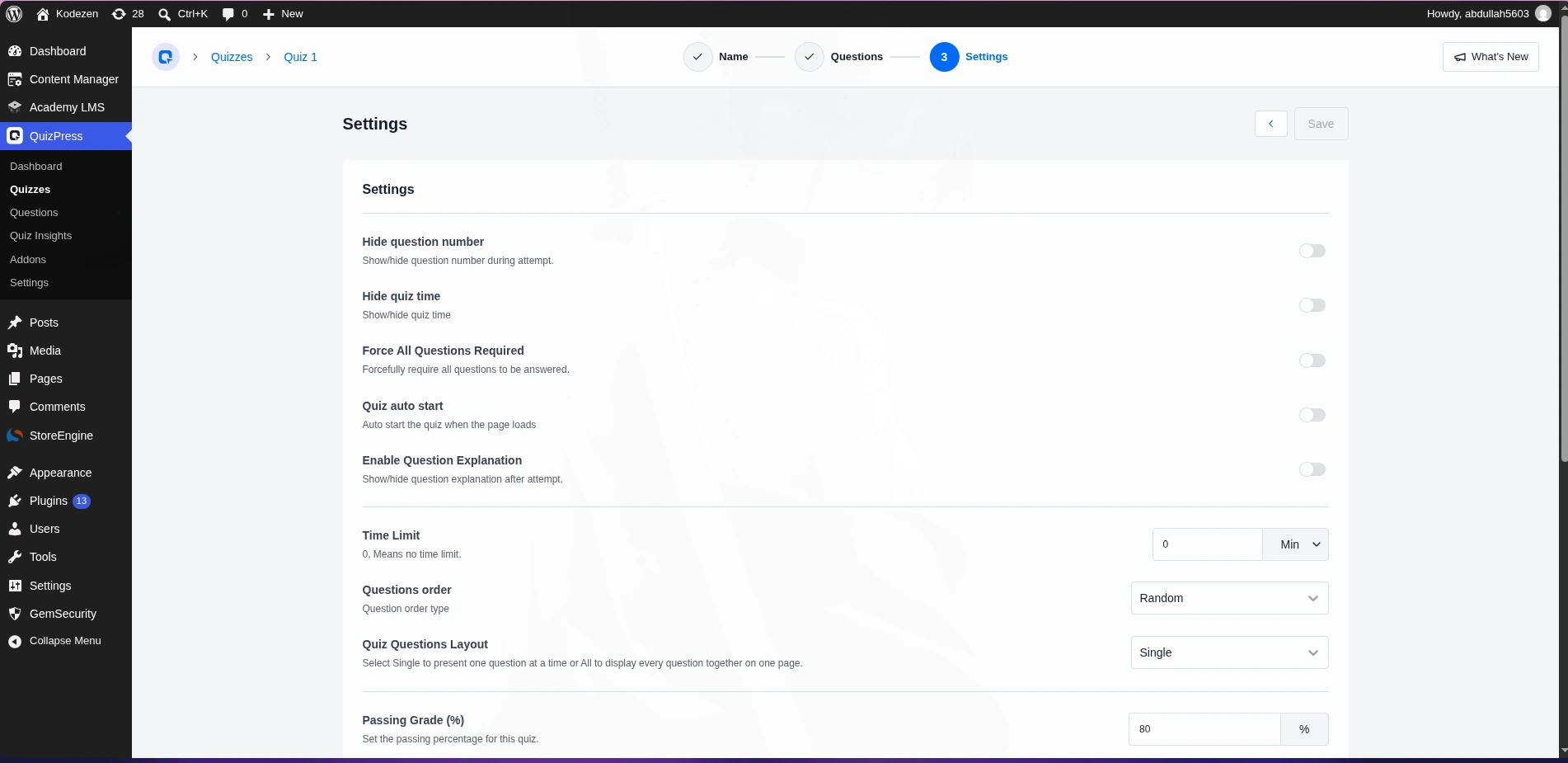
Force All Questions Required — turns every question mandatory in one toggle, instead of setting it question by question. Useful if partial responses would skew the data you’re trying to collect.
Quiz Auto Start — the survey begins the moment the page loads, skipping a “Start” screen. Good for embedded, single-purpose feedback pages; less good if you want a respondent to read context first.
Time Limit — set to 0 by default, meaning no limit. A survey rarely needs one, but if it’s tied to a live event or a specific feedback window, this is where a countdown goes. (If a timer is the main thing you’re after, setting up a countdown timer on a WordPress exam covers every timer-specific setting in more depth than a survey typically needs.)
Questions Order — Random, Ascending, or Descending. Randomizing helps if you’re worried about order bias skewing which answers get picked first.
Questions Layout — Single (one question per screen, better completion rates on longer surveys) or All (every question on one page, faster for short ones).
Enable anonymous quiz attempt — this is the setting that decides whether someone needs to be logged in to respond. It lives under the plugin’s general Settings, not the individual survey’s settings screen, and it applies site-wide. Turn it on before publishing a public-facing feedback form, or every anonymous visitor will get blocked at the start screen.
Step 5: Publish and Embed Your Survey
Click Save, then Publish, in the top-right corner.
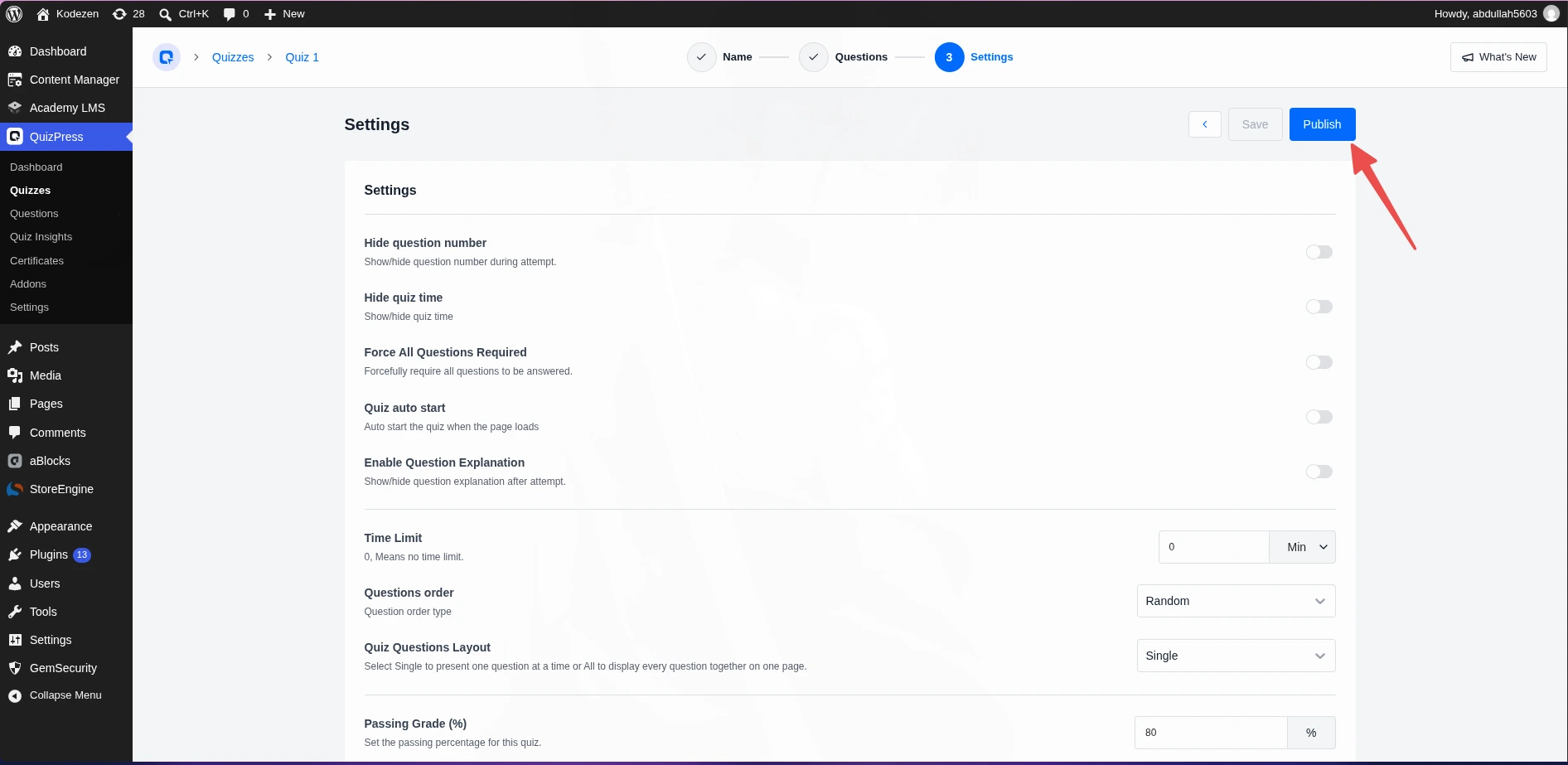
QuizPress generates a shortcode for the survey — something like [quizpress_quiz quiz_id="15"]. Copy it, open the WordPress post or page where the survey should appear, insert a Shortcode block, and paste it in. Publish that page and the survey is live.
This is the same shortcode-based embed method the plugin uses for every content type — quiz, exam, poll, or survey — so if anything about the block insertion step is unclear, the shortcode and embedding documentation walks through the block editor steps with more detail. The core quiz-creation reference also covers the first few builder screens if you want a second pass at Steps 2 and 3 above.
Step 6: Test Your Survey Before Sharing It
Open the page in an incognito window (or log out first, if anonymous responses are enabled) and go through it exactly as a real respondent would.
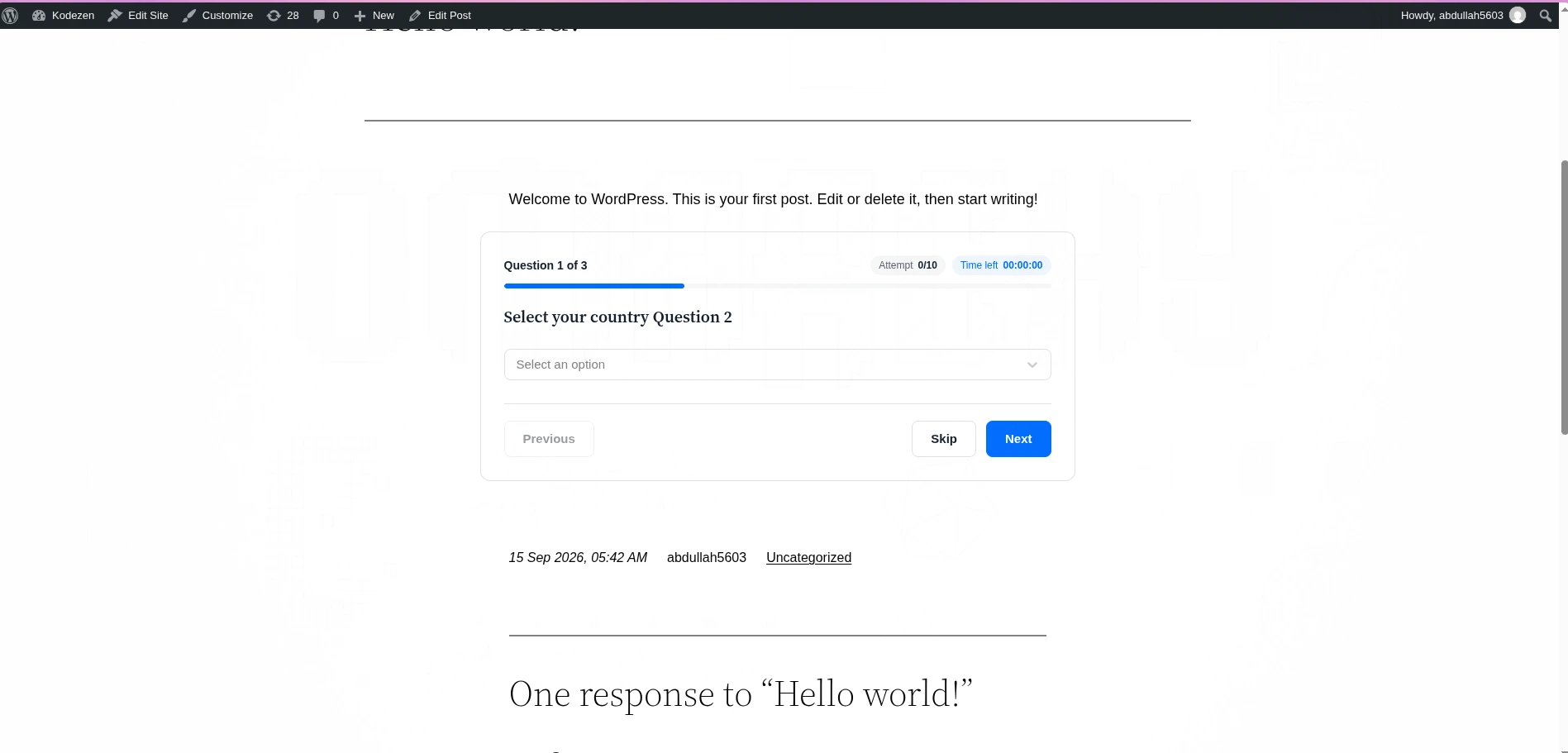
Check three things specifically: that required questions actually block submission when left blank, that the layout you picked in Step 4 renders the way you expected on mobile, and that a completed response shows up correctly once you check the results screen — which is the next section.
Reading Your Results: The Survey & Poll Analytics View
Once responses start coming in, open the survey and click into its Leaderboard tab. For a quiz, that tab ranks attempts by score. For a survey, there’s nothing to rank — so the tab automatically swaps into a response-analytics view instead.
You’ll see a list of every individual attempt at the top, and underneath it, three summary numbers: Total Questions, Total Responses, and Average Responses per Question. Below that, each question gets its own chart, breaking down every answer option by count and percentage.
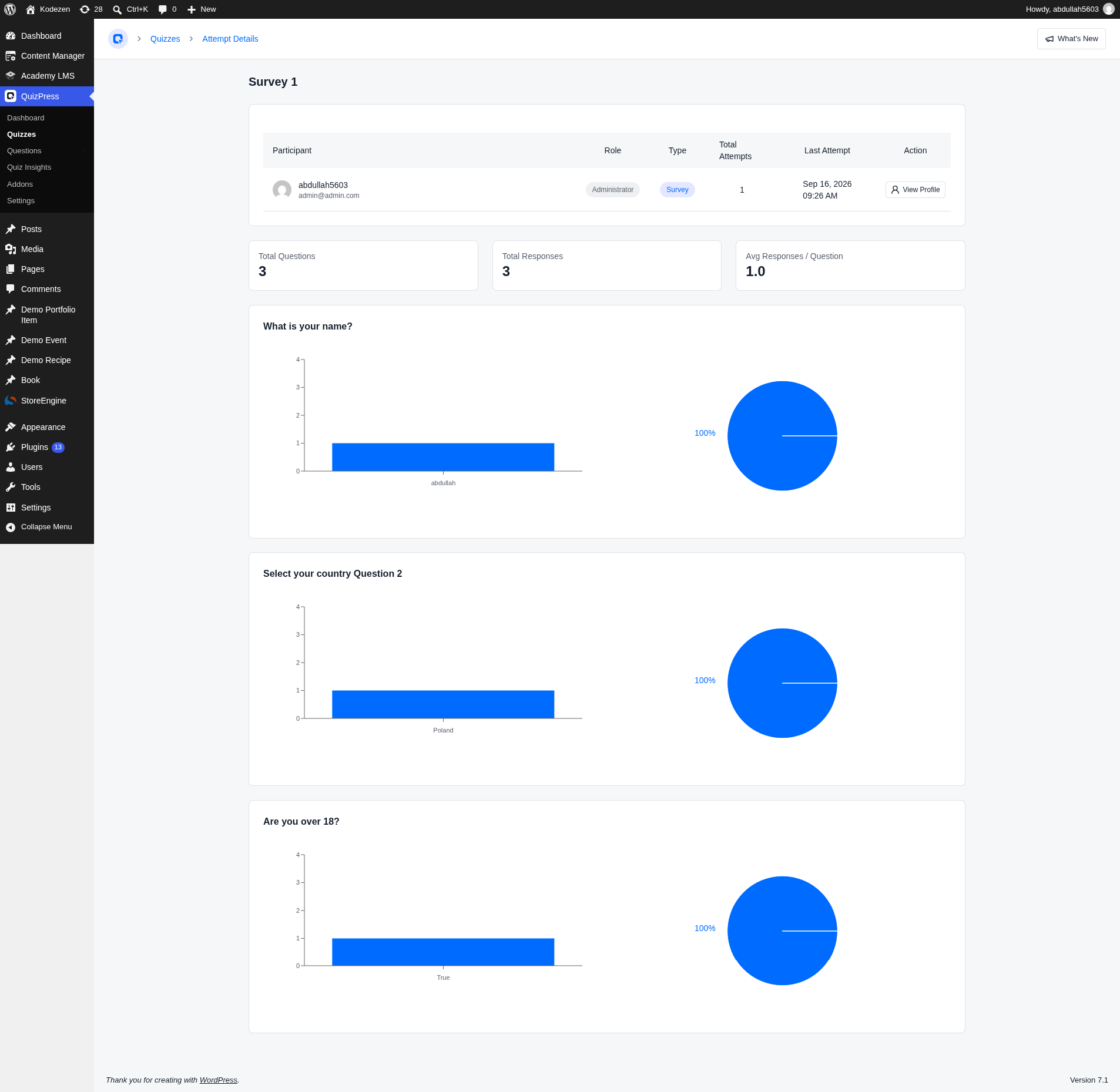
That per-question percentage breakdown is the part that actually matters for reading a survey. If 60% of respondents picked one option on a satisfaction question, that number is sitting on the results screen the moment the survey is opened — no separate export or spreadsheet needed to see it.
Survey Ideas by Use Case
A few concrete starting points, since a blank question list is the hardest part of any survey:
Post-purchase feedback. Three to five questions right after checkout — satisfaction, what almost stopped them from buying, and an open text field for anything else. Keep it under a minute to complete.
Event or webinar feedback. Sent within a day of the event, while it’s fresh. A Range slider for overall rating, a couple of multiple-choice questions on specific sessions, and one open-ended “what should change next time” field.
Website or UX feedback. Embedded on a high-traffic page rather than emailed out. Short, anonymous, and framed around one specific page or flow rather than the whole site.
Course or training feedback. If quizzes are already being used for testing knowledge, a survey right after the last module captures the qualitative side scores can’t — clarity of instruction, pacing, and what to add next time.
Internal or employee feedback. Anonymous responses matter most here. Turning on the site-wide anonymous setting from Step 4 is what makes honest internal feedback realistic instead of theoretical.
Market research and lead qualification. A short survey gated behind an opt-in, using Short Answer and Number fields to capture budget range or team size before a sales conversation starts.
Exit or churn feedback. Triggered right before a cancellation completes, when the reason for leaving is freshest and least filtered. A mix of Single Choice (“what’s the main reason you’re leaving”) and Paragraph for anything the choices didn’t cover.
Product or beta feedback. For anyone testing a new feature before general release. This is one of the few cases where a File Upload question earns its place — letting a tester attach a screenshot of a bug alongside the written description makes the report far more useful than text alone.
Moving an Existing Survey Into QuizPress
If a survey already exists somewhere else — a Google Form, a different WordPress plugin, or a spreadsheet of questions used for past feedback rounds — there’s no automatic importer that pulls it straight in question-for-question. The fastest path is manual: keep the old question list open in one tab, and rebuild it question by question in Step 3 above, mapping each old question to the closest matching type.
Most survey questions map cleanly. A 1-5 or 1-10 rating question becomes a Range slider (Pro) or a Number field (free). A “select all that apply” question becomes Multiple Choice. Open comments become Paragraph. The one type that doesn’t have a clean equivalent yet is a rating-scale grid — the same gap flagged in Step 3 — so a survey built heavily around grid questions will need to be restructured slightly, usually into one Range question per row of the old grid.
Once the questions are rebuilt, it’s worth keeping the old tool active in read-only mode for a few weeks rather than deleting it immediately, just so historical response data isn’t lost mid-migration.
Maintaining Your Survey After It’s Live
A survey isn’t a one-time setup. Two things are worth checking back on periodically.
First, watch the response-analytics view for a pattern where one question is getting skipped far more than the others — that’s usually a sign the question is confusingly worded or feels invasive, and it’s worth rewording before the sample size gets too large to compare before-and-after.
Second, if a survey runs for months rather than weeks, revisit whether every question is still worth asking. It’s tempting to keep adding questions over time as new things become interesting to know, but every addition re-introduces the length-versus-completion trade-off covered above. A survey that’s grown to twice its original length rarely grew its response rate to match.
Common Mistakes to Avoid
Using a Poll when a Survey is what’s actually needed. A poll’s five-type restriction exists because it’s meant for one fast opinion question — trying to force a multi-question feedback form into a poll just means fighting the type restriction the whole way through.
Making every question required by default. A blanket “Force All Questions Required” toggle is convenient, but a survey with fifteen mandatory fields loses people at question four. Reserve it for the two or three answers that genuinely can’t be skipped.
Forgetting to enable anonymous responses before publishing a public-facing survey. If that toggle is off, every visitor without an account gets stopped at the start screen — a fast way to end up with a survey that technically works and collects zero responses.
Skipping the test pass in Step 6. A required question that isn’t actually enforced, or a layout that breaks on mobile, is much easier to catch before the link goes out than after.
Writing questions that lead the answer. “How much did you love this feature?” isn’t a neutral question, and it quietly poisons the data before a single response comes in. It’s a copywriting habit more than a plugin setting, but it’s the single most common reason a survey’s results don’t match reality.
Troubleshooting: Common Issues When Creating a Survey in WordPress
The survey shows a “Start” screen but visitors can’t get past it. This is almost always the anonymous-response setting from Step 4 — check Settings → General for “Enable anonymous quiz attempt” if the audience includes anyone without a WordPress account.
A question type I selected isn’t behaving like I expected. Confirm you actually picked Survey and not Poll in Step 2 — Poll’s five-type restriction silently limits which question types even appear as options.
The shortcode shows as plain text instead of rendering the survey. This means it was pasted into a regular paragraph block rather than a Shortcode block — go back to Step 5 and confirm the block type before re-publishing.
Results aren’t showing any charts yet. The analytics view only populates once there’s at least one completed attempt — a blank state here usually just means no one has finished the survey yet, not that something is broken.
A question type I need is greyed out or missing entirely. Pro-only types (Drop Down, Fill In The Blanks, File Upload, Range, and the interactive set) show as disabled without an active license, and “coming soon” types like Radio Grid and Checkbox Grid aren’t selectable for anyone yet, regardless of license — that one isn’t a bug, it just hasn’t shipped.
How This Guide Was Verified
Every setting, question type, and screen label in this guide came from actually building a survey inside QuizPress’s builder — not from marketing copy. Where the plugin’s own readme file listed something that didn’t match what the builder actually does (older documentation still described the Drop Down question type as free, for example), the builder’s own behavior was treated as the source of truth, not the file that hadn’t been updated yet.
Final Thoughts
Building a survey inside WordPress instead of bolting on a hosted tool comes down to one thing: you keep the visitor, the data, and the results screen all in the same place you already manage everything else.
QuizPress gets you there without restricting which question types a survey can use, and without hiding the results behind a separate dashboard or export step. The full feature list and pricing are worth a look before deciding which tier fits — and if the rating-grid gap mentioned in Step 3 is a dealbreaker for a specific project, that’s the one honest limitation worth weighing against everything else here.
If the survey format is just one piece of a bigger plugin decision — one that also needs to cover quizzes, exams, and grading — the complete guide to picking a WordPress quiz plugin sets QuizPress against the wider market rather than just this one format.
Frequently Asked Questions
Is there a free way to create a survey in WordPress?
Yes. Survey is one of the four content formats included in QuizPress’s free version, along with 9 free question types — no Pro license is required to publish a working survey.
What’s the difference between a survey and a poll in QuizPress?
A poll is restricted to five choice-based question types and is meant for a single fast opinion question. A survey has no question-type restriction and is built for multi-question feedback forms.
Do I need coding or a page builder plugin to add a survey to a page?
No. Surveys are added with a shortcode pasted into a native Gutenberg Shortcode block — no custom code and no third-party page builder required.
Can people respond to a survey without creating an account?
Yes, once the “Enable anonymous quiz attempt” setting is turned on in Settings → General. Without it, only logged-in users can respond.
How do I see survey results after people respond?
Open the survey’s Leaderboard tab. Because a survey has no score to rank, this tab automatically shows a response-analytics view instead — an attempt list plus a per-question chart with percentage breakdowns.
Does QuizPress support rating-scale or Likert-grid questions?
Not yet as a dedicated grid question type — Radio Grid and Checkbox Grid are both marked “coming soon” in the builder. The closest available substitute today is the Range slider, used as one rating question per statement.
Can I limit how long someone has to complete a survey?
Yes, through the Time Limit setting, though it defaults to no limit and most surveys don’t need one. It’s more commonly used for exams than surveys.
Is QuizPress a good fit if I already use a form plugin for contact forms?
It depends on the job. A general form plugin can technically collect survey-style answers, but it wasn’t built around scoring logic, question banks, or results dashboards the way a purpose-built quiz-and-survey plugin is — worth weighing against whatever form plugin is already installed before adding a second tool.
Can I reuse the same questions across multiple surveys?
Yes, through the global question bank, which stores questions centrally so they can be pulled into more than one survey instead of retyping them each time.
Will a WordPress survey work on mobile without extra setup?
Yes — the survey renders responsively by default, and choosing the “Single” question layout in Step 4 generally performs better on small screens than showing every question on one long page.
Can I export survey responses to a spreadsheet?
Not as a direct CSV download today — response data lives in the attempts list and the per-question analytics charts inside wp-admin rather than an export file. The import/export tool that does exist in the builder is for reusing question sets, not for pulling response data out.