

Meta Description: Learn how to make an online exam in WordPress with a timer using QuizPress. Create timed exams, add questions, configure exam settings, and publish professional online assessments without coding.
Online exams are widely used for education, employee training, certification programs, and online learning. If you’re running a WordPress website, QuizPress makes it easy to create professional online exams without coding.
With QuizPress, you can build quizzes using multiple question types, set a countdown timer, define passing scores, limit attempts, randomize questions, display results, and award certificates for successful participants. These features help you create structured assessments directly from your WordPress dashboard.
In this step-by-step guide, you’ll learn how to make an online exam in WordPress with a timer using QuizPress.
Why Create a Timed Online Exam?
Adding a timer to your online exam creates a more structured and consistent assessment experience for both instructors and learners.
Some of the key benefits include:
- Creates a realistic examination environment.
- Encourages participants to manage their time effectively.
- Helps reduce opportunities for cheating by limiting the time available for each attempt.
- Ensures fairness by giving every participant the same amount of time to complete the exam.
- Supports more consistent assessments for certifications and training programs.
- Helps participants stay focused throughout the exam.
Whether you’re assessing students, evaluating employee skills, or delivering certification tests, timed exams can improve the overall assessment experience and provide more consistent results.
Why Choose QuizPress?
QuizPress is a WordPress quiz plugin that helps you create everything from simple quizzes to timed online exams without coding.
Some of its key features include:
- Countdown timer for timed exams
- Multiple question types
- Pass/fail score settings
- Attempt limits
- Question randomization
- Instant quiz results
- Certificate support
- Quiz score tracking
- Easy-to-use WordPress interface
Since QuizPress works directly inside your WordPress dashboard, you can create, manage, and publish online exams without relying on a separate quiz platform.
Before You Start
Before creating your online exam, make sure you have:
- A WordPress website
- QuizPress installed and activated
- Your exam questions prepared
- User accounts configured (optional), if you want participants to log in before taking the exam
Once everything is ready, you can start building your first timed online exam with QuizPress.
Step-by-Step How to Make a Timed Online Exam in WordPress
Step 1: Create a New Quiz
Log in to your WordPress dashboard, then head to:
QuizPress → Quizzes
On the Quizzes page, click the Create New button in the top-right corner.
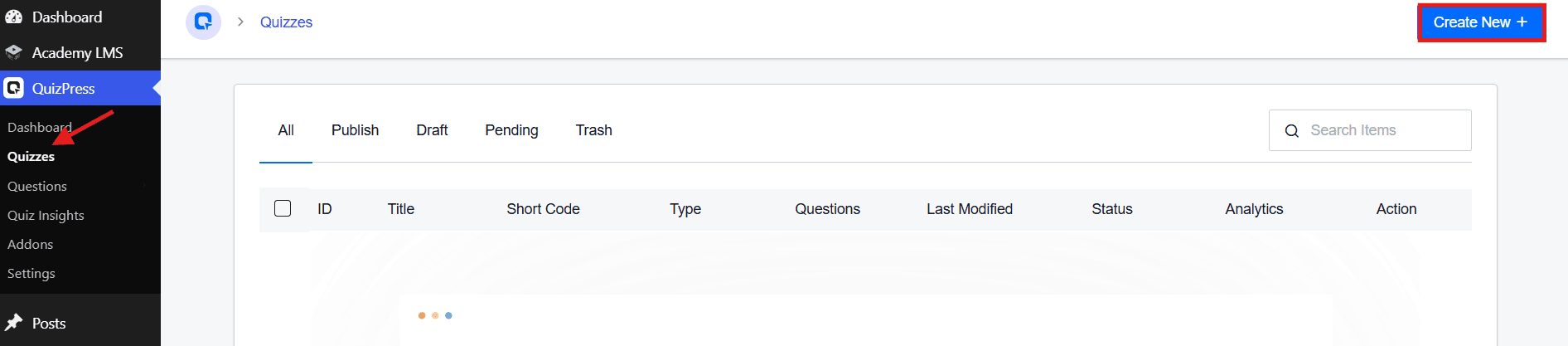
This launches the quiz builder, which walks you through three steps: Name → Questions → Settings. You’ll land on the Name step first, where you’ll fill in:
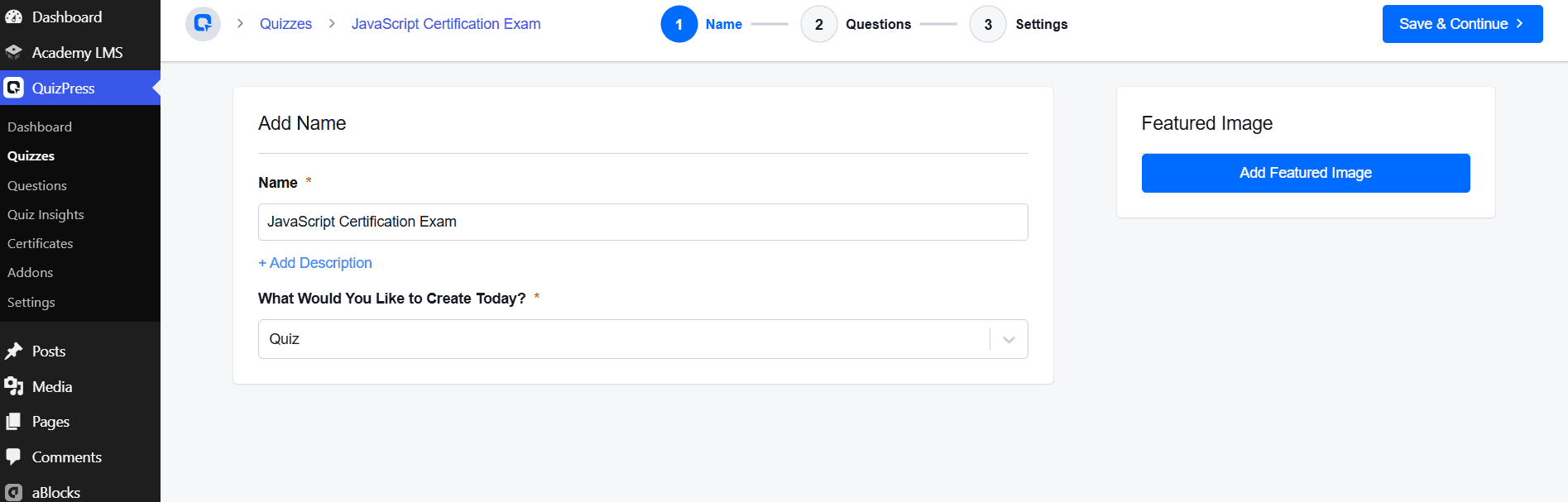
Once you’ve filled in the name and selected “Quiz” as the content type, click Save & Continue in the top-right corner to move on to the Questions step.
Step 2: Add Exam Questions
Questions live in a central bank: QuizPress → Questions → All Questions, where you’ll see every question’s ID, title, type, and status. Click Create New to add one.
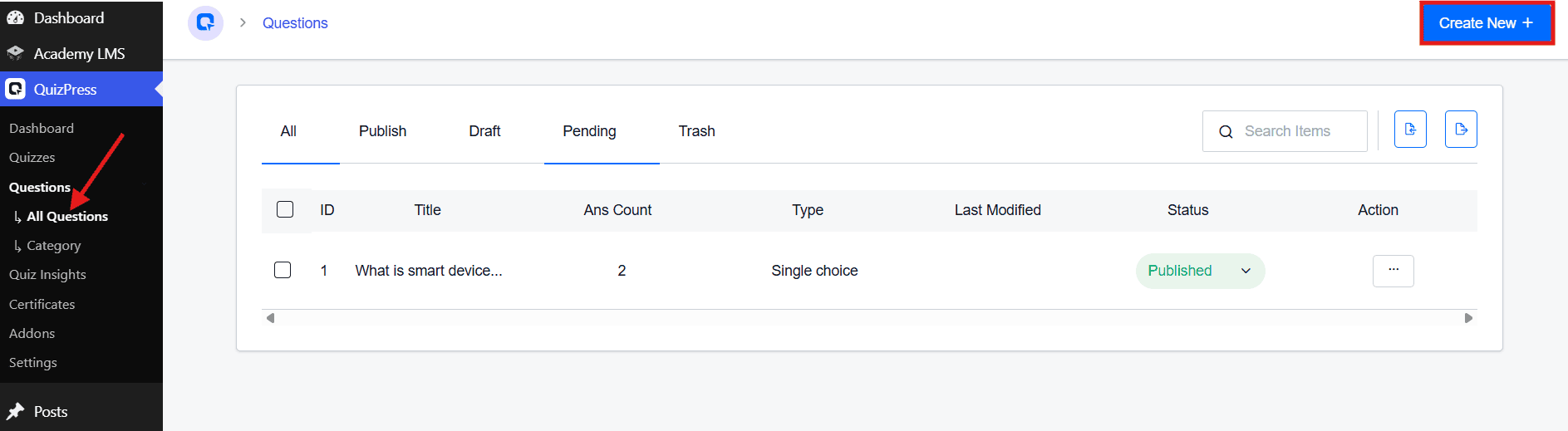
Fill in:
- Question Title, plus optional + Add Description and + Add Explanation
- Answers — add options with + Add Answer and toggle Correct on the right one(s)
- Question Type — Single Choice, Multiple Choice, Single/Multiple Choice (Horizontal), Drop Down, True/False, or Opt-in (coming soon)
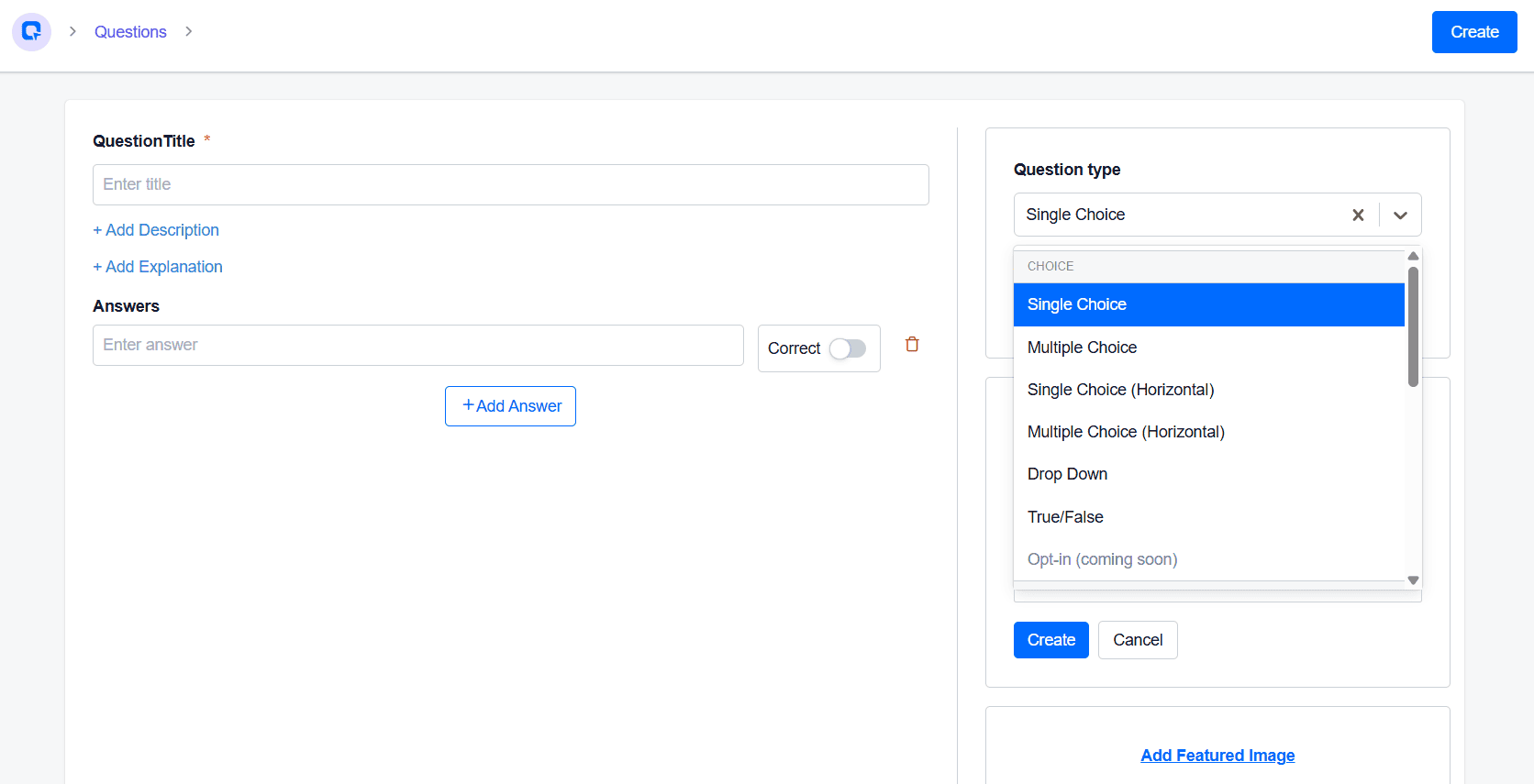
Under Question Settings, configure:
- Answer Required, Random Answer, Display Points, Enable Math Input (toggles)
- Question Point — assign points by difficulty (e.g., Easy: 1, Medium: 2, Hard: 5)
- Negative Marking — deduct points for wrong answers, if desired
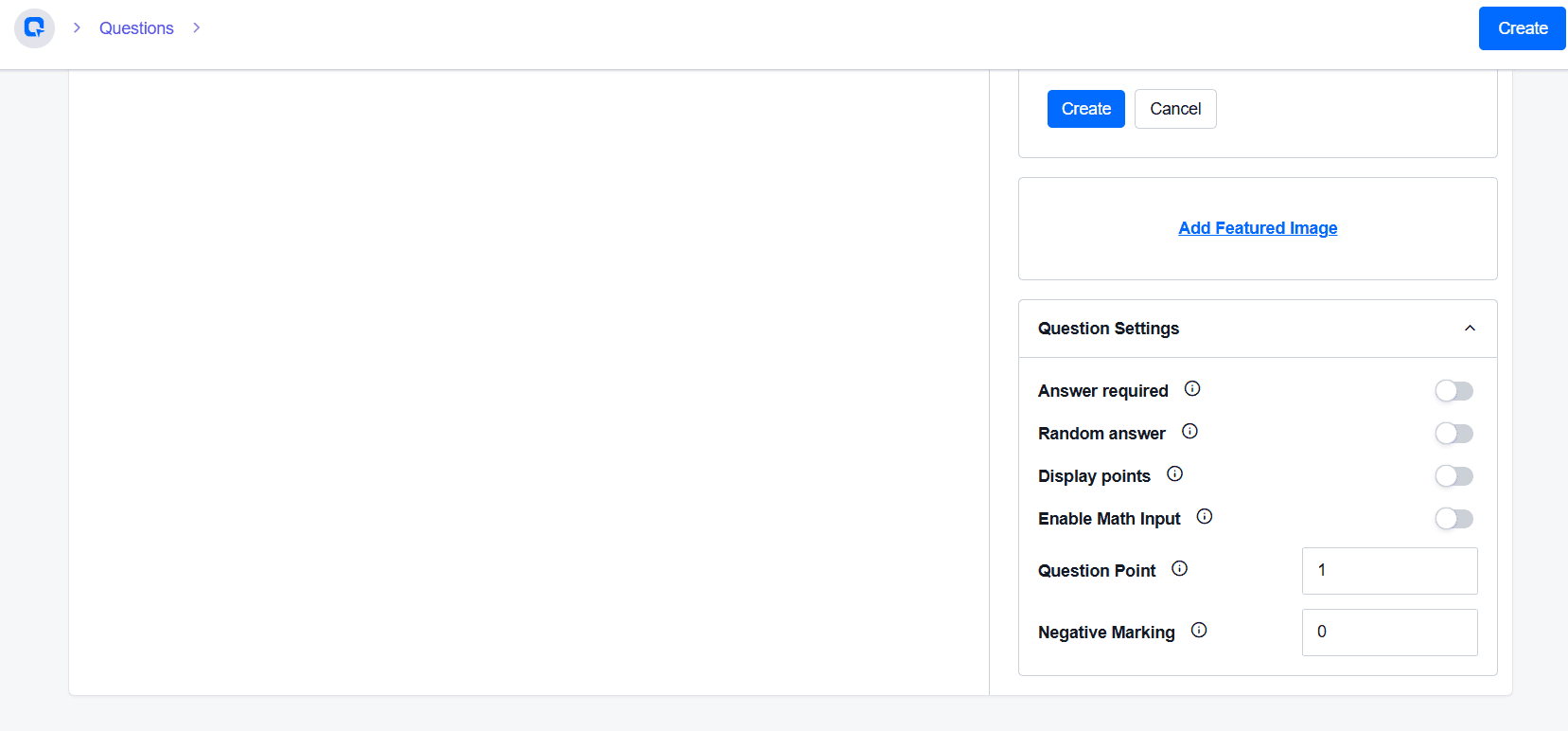
Click Create to save. Repeat for each question, and double-check for typos or mismarked answers before moving on.
Step 3: Set the Exam Timer
This is where the exam becomes timed.
In the quiz builder’s Settings step, you’ll find a set of toggles: Hide Question Number, Hide Quiz Time, Force All Questions Required, Quiz Auto Start, and Enable Question Explanation — use these to control what participants see and how the quiz behaves.
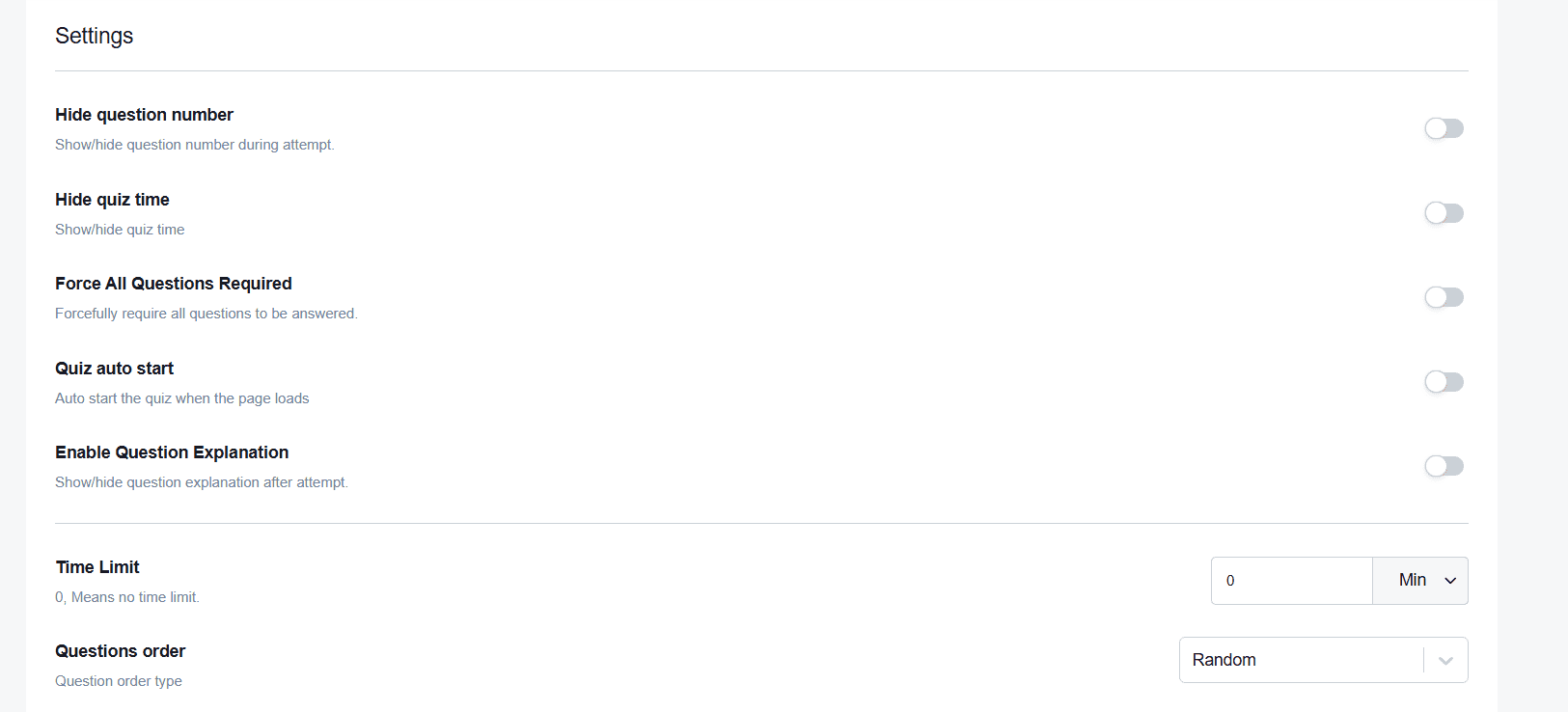
Below these, find Time Limit. It defaults to 0 (no time limit) — enter a number and pick a unit (e.g., Min) to set your duration:
- 10–15 minutes for a short practice quiz
- 30–45 minutes for a standard assessment
- 60–90 minutes for a certification or final exam
Once the exam starts, participants see a live countdown, and QuizPress can auto-submit their answers when time runs out. Right next to Time Limit is Questions Order (Random, Ascending, or Descending) — worth setting now, since it ties into the randomization covered in Step 4.
Step 4: Set the Passing Grade, Feedback Mode, and Extra Settings
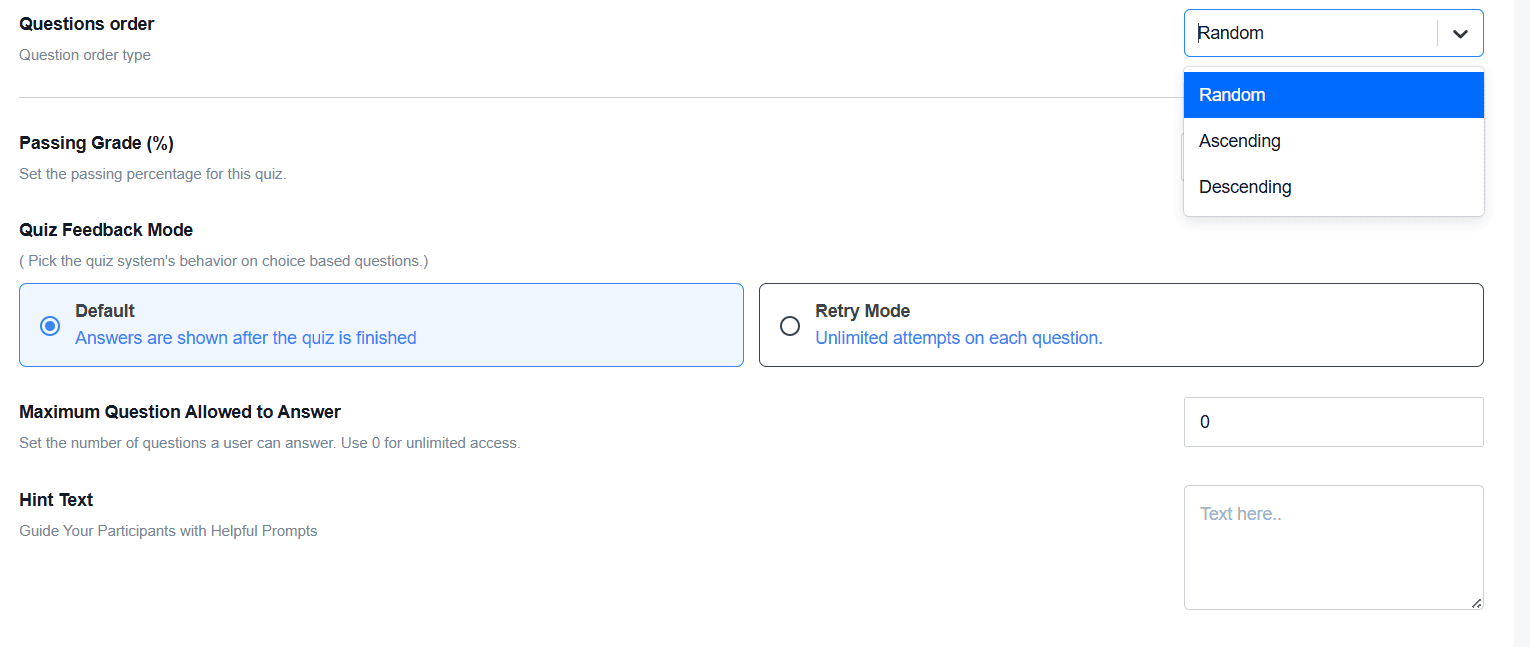
Continuing down the Settings step, set Passing Grade (%) — the minimum percentage needed to pass (e.g., 60% for practice, 70% for course completion, 80–90% for certifications).
Below it, Quiz Feedback Mode controls choice-based question behavior: Default (answers shown after the quiz finishes) or Retry Mode (unlimited attempts per question).
Maximum Questions Allowed to Answer sets how many questions a participant can answer — 0 means unlimited access, or cap it for a more controlled exam.
You’ll also find Hint Text (optional prompts to guide participants) and Questions Order (Random, Ascending, or Descending — Random shuffles the sequence per attempt to reduce answer-sharing).
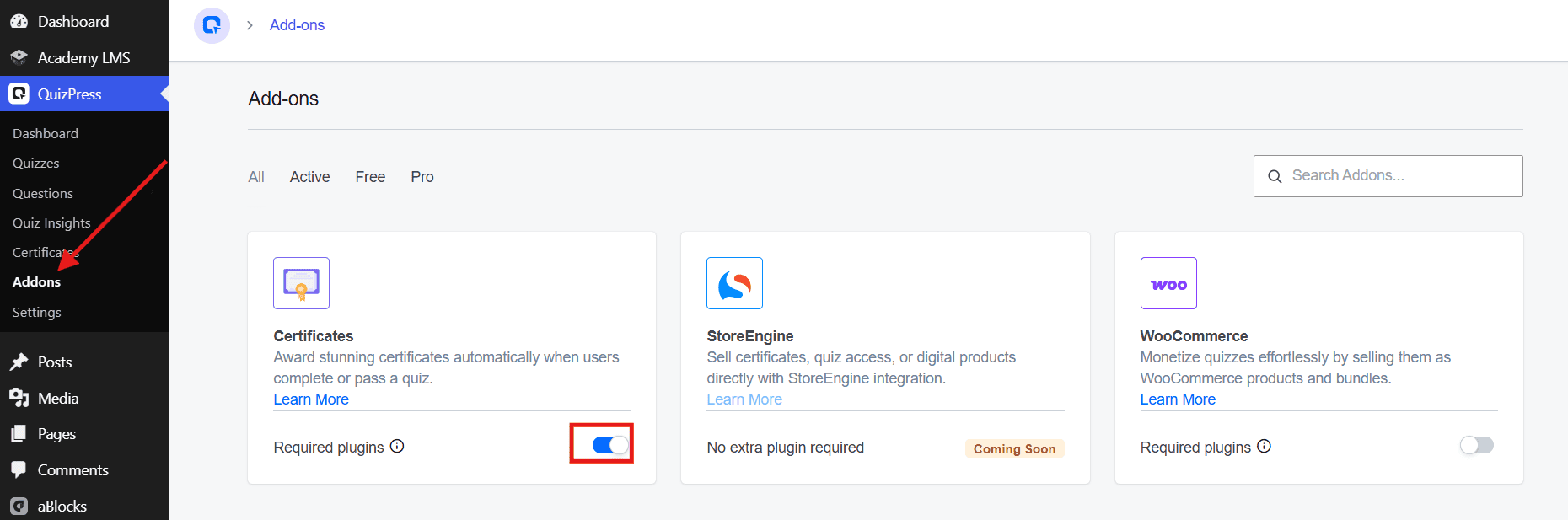
Certificates work a little differently — they’re a separate add-on rather than a Settings toggle. Head to QuizPress → Addons, find the Certificates card, and switch it on. Once enabled, QuizPress can automatically award a certificate to anyone who clears the passing grade — a nice touch for online courses, employee training, certifications, and workshops.
Step 5: Publish and Test Your Online Exam
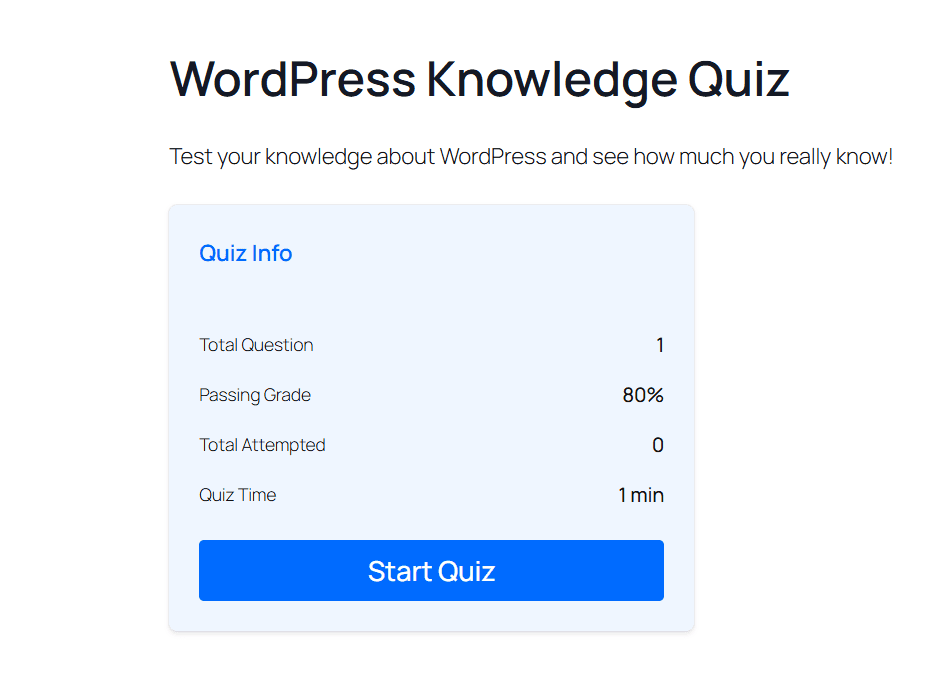
Before sending it out to real participants, test it yourself. Click Publish, then take the exam from the front end.
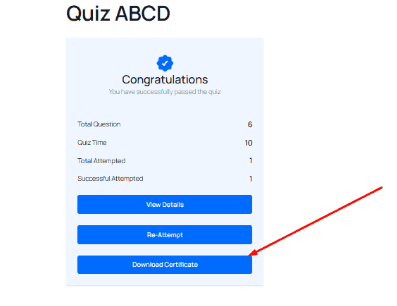
On finishing, QuizPress shows a results screen with a pass/fail message and a quick summary (Total Question, Quiz Time, Total Attempted, Successful Attempted), along with View Details and Re-Attempt buttons — and if the Certificates add-on is enabled, a Download Certificate button too.
While testing, check that the timer starts on cue, questions and answers load correctly, the passing score calculates accurately, the exam auto-submits on time-out, the results screen shows the right status, and certificates generate (if enabled). This matters most for certification exams or employee evaluations, where a broken setting could affect real outcomes.
Once everything checks out, your timed exam is ready to share.
Best Practices for Creating Timed Online Exams
A timer alone doesn’t guarantee a great assessment experience. Following these best practices can help you create online exams that are more effective, fair, and user-friendly.
Choose a Realistic Time Limit
Set a time limit that matches the number and difficulty of your questions. A realistic timer gives participants enough time to complete the exam while maintaining a structured assessment experience.
Write Clear Instructions
Before participants begin, clearly explain:
- The total exam duration
- The passing score
- The number of attempts allowed
- Whether correct answers will be shown after submission
- Any rules participants should follow during the exam
Providing clear instructions helps reduce confusion and creates a smoother exam experience.
Test the Exam Before Publishing
Before sharing your exam, complete a test attempt yourself and verify that:
- The timer starts correctly.
- All questions display properly.
- The scoring and pass/fail settings work correctly.
- Results display correctly after submission.
Testing your exam helps identify issues before participants take the assessment.
Use Question Randomization
If appropriate, enable question and answer randomization to provide a different question order or answer choice order for each attempt. This can create a more varied assessment experience for participants.
Keep Questions Relevant
Write questions that align with your learning objectives and accurately measure participants’ knowledge. Well-designed questions lead to more meaningful assessment results.
Common Mistakes to Avoid
When creating a timed online exam with QuizPress, avoid these common mistakes:
- Setting a time limit that doesn’t match the number or difficulty of the questions.
- Publishing the exam without testing the timer, scoring, and results.
- Forgetting to configure the pass/fail threshold.
- Allowing too many attempts when creating certification or assessment exams.
- Not enabling question or answer randomization when exam security is important.
- Showing correct answers immediately if you want to reduce answer sharing between attempts.
Before publishing, review your quiz settings carefully to ensure the timer, scoring system, attempt limits, and result options work as intended. A few minutes of testing can help provide a smoother experience for both administrators and participants.
Final Thoughts
Creating a timed online exam in WordPress doesn’t have to be complicated.
With QuizPress, you can create professional online exams using features like countdown timers, 20+ question types, pass/fail thresholds, attempt limits, question randomization, detailed results, and automatic certificate generation—all without writing a single line of code.
Whether you’re an educator, course creator, training manager, or business owner, QuizPress makes it easy to create, manage, and publish online assessments directly from your WordPress dashboard.
Start by creating your first quiz, configure your exam settings, test the quiz thoroughly, and publish it with confidence.
Frequently Asked Questions
Can I create a timed online exam in WordPress without coding?
Yes. QuizPress lets you create timed online exams through an intuitive WordPress interface, so you don’t need any coding knowledge.
Can I limit the number of exam attempts?
Yes. QuizPress allows you to configure attempt limits, giving you control over how many times participants can take an exam.
Does QuizPress support different question types?
Yes. QuizPress supports 20+ question types, allowing you to create engaging quizzes and comprehensive online exams for different assessment needs.
Can participants see their results immediately?
Yes. QuizPress supports instant result feedback, allowing participants to view their quiz results immediately after submitting the exam, depending on your quiz settings.