

Adding a poll to a WordPress site sounds like a five-minute job, right up until you start looking for a way to do it. Install the wrong plugin and you’ve bolted a whole new database table, a whole new settings screen, and a whole new update cycle onto your site — just to ask one question. Pick a form builder instead, and you often find the poll feature locked behind its most expensive plan.
Neither outcome is what you actually wanted. You wanted a quick way to ask your visitors one question and show them what everyone else picked.
I went looking for the version of this that doesn’t involve a fourth plugin on the site. One tool I already had installed for quizzes turned out to handle this better than I expected, without me touching a settings screen built for something else.
QuizPress is the plugin this walkthrough is built around. Poll is one of four content formats built into the free version — alongside Quiz, Survey, and Exam — so you’re not installing anything new if QuizPress is already on your site. Every vote gets turned into a percentage breakdown the moment a visitor submits it, and you build the poll using the same three-step wizard covered in this walkthrough of building a quiz in WordPress.
It isn’t flawless — a poll is capped at one question by design, and letting anonymous visitors vote without logging in needs the paid version. Both of those are covered honestly further down, along with exactly how the free plan handles the rest.
Why Run a Poll on Your Own WordPress Site
A poll is the smallest possible piece of interactive content: one question, a handful of answers, a result. That size is the whole appeal.
It doesn’t ask for an email address. It doesn’t take three minutes to finish. A reader glances at it, taps an answer, and sees where they land compared to everyone else who answered — all without leaving the page they were already reading.
That small amount of friction is exactly why polls tend to get used. Readers who’d never fill out a full survey will happily click one poll option.
There’s decent evidence for this beyond gut feeling. An oft-cited engagement figure from iProspect found that 82 percent of people who were shown a quiz-style prompt in their social feed went on to engage with it — a number that’s been requoted widely enough across marketing research (including in The Tilt’s own roundup of interactive-content data) that it’s worth taking seriously even as a rough benchmark rather than an exact promise for your own traffic.
Running that poll on your own site, instead of embedding someone else’s widget, has a second benefit that’s easy to miss: the response data is yours. It sits in your WordPress database, next to the rest of your content data, instead of living on a third-party dashboard you have to log into separately.
A Dedicated Poll Plugin vs. a Poll Built Into Your Quiz Plugin
There’s more than one way to get a poll onto a WordPress page, and it’s worth being honest about what each option actually costs before picking one.
Free, single-purpose poll plugins like WP-Polls and YOP Poll have been around for years and still work. They’re lightweight, and they’ll ask a single question with almost no setup. What they don’t do is share any infrastructure with the rest of your content tools — a poll built in one of these lives in its own little island, separate from any quiz or survey data you’re already collecting elsewhere on the site.
Form builders take the opposite approach, and often gate the feature behind their top plan. WPForms bundles polls into its Surveys and Polls addon, but that addon only unlocks starting at the Pro tier — currently listed around $199.50 a year at the promotional rate ($399/year at the regular rate), not the entry-level plan. Gravity Forms does something similar: its Polls add-on ships only with the Elite license, priced at roughly $259 a year. Pricing on both changes periodically, so it’s worth checking each vendor’s own pricing page before assuming those numbers still hold by the time you read this.
If you’re already running QuizPress for quizzes, exams, or surveys, a poll is just a fourth format inside a tool you’ve already installed — no new plugin, no new license tier to reach for. For a wider side-by-side of the dedicated tools built specifically for this job, the WordPress plugins built specifically for surveys and polls goes through several of them in more depth.
Laid side by side, the actual tradeoffs look like this:
|
Feature |
Dedicated Poll Plugin (WP-Polls, YOP Poll) |
Form Builder Poll Add-on (WPForms, Gravity Forms) |
QuizPress (Built-In) |
|
Extra plugin needed |
Yes — a new, single-purpose plugin |
Only if you’re not already using that form builder |
No, if QuizPress is already installed |
|
Plan required to unlock polls |
Free |
Top-tier plan only (WPForms Pro from $199.50/yr, Gravity Forms Elite ~$259/yr) |
Free |
|
Shares data with your quizzes/surveys |
No — a separate plugin with its own tables |
Only within that form builder’s own ecosystem |
Yes — same dashboard, same post type |
|
Questions per poll |
Usually one |
Multiple, form-style |
One (by design) |
|
Result view for respondents |
Numbers or percentages, plugin-dependent |
Auto-generated charts and graphs |
Percentage bar per option |
|
Admin-side reporting |
Basic, plugin-dependent |
Interactive reports view (Pro tier only) |
Bar, pie, and radar charts with response totals |
None of these is a bad option on its own — the point is just that the “form builder” path usually means paying for a plan you’d only buy for the poll feature, and the “dedicated plugin” path means one more piece of software with its own updates to track. Building the poll into a tool already doing quizzes and surveys removes both of those costs.
What You Need Before You Start
A few things are worth deciding before you open the builder, since a poll only gives you one shot at the question:
Step-by-Step: How to Create a Poll in WordPress
Step 1: Install and Activate QuizPress
If it isn’t already on your site, install QuizPress from the WordPress plugin directory or download it directly from the QuizPress site, then activate it the way you would any other plugin. No separate poll add-on to find or install — poll is already part of the base plugin. The core quiz-creation reference covers this same first-launch process in more detail if anything on screen looks unfamiliar.
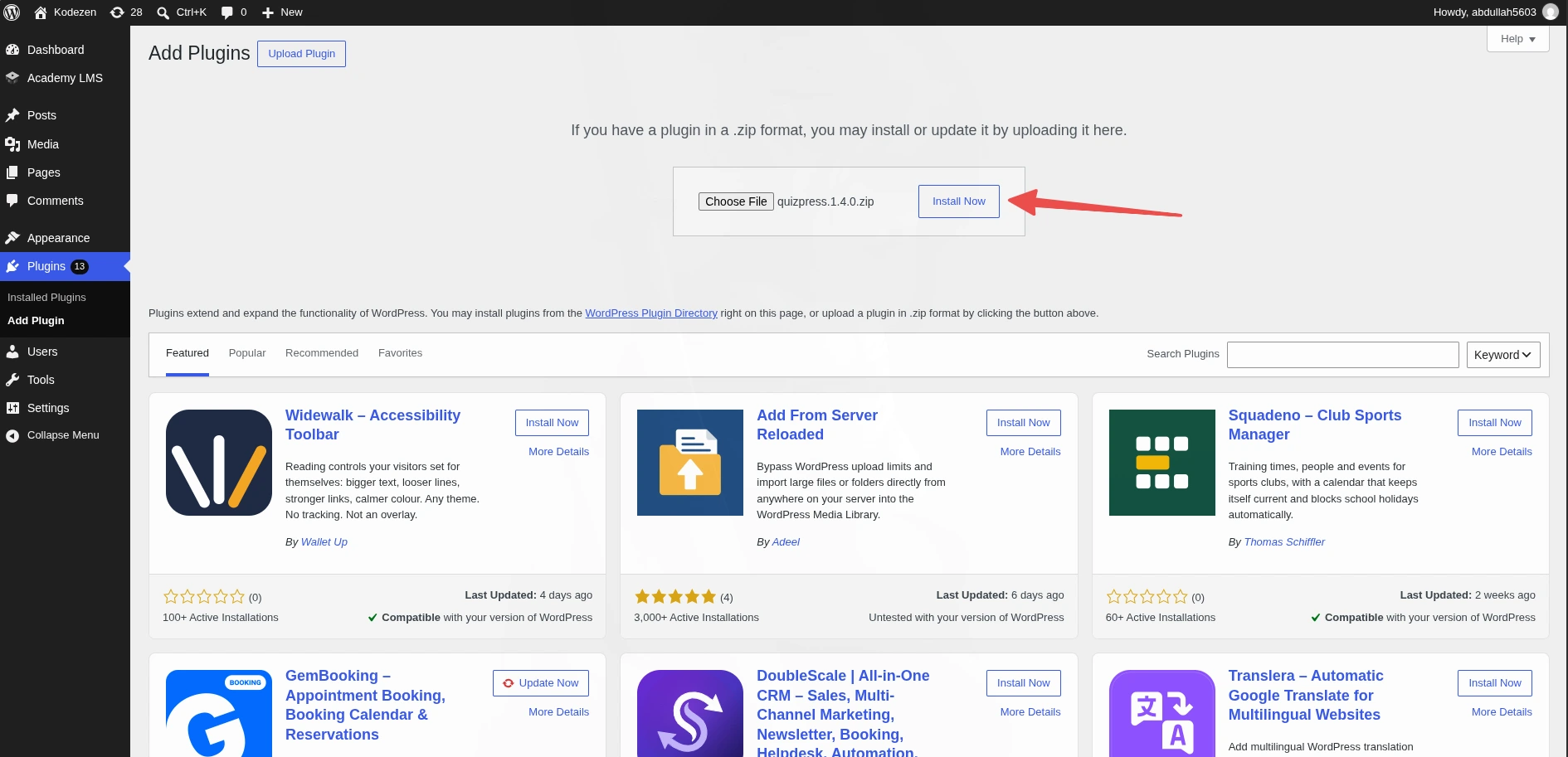
Step 2: Start a New Quiz and Choose Poll as the Format
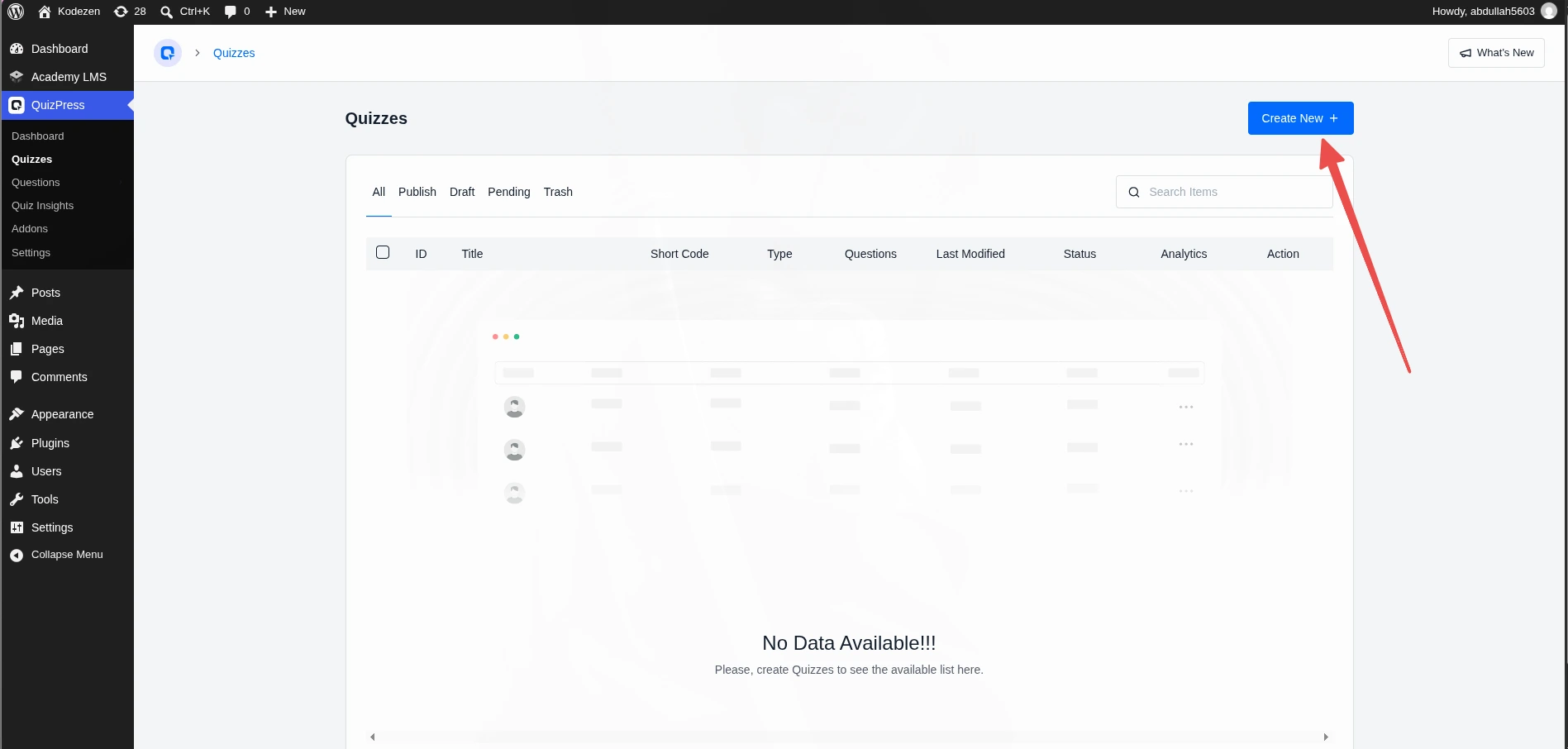
From the QuizPress dashboard, start a new entry the same way you would for a quiz. The first step of the builder asks a simple question — “What Would You Like to Create Today?” — with a dropdown offering Quiz, Survey, Poll, and Exam. Pick Poll.
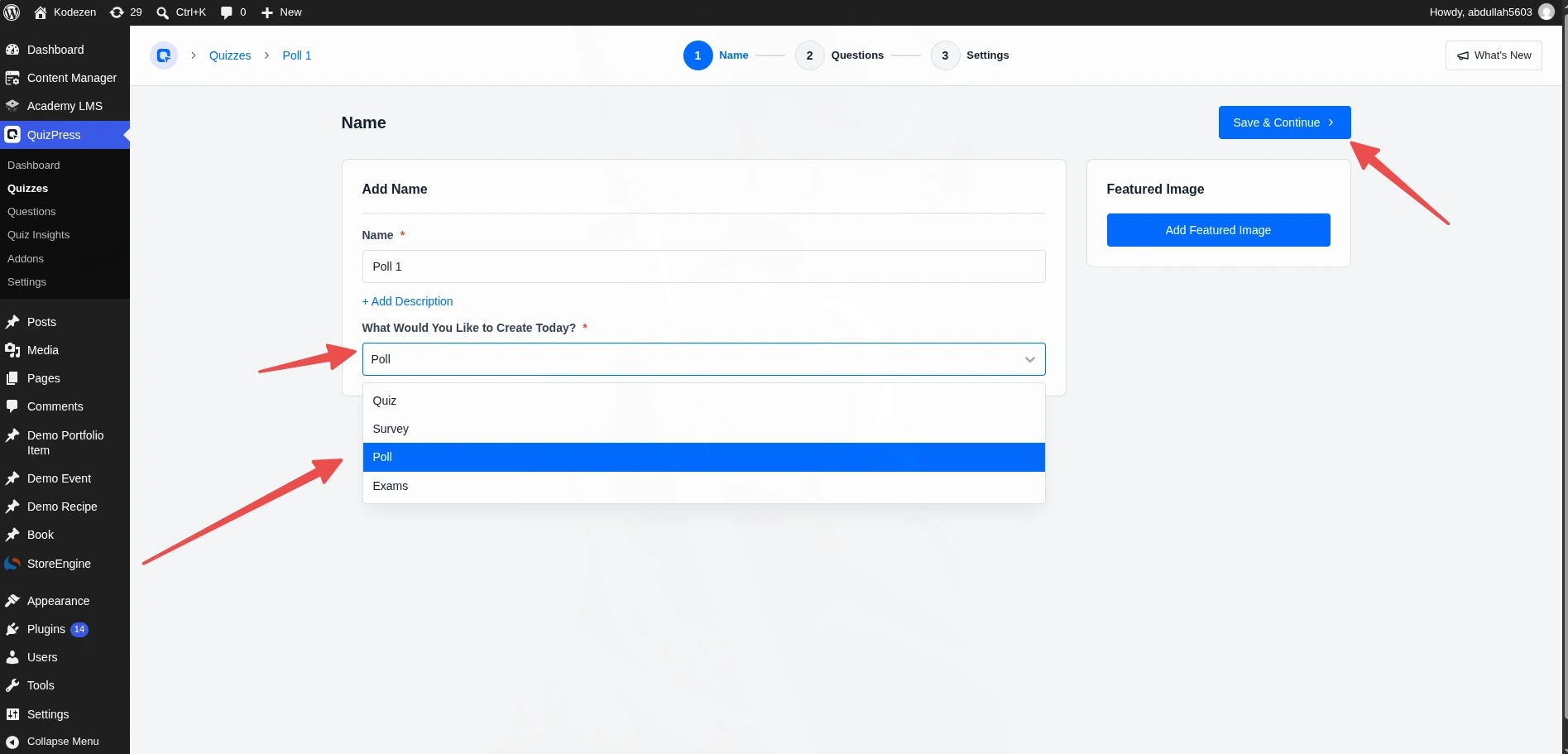
This single choice is what changes everything downstream: scoring, passing grades, and retry logic disappear from later steps because none of that applies to a poll. You’re left with just what a poll needs. The same dropdown is where you’d pick Exam instead, if what you actually need is a timed test rather than a one-question poll — that’s covered separately in setting up a countdown timer on a WordPress exam.
Step 3: Write Your Poll Question and Add Answer Options
Add your one question and its answer choices. QuizPress restricts which question types are available in poll mode to five: Single Choice, Multiple Choice, Single Choice (Horizontal), Multiple Choice (Horizontal), and True/False. Anything outside that list — open text, ratings, file upload, and so on — isn’t offered here, because none of those formats produce a clean, votable result.
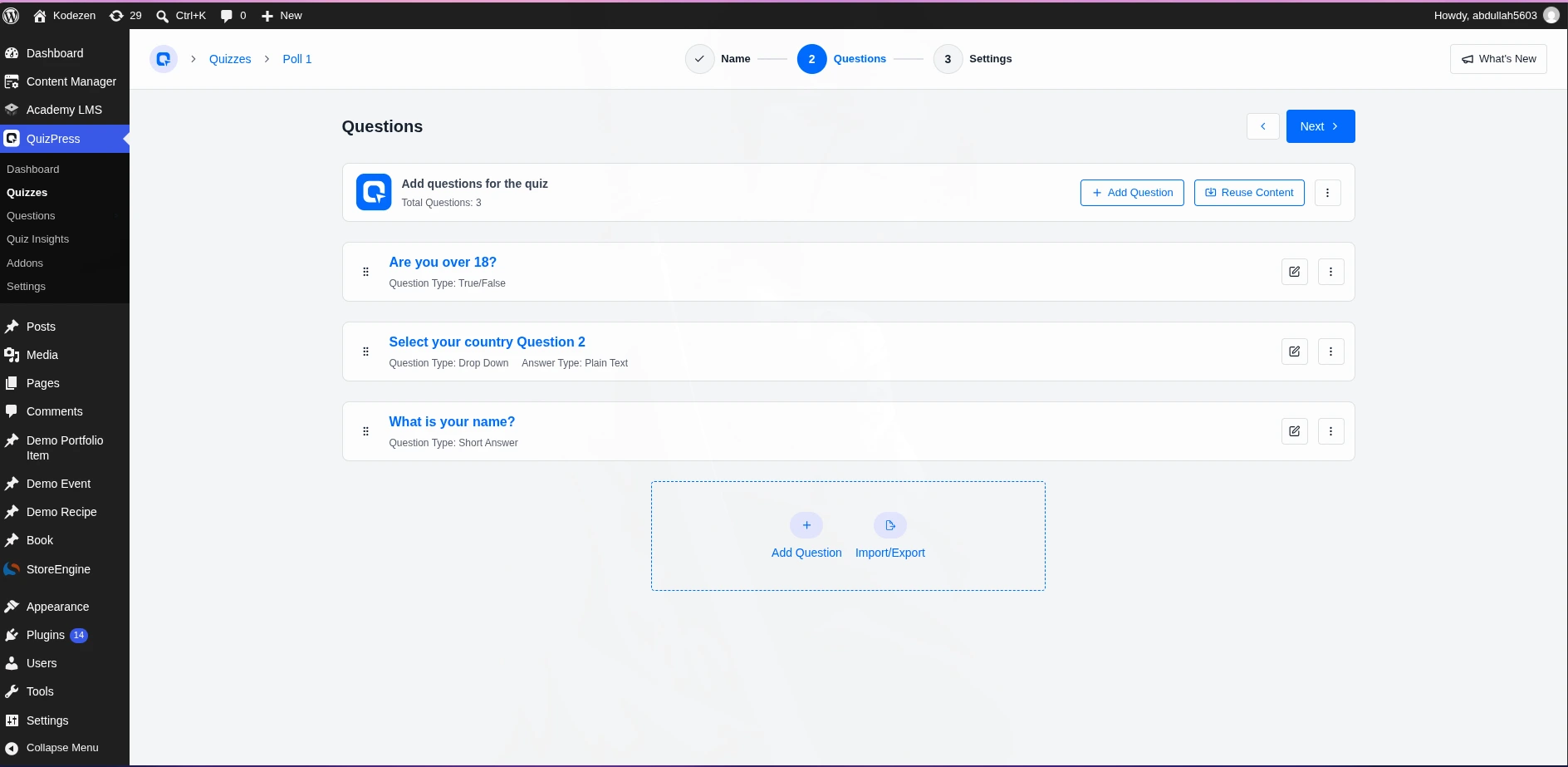
Try to add a second question and the builder stops you with a message that a poll can only have one. That’s a deliberate limit, not a bug — it keeps a poll a poll instead of turning it into a short survey.
Step 4: Configure Your Poll Settings
The settings step is noticeably shorter for a poll than for a quiz. Anything related to scoring — passing grade, feedback mode, retry attempts, maximum attempts allowed — is hidden entirely, since none of it makes sense without a correct answer to grade against. What’s left are the general display and scheduling controls that apply across all four formats, like layout and start/end scheduling.
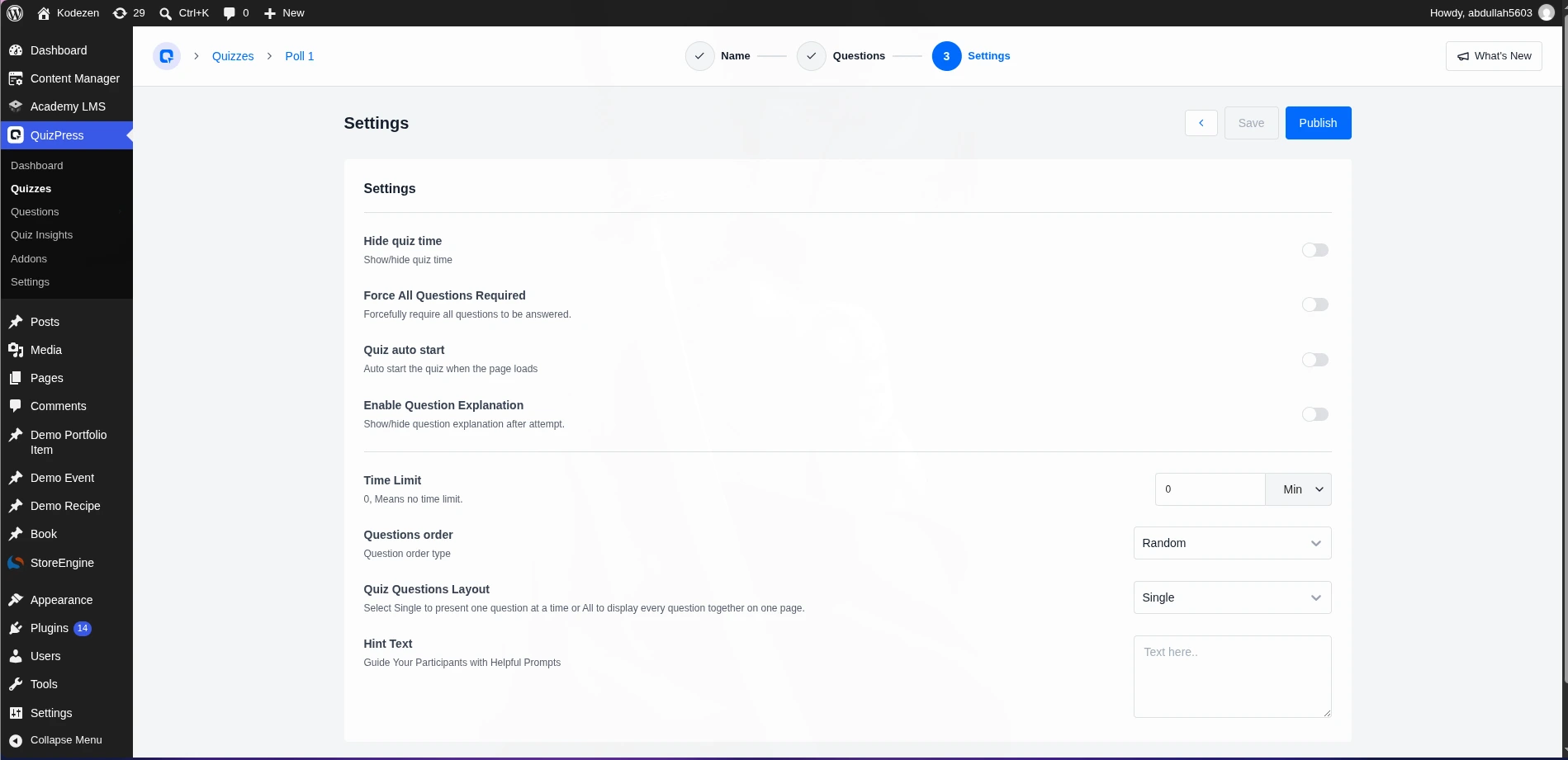
If you want visitors who aren’t logged into WordPress to be able to vote, that’s the point to check the guest-voting setting described in the section below — it isn’t visible on the free plan.
Step 5: Publish and Embed Your Poll
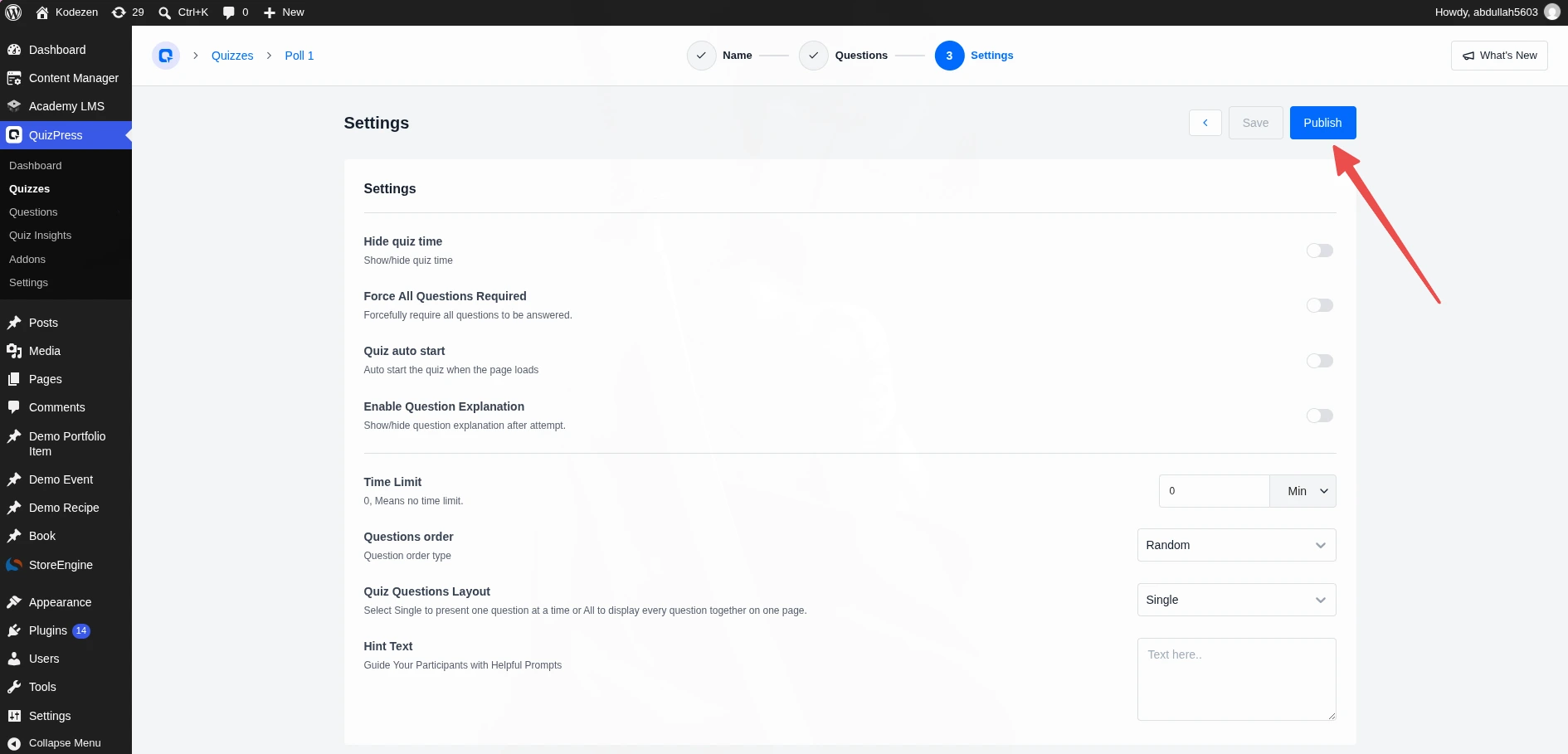
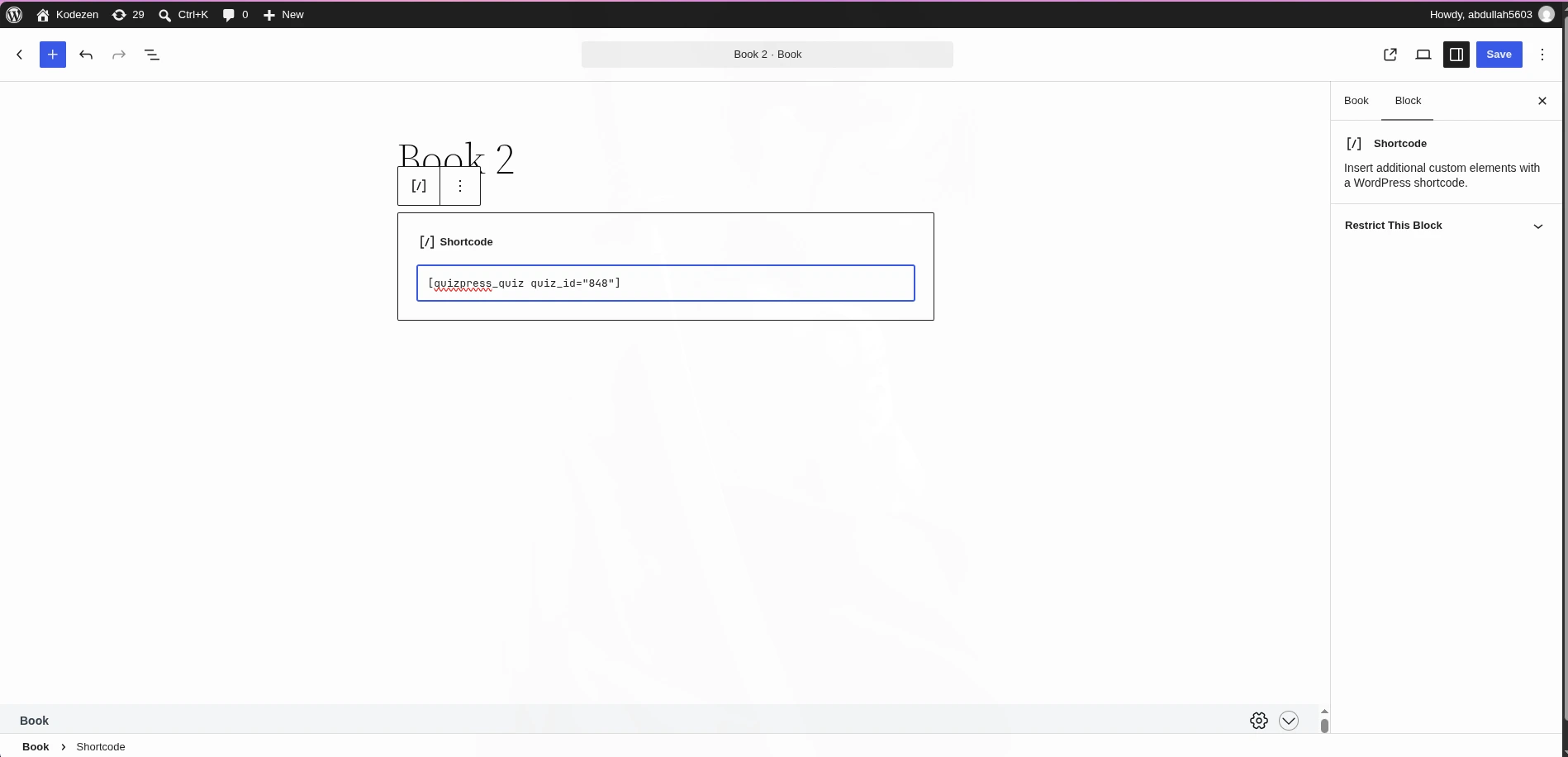
Publish the poll the same way you’d publish a quiz. To place it on a page or post, use the shortcode [quizpress_quiz quiz_id="123"], swapping in your poll’s actual ID. There’s no dedicated poll block for the block editor — the shortcode is the only placement method, though you can drop it into a Shortcode block if you’re building the page with Gutenberg. The shortcode and embedding documentation covers block-editor placement in more depth if you’re working entirely in Gutenberg.
Step 6: Test Your Poll Before Sharing It
Open the page where you embedded it and vote on it yourself. Confirm the question and answers read the way you intended, and check that the vote registers. This is also the moment to test the guest-voting setting if you turned it on — log out of WordPress in a private browser window and confirm the vote actually goes through for a signed-out visitor.
Reading Your Poll Results
Once votes start coming in, results show up in two different places, for two different audiences.
For the voter, results appear right after they submit an answer, inside the poll’s results view on the front end. Each answer option shows as a horizontal bar filled to its share of the total votes, with the exact percentage next to it — a quick visual read of how their pick compares to everyone else’s.
For the site admin, a dedicated Insights view shows the same data with more depth: a bar chart, a pie chart, and — once a poll has three or more answer options — a radar chart layered on top, alongside summary cards for total questions, total responses, and the average number of responses per poll. That view sits behind an admin-only permission check, so visitors and logged-in non-admin users never see it.
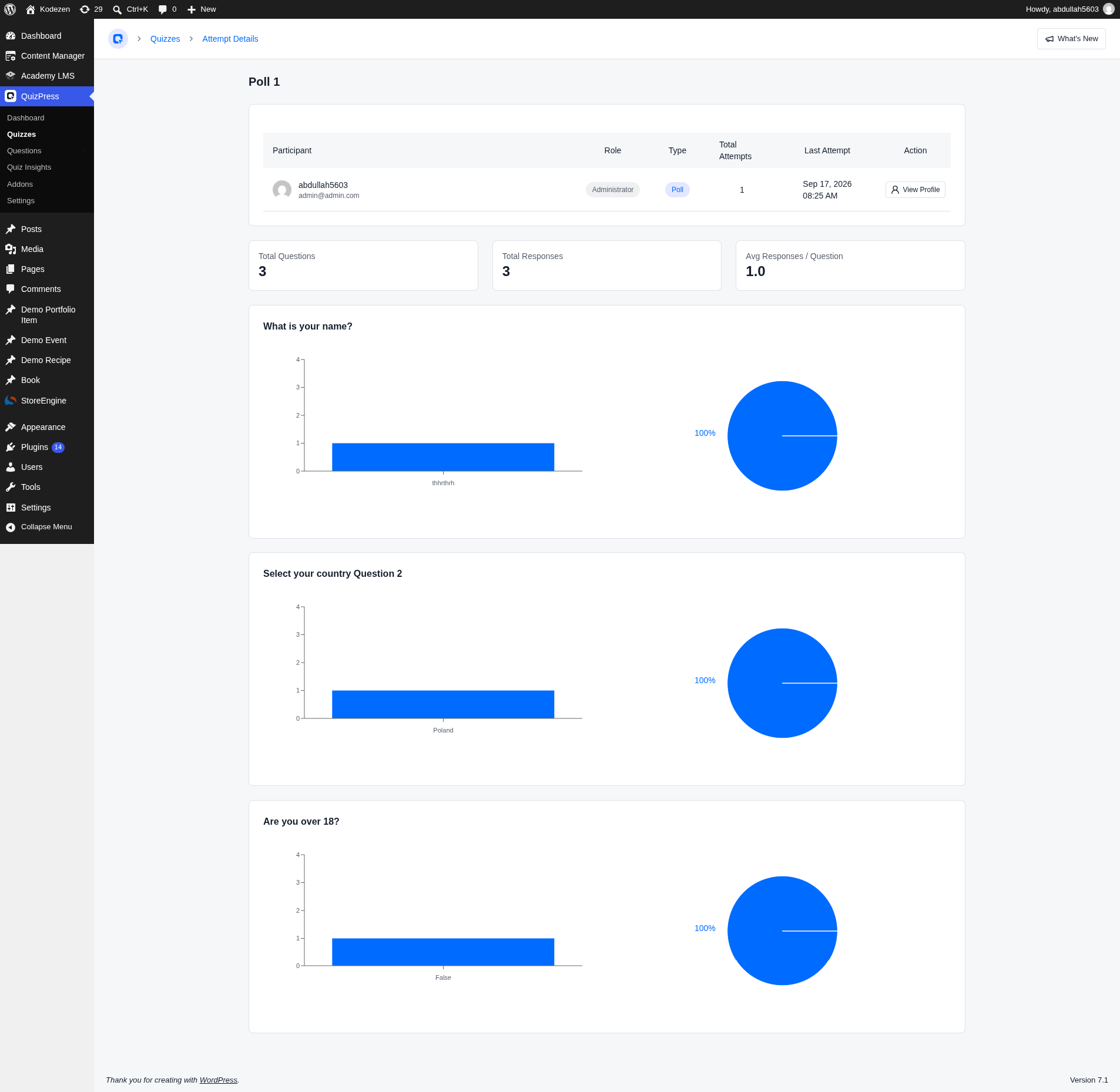
One honest caveat: none of this updates live on its own. Both the voter-facing bars and the admin charts are recalculated the moment the page loads or the modal opens — not pushed to the screen automatically as new votes come in. If you want to see a fresh number, reload or reopen the results view.
Poll Ideas by Use Case
A one-question poll punches above its size when it’s placed with intent. A few places it tends to work well:
Guest Voting and Anonymous Polls: What’s Free vs. What Needs Pro
This is the section most poll tutorials skip, and it’s the one that causes the most confusion after publishing.
On the free version of QuizPress, a visitor has to be logged into a WordPress account to submit a poll vote. If your audience is mostly logged-in members — a course platform, a membership site, an intranet — this is a non-issue.
If your poll needs to be open to anonymous visitors who’ve never created an account, that capability exists, but it’s gated behind the Pro version. There’s a specific “guest user attempt” setting that, once turned on with a Pro license active, lets non-logged-in visitors vote without an account.
It’s also worth being upfront that QuizPress doesn’t currently offer a separate “make this poll anonymous” toggle in the builder itself — voter identity is tied to WordPress login state (or guest status, on Pro), not to a standalone anonymity switch. And there’s no built-in vote-locking by IP address or browser cookie to stop someone from voting twice; the plugin currently manages this through login state rather than device-level tracking. If ballot-stuffing prevention matters for your use case, requiring login is the more reliable option on the free plan today.
Maintaining Your Poll After It’s Live
A poll isn’t something you publish once and forget, at least not if you want it to keep pulling its weight.
Check back on the numbers. Since results don’t push to the screen on their own, build a small habit of reopening the Insights view every so often, especially in the first few days after a poll goes live, when most of the voting momentum tends to happen.
Retire it once it’s stopped being useful. A poll asking about a product launch that happened four months ago is just clutter to a new visitor. Unpublish it, or use the scheduling setting to give it a defined end date up front so it closes itself instead of relying on you remembering to take it down.
Don’t edit the question after votes start coming in. Changing the wording partway through invalidates the comparison between early and late votes — if the question needs to change meaningfully, it’s cleaner to close the old poll and publish a new one.
Reuse the format, not the content. Once you’ve built one poll, duplicating the pattern for a new question takes a few minutes, since the wizard, the question-type restrictions, and the settings panel are all already familiar.
Common Mistakes to Avoid
Troubleshooting: Common Issues When Creating a Poll in WordPress
The poll isn’t showing any votes. Double-check you’re looking at the correct results view (voter-facing bars are on the front end; admin charts are on the Insights page) and that the page has actually been reloaded since the last vote came in.
Logged-out visitors can’t vote. This is expected on the free plan — guest voting requires Pro with the guest-attempt setting enabled.
A question type is blocked when building the poll. Poll mode only accepts Single Choice, Multiple Choice, Single Choice (Horizontal), Multiple Choice (Horizontal), and True/False. Anything else needs to go into a Survey instead.
The poll shortcode shows nothing on the page. Confirm the quiz_id in the shortcode matches the actual poll’s ID, and that the shortcode itself hasn’t been stripped by a page builder that doesn’t render raw shortcodes.
The radar chart isn’t showing up in the admin analytics view. That chart type only appears once a poll has three or more answer options — a two-option poll will only show the bar and pie charts.
How This Guide Was Verified
The steps and settings described above for QuizPress come from reading the plugin’s own PHP and React source directly — the question-type restrictions, the one-question limit, the hidden scoring settings, the guest-voting Pro gate, the chart types, and the lack of both a dedicated Gutenberg block and a live-updating results feed were all confirmed in code, not assumed from marketing copy. QuizPress’s own changelog only notes “poll system with advanced analytics” was added, without spelling out the free/Pro line on guest voting — so that distinction was checked against the actual capability logic rather than taken at face value.
Competitor pricing and feature claims (WPForms’s Surveys and Polls addon tier, Gravity Forms’s Elite-only Polls add-on) were verified against each vendor’s own current pricing pages and product pages, not secondhand roundups. Pricing shifts over time on any SaaS product, so it’s worth a quick check against the vendor’s own site before treating a specific number as current.
Final Thoughts
A poll is a small piece of content, and the tool you use for it should be small too — or at least shouldn’t feel like a separate system bolted onto your site. Building a poll as a fourth format inside a plugin you already have for quizzes keeps one less moving part in your WordPress admin.
The honest tradeoffs are worth repeating: a QuizPress poll is one question only, and letting non-logged-in visitors vote needs the Pro version. If your audience is already logged in — a course, a membership site, an internal tool — none of that gets in the way at all.
The full feature list and pricing are worth a look before you decide, and both plans come with a 14-day money-back guarantee if a poll (or anything else QuizPress does) doesn’t end up fitting your site. If a poll turns out to be just one piece of a bigger assessment or engagement setup, the complete guide to picking a WordPress quiz plugin covers the wider landscape.
Frequently Asked Questions
Is there a free way to create a poll in WordPress?
Yes. Poll is one of the four content formats included in QuizPress’s free version — it isn’t a paid add-on or a Pro-only feature. The Pro version only comes into play if you need anonymous, non-logged-in visitors to vote.
How many questions can a poll have in QuizPress?
Exactly one. That’s a deliberate limit built into the poll format — if you need to ask more than one question, QuizPress’s Survey format is designed for that instead.
Can visitors vote without creating an account?
Not on the free plan — voting requires being logged into a WordPress account. Anonymous, guest voting is available, but it requires the Pro version and a specific setting to be turned on.
Do poll results update in real time?
No. Results — both the percentage bars a voter sees and the charts an admin sees — are calculated fresh each time the page or results view is loaded, not pushed automatically as new votes arrive.
What’s the difference between a poll and a survey in QuizPress?
A poll is capped at one question and built for a quick, single vote. A survey allows multiple questions and a broader range of question types, and is meant for more detailed feedback than a single-question poll can capture.
Which question types can I use for a poll?
Five: Single Choice, Multiple Choice, Single Choice (Horizontal), Multiple Choice (Horizontal), and True/False. Open-ended, rating, and file-upload question types aren’t available in poll mode.
Can I embed a poll in a blog post or page?
Yes, using the [quizpress_quiz quiz_id="123"] shortcode with your poll’s ID. It works in a regular post or page, and in a Shortcode block if you’re using the block editor.
Does QuizPress have a dedicated poll block for the block editor?
No — there’s no standalone Gutenberg block for polls or quizzes. Placement is done through the shortcode, dropped into a Shortcode block if you want a block-editor-native workflow.
Can someone vote on the same poll more than once?
There’s currently no built-in IP- or cookie-based lock stopping repeat votes — voting is tied to WordPress login state rather than device tracking. Requiring login is the more reliable way to prevent duplicate votes today.
Will a poll work on my site without a page builder?
Yes. The shortcode works in any standard WordPress post or page, with or without a page builder — page builders are only relevant if you want to place the poll inside a more complex layout.