

If you’re planning to monetize online quizzes or certification exams, WordPress gives you everything you need. By combining QuizPress with WooCommerce, you can create paid quizzes, collect payments securely, and reward successful participants with professional certificates.
Whether you’re running an online academy, employee training program, coaching business, or certification platform, selling quiz access is an excellent way to generate revenue while offering learners a valuable credential.
In this guide, you’ll learn how to sell access to certification quizzes using WooCommerce. After learners complete the quiz and meet the passing requirements, QuizPress awards them a certificate.
Why Sell Quiz Certificates?
Offering certification quizzes is a great way to monetize your expertise while providing learners with a valuable credential. Instead of offering every quiz for free, you can sell access to premium certification quizzes through WooCommerce and reward successful learners with a certificate upon passing.
Some common use cases include:
- Professional certification exams
- Employee training assessments
- Online coaching programs
- Membership-based learning platforms
- Educational institutions
- Skill verification quizzes
With WooCommerce handling payments and QuizPress managing quizzes, results, and certificates, you can create a complete certification system directly within your WordPress website.
What You’ll Need
Before getting started, make sure you have:
- A WordPress website
- QuizPress installed and activated
- WooCommerce installed and activated
- At least one published WooCommerce product
- A certification quiz created in QuizPress
- A certificate template (if you want to award certificates to successful learners)
Once everything is ready, you can connect your quiz with WooCommerce, sell access to your certification quiz, and award certificates to learners who meet the passing requirements.
Step by step: How to Sell Quiz Certificates in WordPress With WooCommerce
Step 1: Access QuizPress Add-ons
From your WordPress dashboard, navigate to QuizPress from the left sidebar. Once inside the QuizPress menu, click on Add-ons to proceed.
Here you’ll see three available add-ons:
- Certificates — award certificates automatically when users complete or pass a quiz
- StoreEngine — sell certificates, quiz access, or digital products via StoreEngine (currently marked “Coming Soon”)
- WooCommerce — monetize quizzes by selling them as WooCommerce products and bundles
This guide uses the WooCommerce add-on, which requires the WooCommerce plugin to be installed and active. To enable the integration, locate the WooCommerce card and turn on the toggle switch next to “Required plugins.”
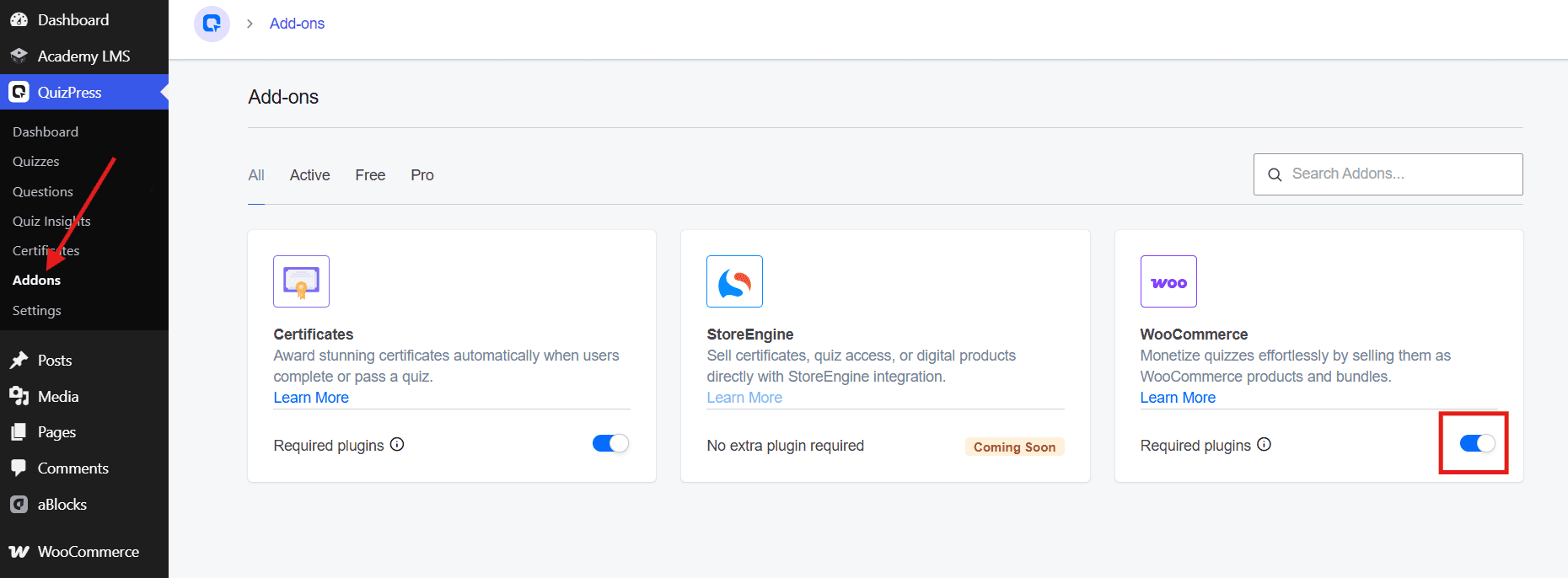
Once the toggle is switched on, QuizPress will be able to communicate with WooCommerce, letting you link individual quizzes to WooCommerce products in the steps ahead.
Step 2: Create a Quiz
Navigate to Quizzes from the QuizPress menu. This brings up a list of all your existing quizzes — along with their ID, Title, Type, Questions, Status, and more.
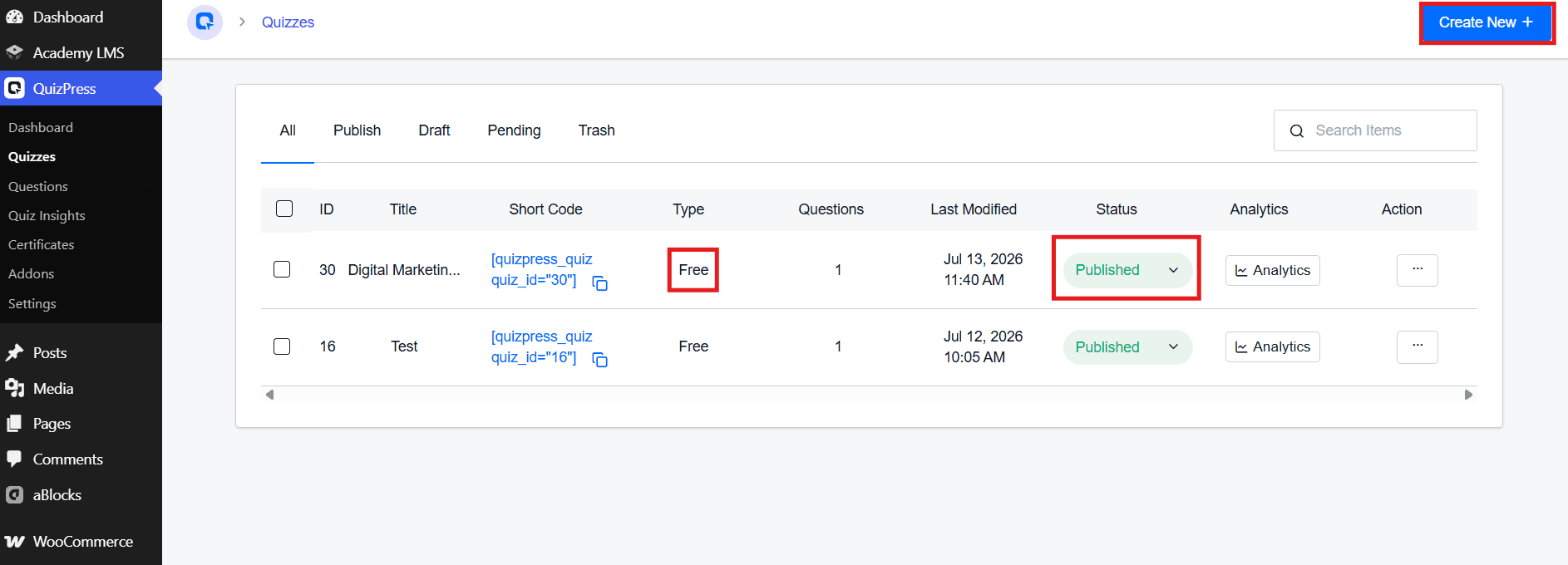
To create a new one, click the “Create New” button in the top-right corner and set up the essentials — quiz title, questions and answer options, passing score, time limit (optional), and attempt limits (optional). Once you’re satisfied, publish the quiz.
Notice that any quiz created this way starts with its Type set to “Free” by default — this will automatically change to “Paid” once you link it to a WooCommerce product in the next steps.
You can also skip creating a new quiz and use a previously created one instead (like one of the quizzes shown here) — the WooCommerce integration works the same way either way.
Step 3: Create a WooCommerce Product
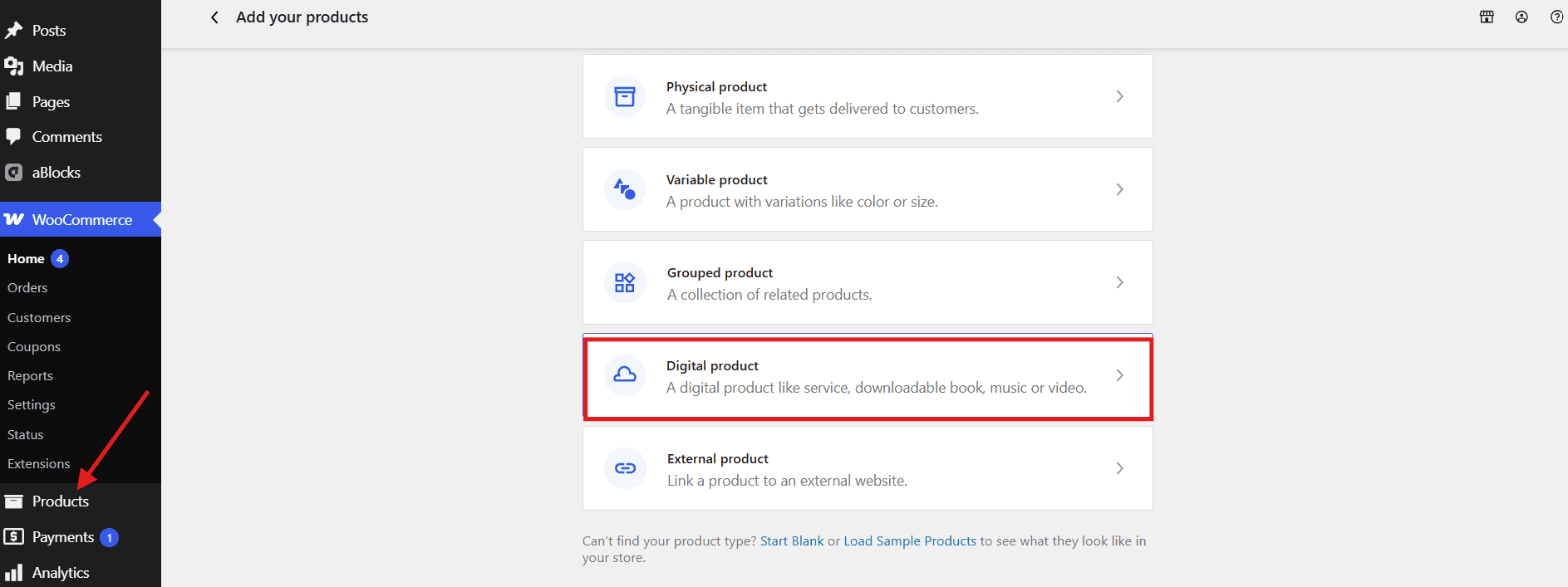
Go to WooCommerce → Products from the WordPress sidebar, then click “Add new product.”
This opens the “Add your products” screen, asking what type of product you want to add. Since a quiz isn’t a physical item, select “Digital product” — described as “A digital product like service, downloadable book, music or video.”
This takes you to the classic product editor. Enter a product name at the top — for example, “Digital Marketing Final Test” — and add a product description in the text editor below it.
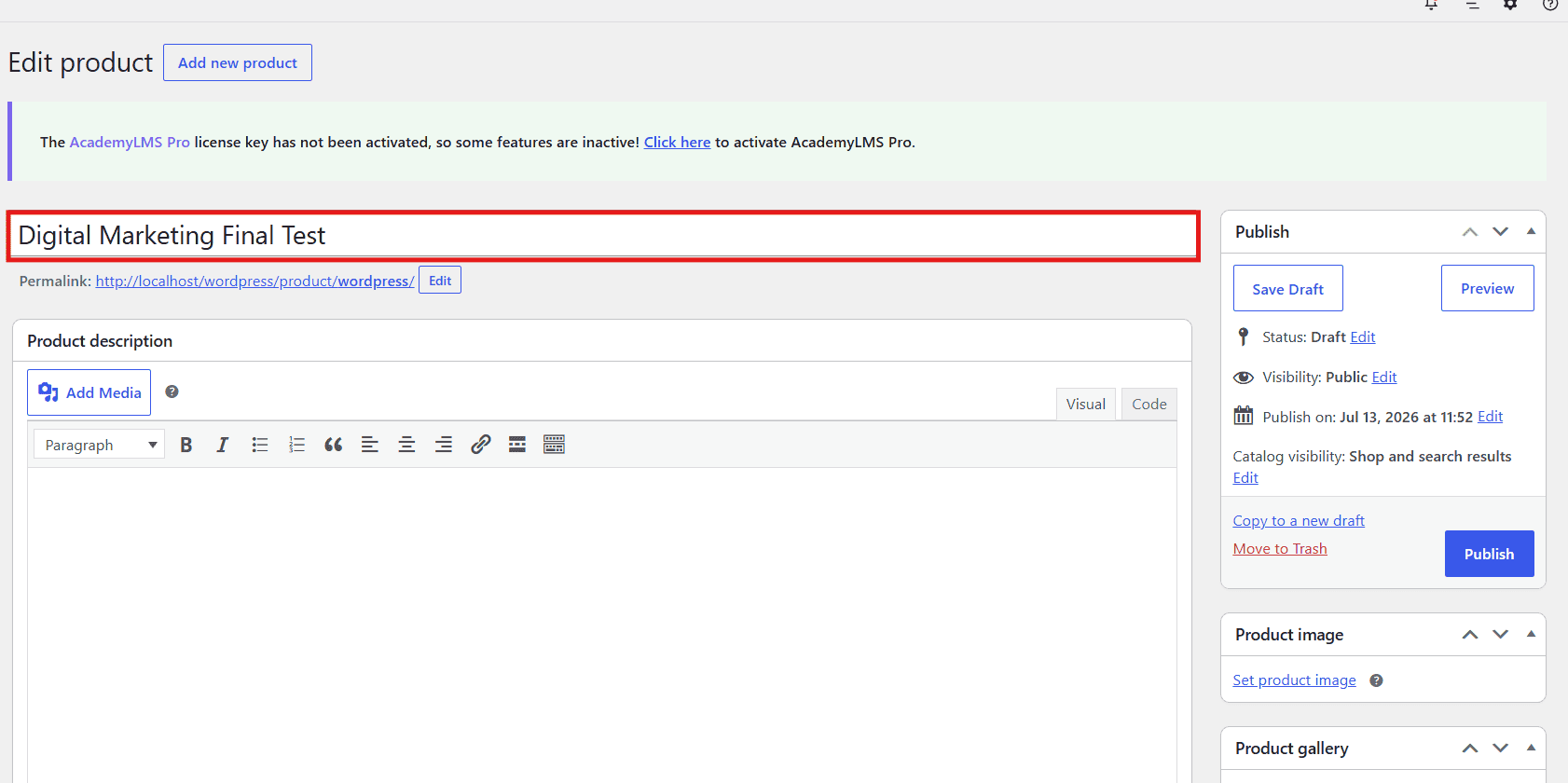
You’ll also notice the Publish panel on the right, where the product is saved as a Draft by default. Keep this page open — you’ll come back to publish it after configuring the product settings in the next step.
Step 4: Configure Product Settings
Scroll down to the Product data panel. Make sure the product type is set to “Simple product”, and check the Virtual checkbox — since this is a digital quiz, not a downloadable file, you can leave Downloadable unchecked.
Then check the “For QuizPress” checkbox on the right — this is essential for linking the product to your quiz.
Under the General tab, set the pricing:
- Regular price — enter the regular price (e.g., 200)
- Sale price — enter a discounted price if you’re offering one (e.g., 150). Click Schedule if you want the sale price to apply only for a specific period.
Just below that, in the “Linked QuizPress Quiz” dropdown, select the quiz you want to connect this product to — for example, “Digital Marketing Final Test.”
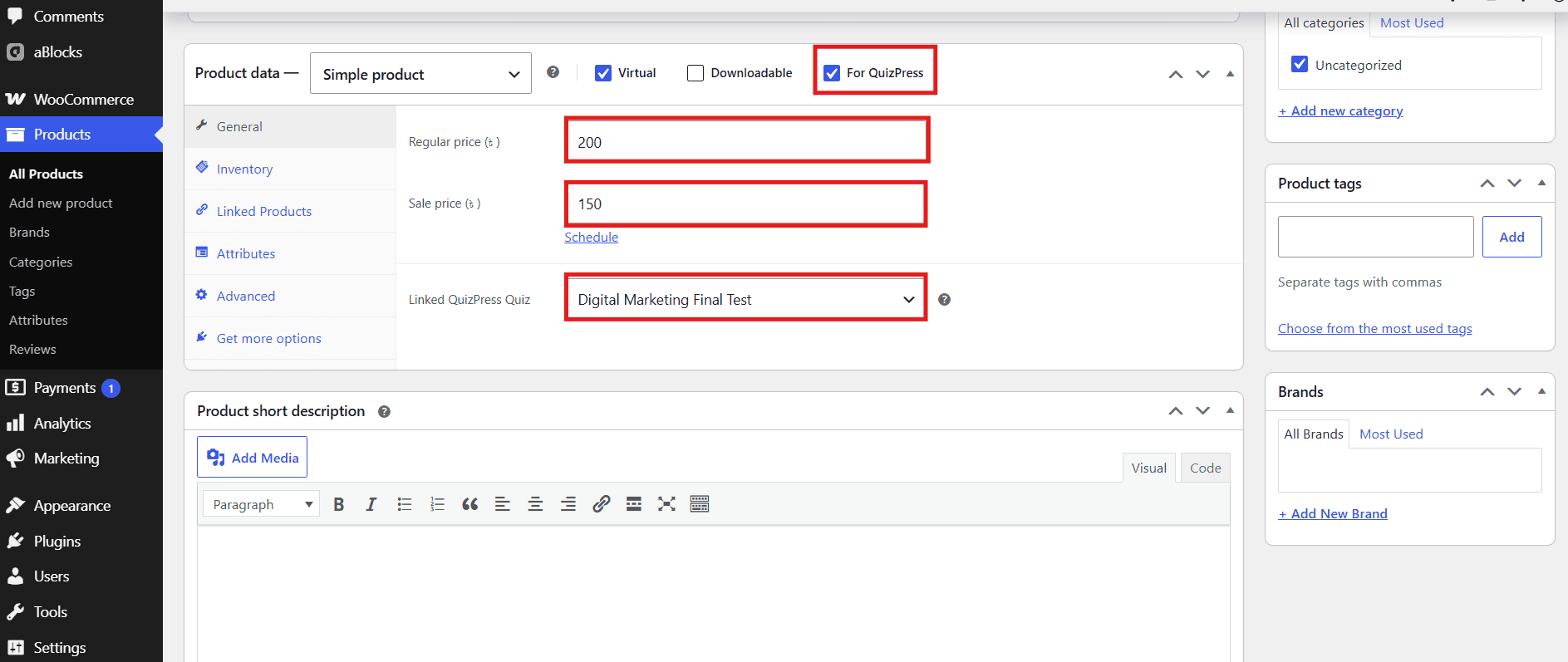
Once all settings are configured, publish the product.
Step 5: Verify Quiz Type Change
Return to QuizPress → Quizzes. You’ll notice the “Digital Marketing…” quiz (ID 30) — the one you linked to the WooCommerce product — now shows its Type as “Paid”, confirming that the integration with WooCommerce was successful.
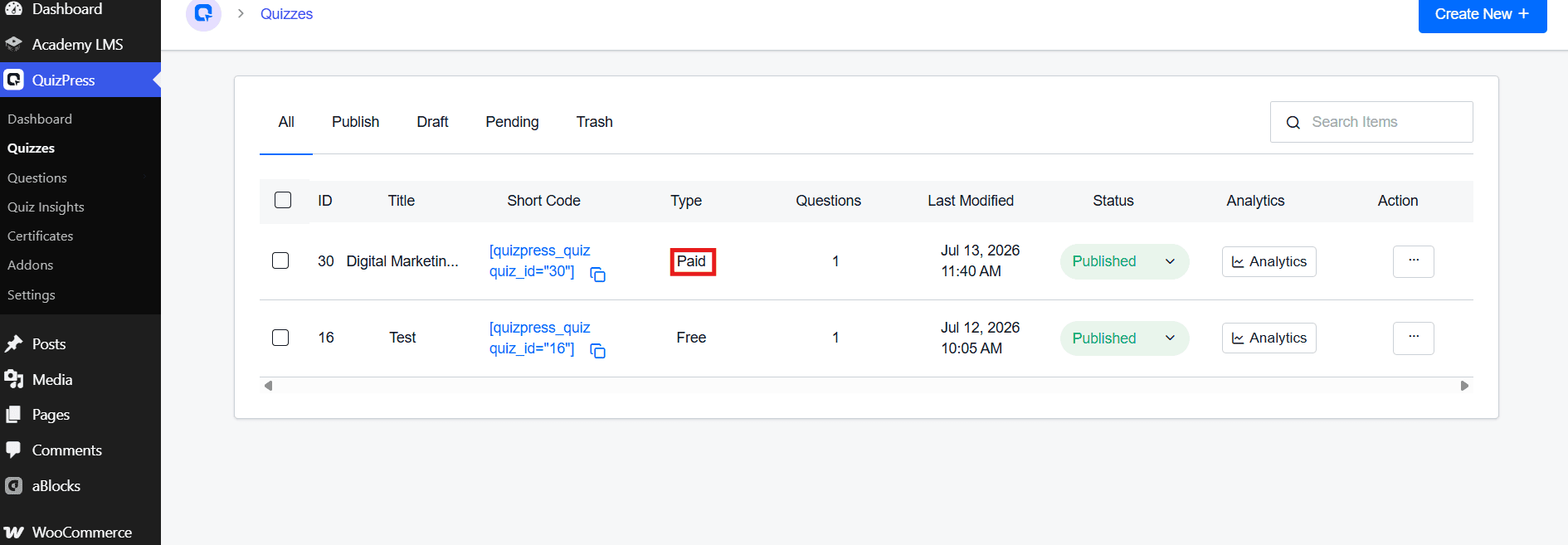
Notice that other quizzes you haven’t linked to a product — like “Test” (ID 16) — still show as “Free”. Only quizzes connected to a WooCommerce product through the “Linked QuizPress Quiz” setting get switched to “Paid” automatically.
Step 6: Edit Quiz Settings
Click on your quiz (e.g., “Digital Marketing Final Test”) to edit it. This opens a 3-step editor — 1. Name, 2. Questions, 3. Settings — starting on the Name tab.
On the right side, below the Featured Image section, you’ll see the pricing details automatically reflected from the linked WooCommerce product:
- Type: paid
- Regular Price: $200
- Sale Price: $150
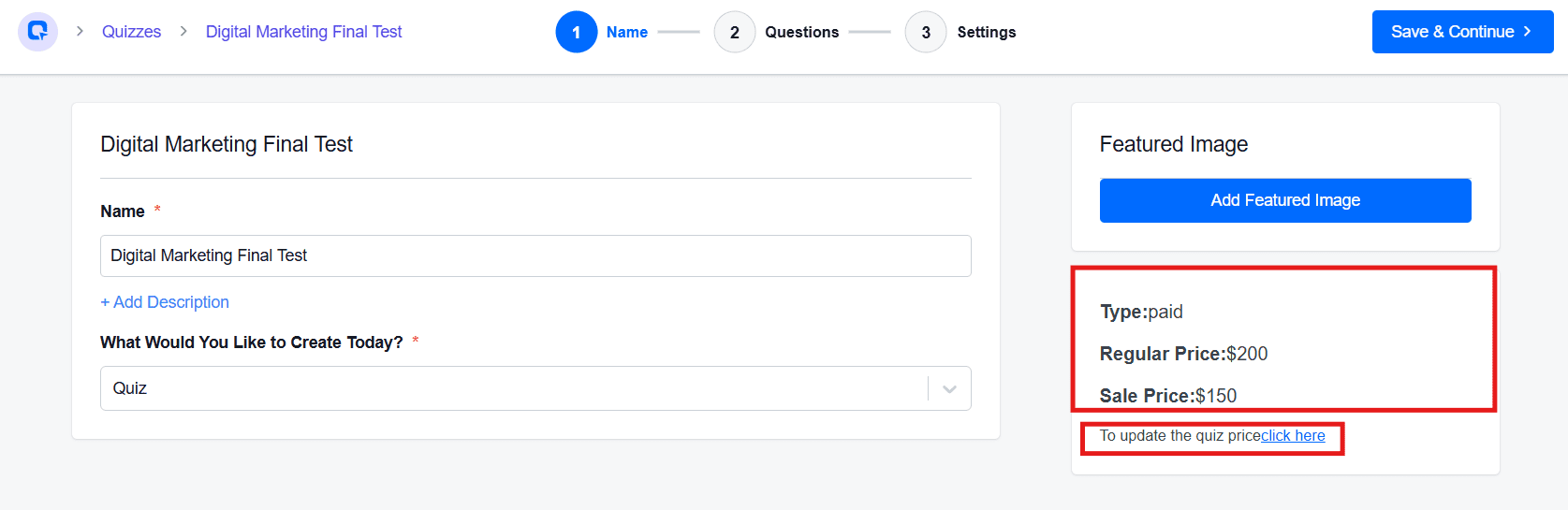
If you ever need to update the quiz price, click “To update the quiz price click here” just below the pricing box. This redirects you straight to the corresponding WooCommerce product page, where you can modify the Regular Price or Sale Price directly — any changes made there will automatically reflect back on this quiz.
Step 7: Preview the Result on the Frontend
Now visit the quiz page on your website’s frontend, as a visitor would see it. Instead of the quiz questions, you’ll see a purchase gate:
- The quiz title — “Digital Marketing Final Test”
- A message: “Please purchase the Quiz”
- The price, showing the discount — the original 200.00$ struck through, with the sale price 150.00$ displayed next to it
- An “Add to cart” button
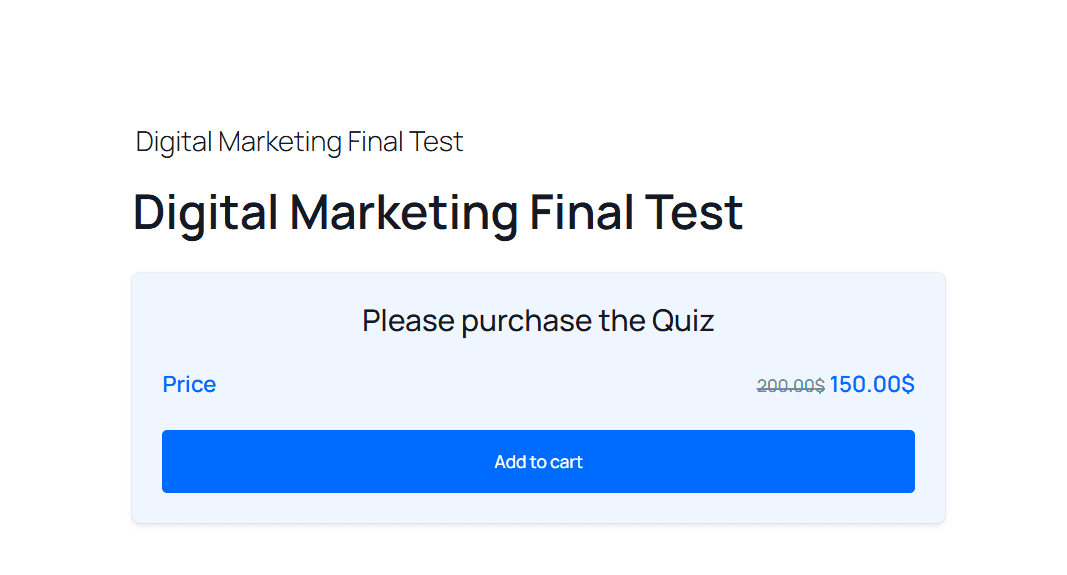
This confirms the integration is working end-to-end — visitors can’t access the quiz questions until they add the product to their cart and complete checkout through WooCommerce. Once they’ve purchased successfully, they’ll be able to take the quiz and, if they pass, receive their certificate as configured.
Best Practices for Selling Quiz Certificates
A successful certification program is about more than just selling quiz access. Following these best practices will help you create a better learning experience and increase the value of your certificates.
Create Meaningful Assessments
Design quizzes that accurately measure a learner’s knowledge and skills. Include a balanced mix of questions that test practical understanding rather than simple memorization.
Set a Realistic Passing Score
Choose a passing score that matches the difficulty of your assessment. This helps maintain the credibility and value of your certification.
Design Professional Certificates
Create a clean, professional certificate that includes your organization’s branding, the learner’s name, the quiz title, the completion date, and other relevant details.
Write Clear Product Descriptions
Before purchasing, learners should know:
- What the quiz covers
- Who it’s intended for
- The passing requirements
- Whether a certificate is awarded upon successful completion
Providing clear information helps set expectations and reduces support requests.
Test the Entire Purchase Flow
Before publishing your certification quiz, complete a test purchase to ensure that:
- The WooCommerce checkout works correctly.
- Buyers receive access to the quiz after purchase.
- The quiz functions as expected.
- Learners who meet the passing requirements receive their certificates.
Testing the complete workflow helps provide a smooth and reliable experience for your learners.
Conclusion
Selling access to certification quizzes is an effective way to monetize your expertise while providing learners with a valuable credential. By combining QuizPress with WooCommerce, you can create paid certification quizzes, accept secure online payments, and automatically award certificates to learners who meet the passing requirements—all from your WordPress website.
Whether you’re building an online learning platform, offering professional certification exams, or running employee training programs, this integration provides a seamless experience for both administrators and learners.
Create your certification quiz, connect it to WooCommerce, configure your certificate, and start selling premium certification quizzes with confidence.
Frequently Asked Questions
Can I sell certification quizzes using WooCommerce?
Yes. QuizPress integrates with WooCommerce, allowing you to sell access to premium certification quizzes through WooCommerce products.
Does QuizPress automatically generate certificates?
Yes. Once a learner completes a quiz and meets the required passing score, QuizPress can generate and award a certificate using your configured certificate template.
Can I create multiple paid certification quizzes?
Absolutely. You can create multiple quizzes and link each one to a different WooCommerce product.
Do I need coding knowledge?
No. QuizPress and WooCommerce provide user-friendly interfaces that let you create and sell certification quizzes without writing code.
Can I customize my certificates?
Yes. You can customize your certificate template with details such as the learner’s name, quiz title, completion date, your organization’s branding, and other available certificate fields.