

Quizzes are among the most effective interactive tools you can add to your WordPress website. Whether you manage an e-learning platform, a corporate training portal, a marketing blog, or a membership community, quizzes dramatically increase user engagement, extend time-on-site, and serve as powerful lead generation tools. In this comprehensive guide, you will learn exactly how to create a quiz in WordPress — with a focused look at QuizPress, a modern, all-in-one quiz, exam, and certificate management system built specifically for WordPress.
Why Add Quizzes to Your WordPress Site?
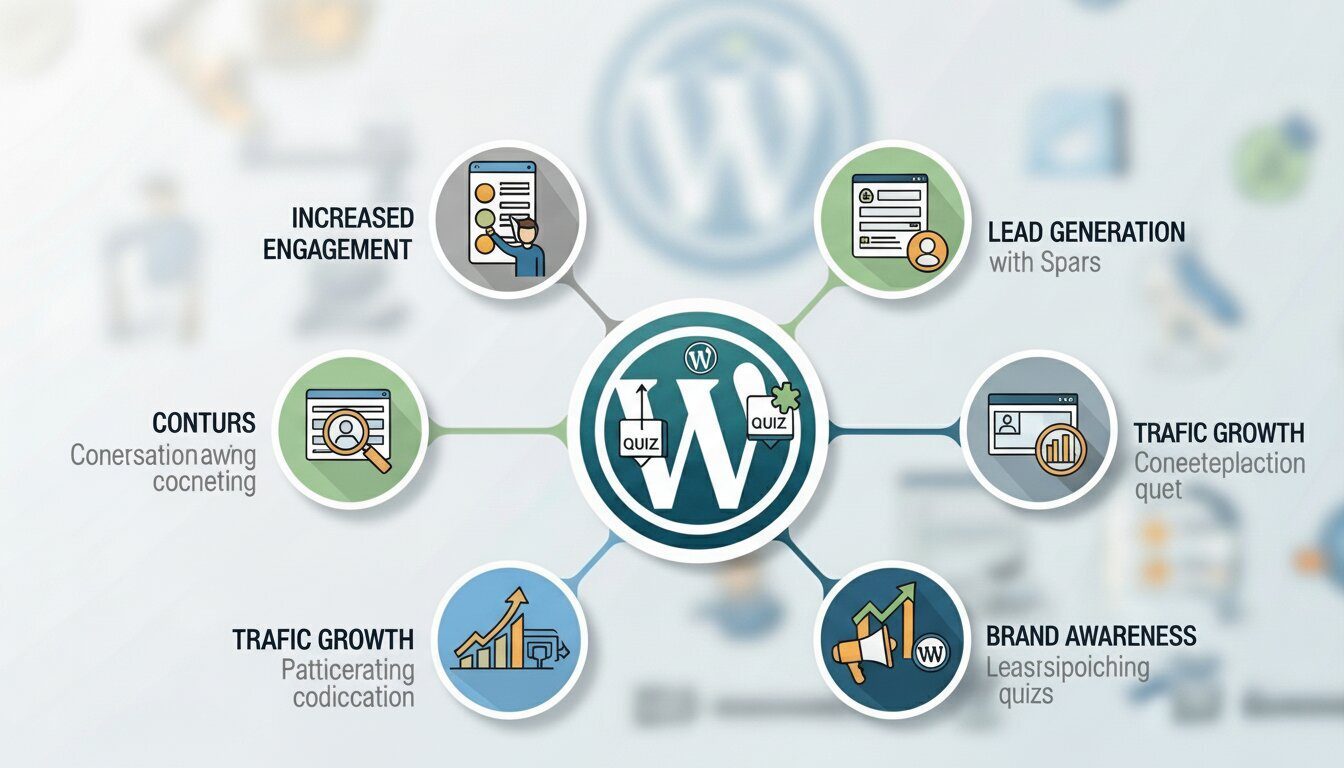
Interactive content consistently outperforms static content. According to research published by the Content Marketing Institute, interactive elements such as quizzes generate approximately twice as much engagement as traditional articles or blog posts. They capture visitor attention, encourage social sharing, reduce bounce rates, and keep users on your site longer — all of which send strong positive signals to search engines, ultimately improving your SEO performance.
Beyond engagement, quizzes serve a wide variety of real-world purposes:
- Educators and trainers use quizzes to test student knowledge and track learning progress.
- HR professionals use assessment quizzes during employee onboarding, performance evaluations, and skills testing.
- Marketers and content creators use personality quizzes and product recommendation quizzes as powerful tools for generating leads.
- Coaches and consultants use diagnostic tests to recommend the right services or programs to prospective clients.
- E-commerce businesses use product quizzes to guide customers toward the best purchase decisions.
With a capable WordPress quiz plugin, you can handle all of these use cases from a single, easy-to-manage dashboard — no developer required.
What Is QuizPress?
QuizPress is a complete quiz, results, and certificate management system for WordPress, developed by Kodezen. Unlike lightweight quiz plugins that only support basic multiple-choice questions, QuizPress is a fully standalone assessment platform built to handle everything from casual polls to high-stakes graded exams — complete with automatic scoring, detailed results pages, and instant certificate issuance — all without writing a single line of code.
QuizPress supports five core content formats under one roof: quizzes, surveys, polls, exams, and personality tests. This versatility makes it suitable for educators, online course creators, HR professionals, digital marketing agencies, and SaaS product teams alike. It also integrates natively with Academy LMS, making it an excellent choice for anyone running a full-featured online learning platform on WordPress.
Key Features of QuizPress
Here is a detailed overview of what makes QuizPress stand out from competing WordPress quiz plugins:
20+ Question Types: From standard multiple choice and true/false to image-based answers, short text responses, file uploads, and opinion polls. This variety ensures you can build any type of assessment you can imagine.
Auto-Grading and Scoring: Quizzes are scored automatically the moment a user submits. You can configure pass/fail thresholds, assign different point values to different questions, and display detailed results pages without any manual intervention.
Automatic Certificate Issuance: QuizPress can generate and deliver branded certificates automatically upon completion of a quiz or exam. Certificate templates are fully customizable.
Sell Certificates via WooCommerce: Unlike most quiz plugins, QuizPress allows you to monetize your assessments by selling certificates through WooCommerce or StoreEngine integration.
Real-Time Analytics Dashboard: Track quiz completion rates, average scores, response trends, time-on-quiz data, and individual user performance metrics from a centralized analytics panel.
Question Bank: Store, organize, reuse, and randomize questions from a central library. This is especially valuable for educators who need to build varied assessments from a shared pool of questions.
Import and Export: Move your entire quiz — questions, results, settings, and configurations — with a single click: no messy CSV errors or manual re-entry.
Fully Responsive Design: QuizPress uses a mobile-first layout that renders cleanly on desktops, tablets, and smartphones without any additional configuration.
Gutenberg Block Support: Embed quizzes directly into the WordPress block editor using the dedicated QuizPress Gutenberg block.
Step-by-Step Guide to Create a Quiz in WordPress
Step 1 – Install QuizPress
Getting QuizPress up and running on your WordPress site takes only a few minutes.
For the Pro Version:
- Visit quizpress.pro/pricing and purchase your preferred plan.
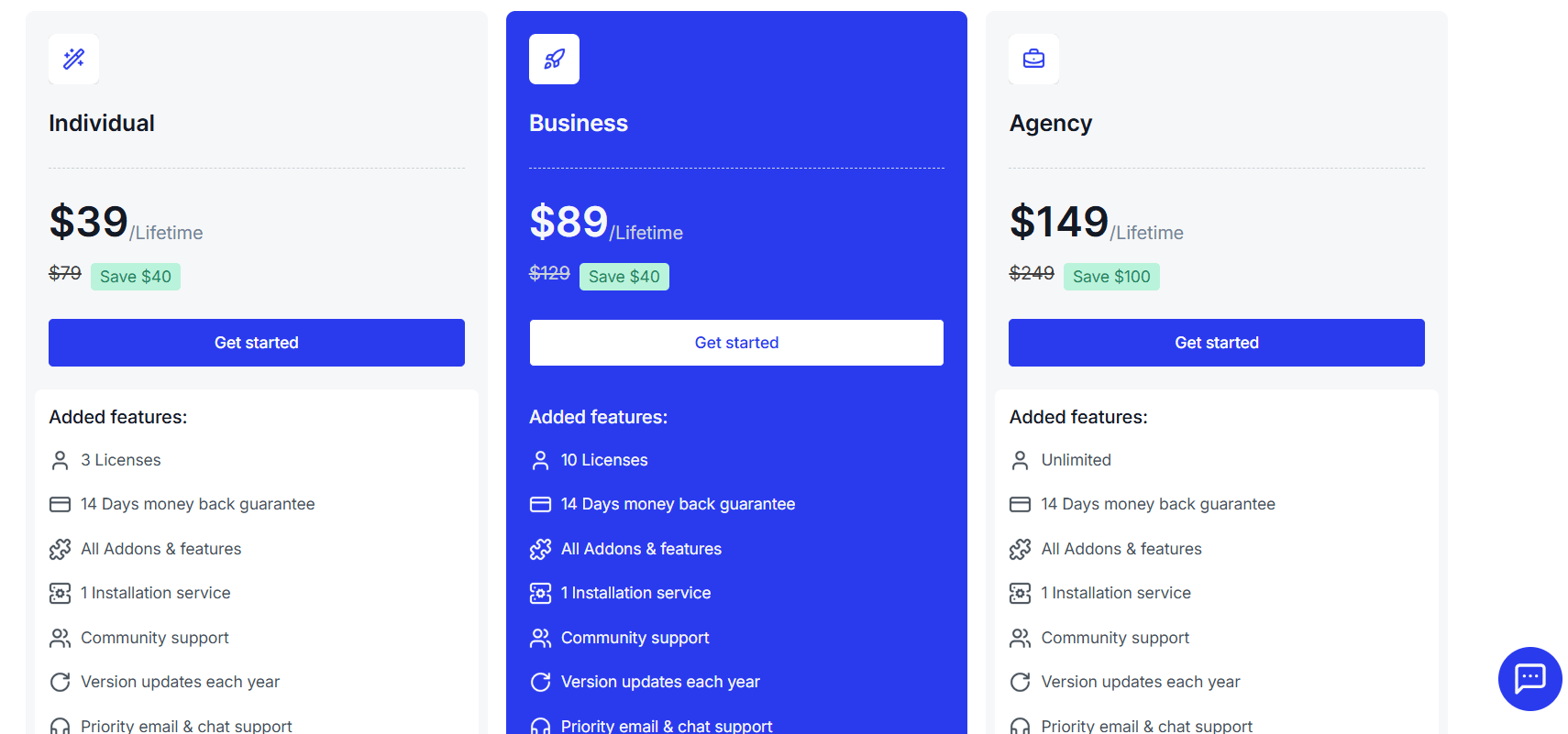
2. Download the plugin .zip file from your account dashboard.
3. In your WordPress admin panel, go to Plugins → Add New → Upload Plugin.
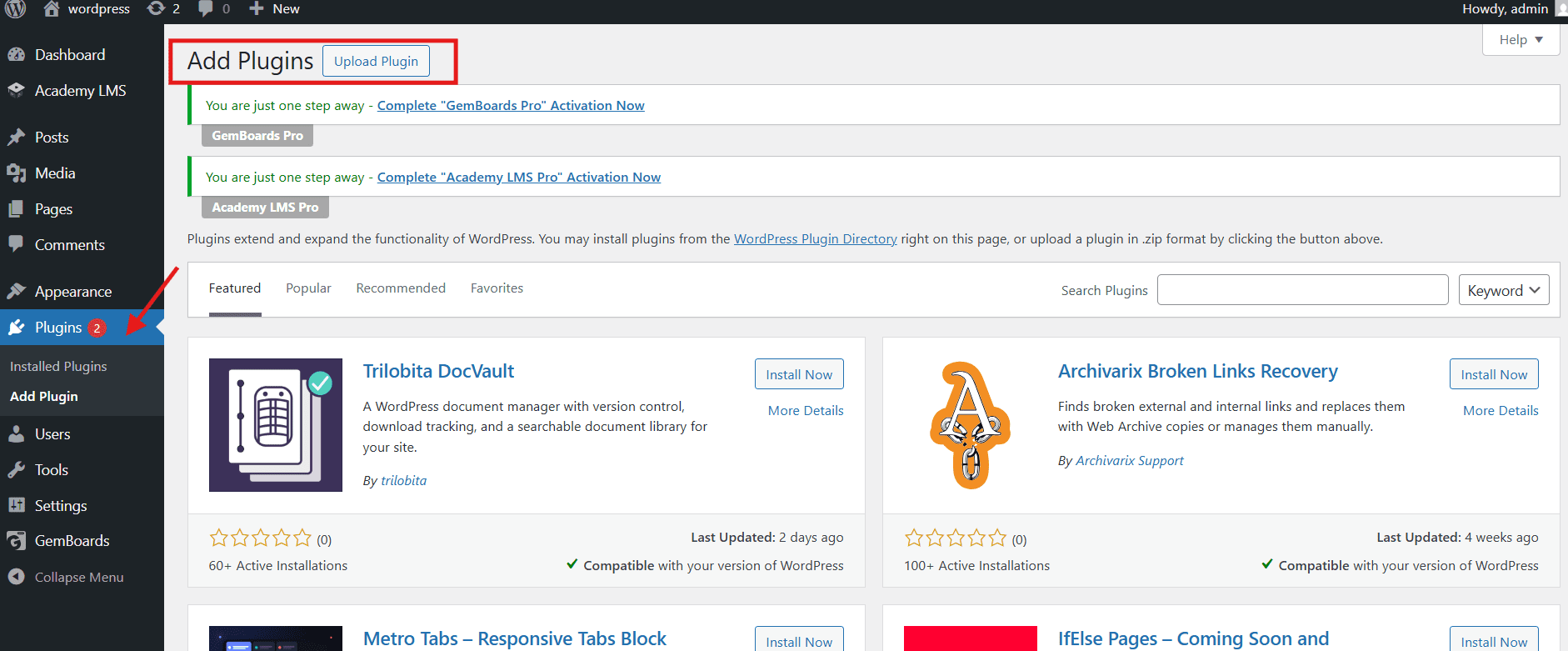
4. Select the downloaded .zip file and click Install Now, then Activate.
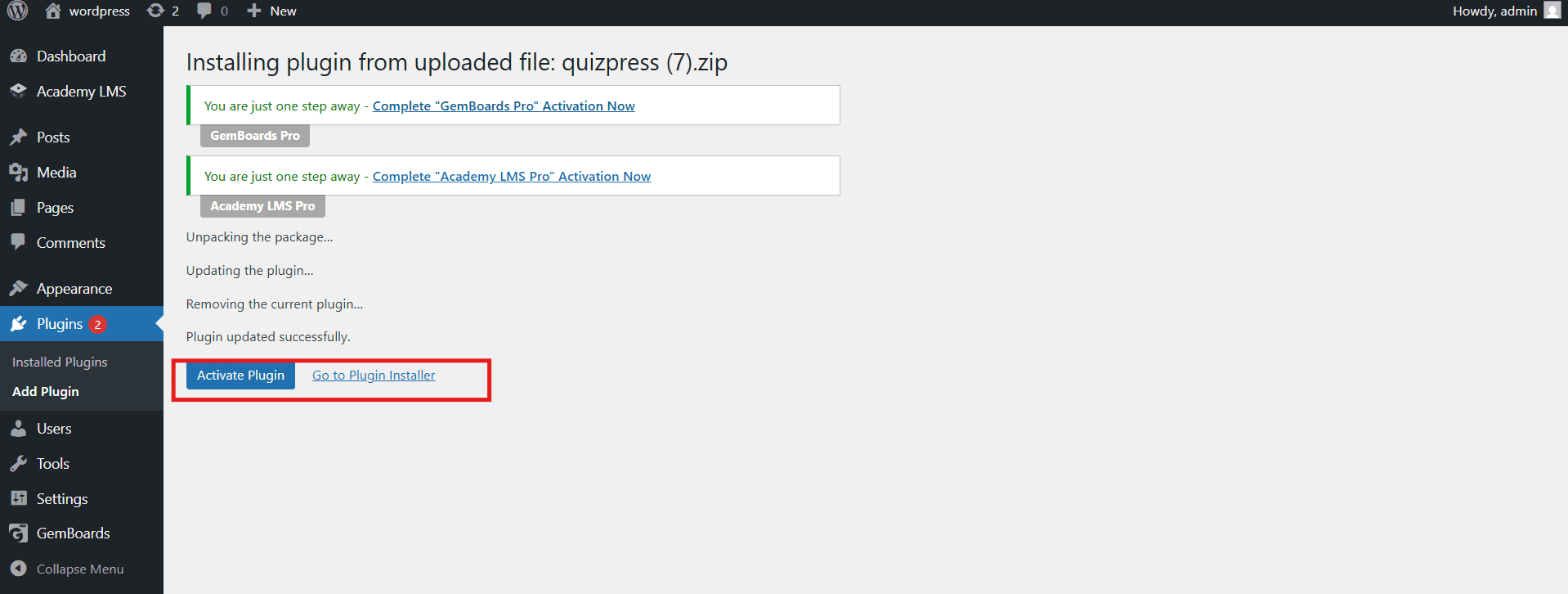
A free version is also available in the WordPress plugin repository for users who want to explore basic features before upgrading.
Step 2 – Create Your First Quiz
Once QuizPress is activated, navigate to QuizPress → Add New Quiz from your WordPress dashboard.
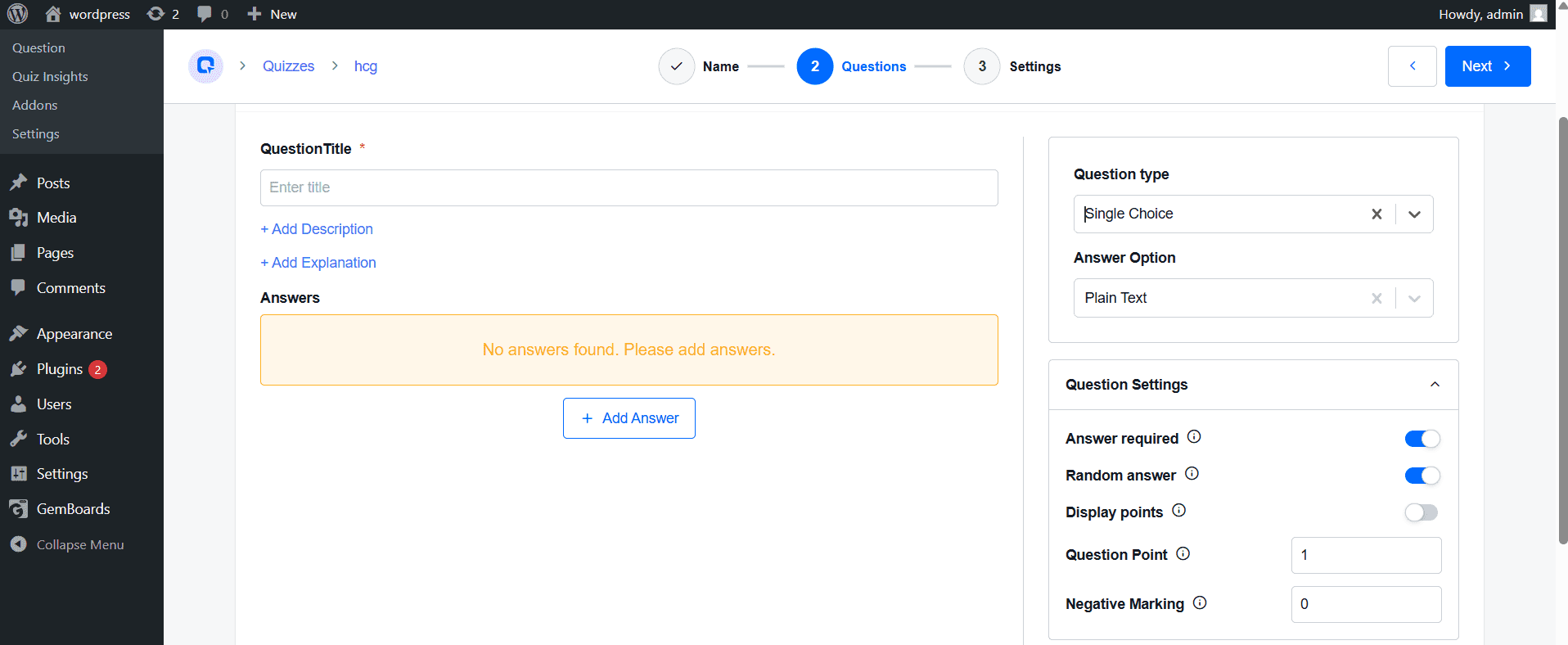
- Enter a descriptive quiz title.
- Select your quiz type from the available options:
- Quiz — Standard knowledge-based assessment with right and wrong answers.
- Exam — Formal, timed assessment with strict pass/fail criteria.
- Survey — Opinion-gathering tool with no scoring.
- Poll — Single-question quick vote.
Each quiz type comes with its own dedicated settings, scoring logic, and results display options tailored to its specific purpose.
Step 3 – Add Questions
This is the core of the quiz creation process. Click Add Question and choose from QuizPress’s library of 20+ question types:
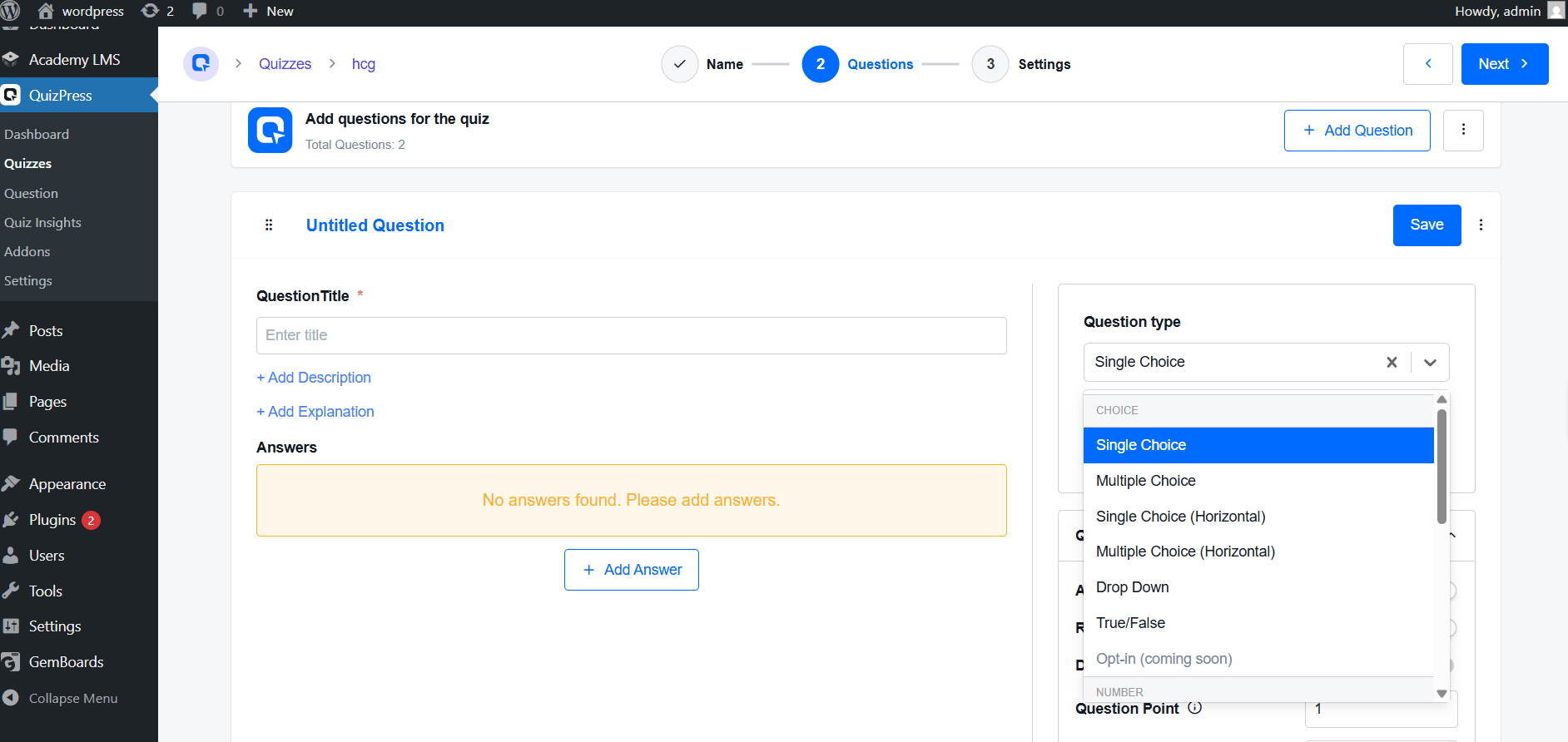
- Multiple Choice (Single Answer) — The classic MCQ format where only one answer is correct.
- Multiple Choice (Multiple Answers) — Allows users to select more than one correct option using checkboxes.
- True / False — Quick binary questions, ideal for factual recall testing.
- Image-Based Answers — Users select their answer by clicking on an image, perfect for visual quizzes and product recommendations.
- Short Answer / Open Text — Users type a free-form written response.
- File Upload — Users attach a file as their answer, useful for assignments and HR assessments.
- Poll / Opinion — Collects data without marking answers as right or wrong.
For each question, you can:
- Write an explanation that appears after the answer is submitted, turning each question into a mini-lesson.
- Assign individual point values for weighted scoring.
- Attach images or media to enrich the question prompt.
- Set a per-question time limit (available in the Pro version).
Step 4 – Configure Results
Before publishing, fine-tune your quiz behavior by navigating to the Settings panel:
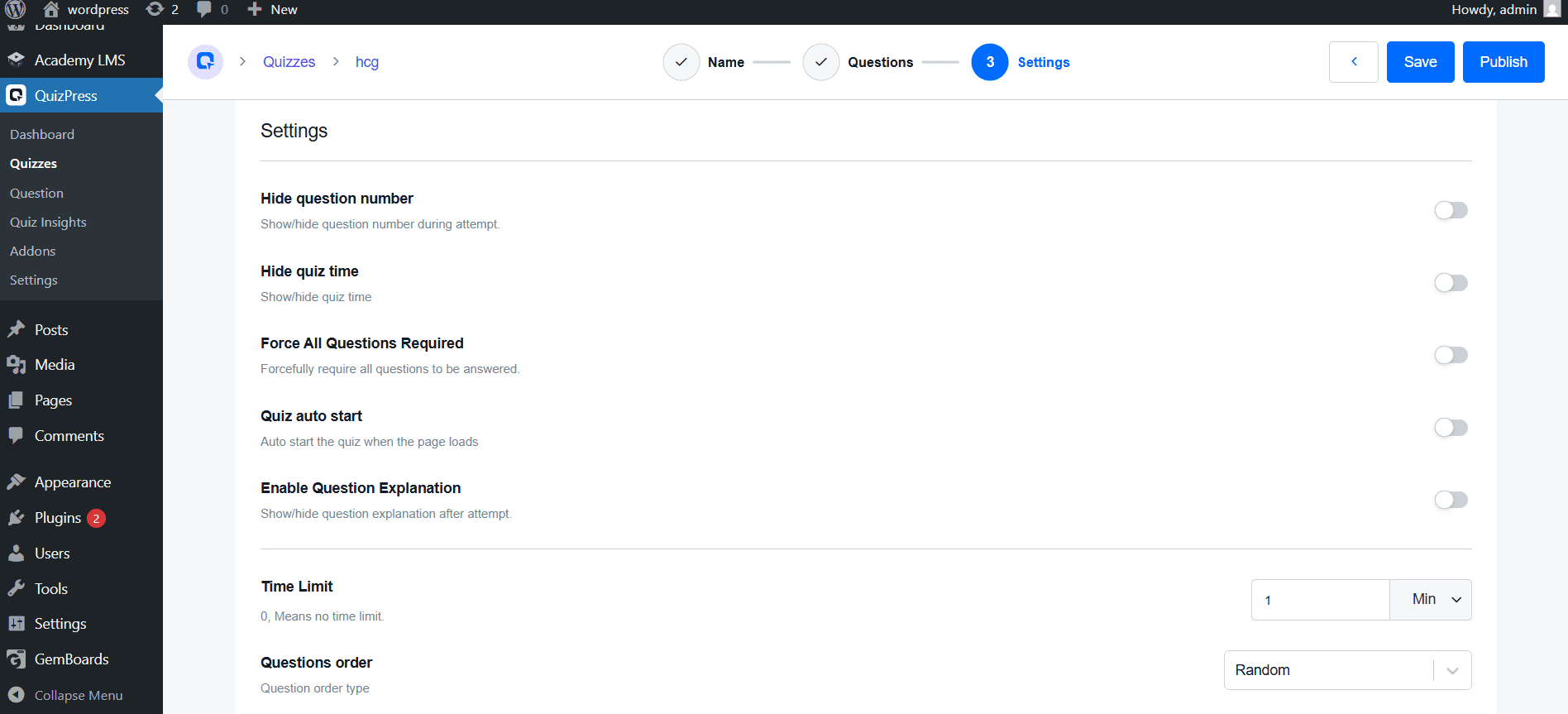
- Time Limit — Set an overall countdown timer for the entire quiz.
- Scoring System — Choose between percentage-based or point-based scoring.
- Pass/Fail Threshold — Define the minimum score required to pass.
- Question Randomization — Shuffle questions and/or answer choices for each attempt.
- Show Correct Answers — Decide whether users see the correct answers after submission, or only their final score.
- Attempt Limits — Restrict how many times a user can retake the quiz.
Step 5: Customize Design & Layout
QuizPress provides design customization tools to ensure your quiz matches your website’s visual identity:
- Choose between a single-page layout (all questions displayed at once) or a multi-step layout (one question per screen).
A visually consistent quiz greatly enhances user trust and significantly boosts completion rates.
Step 6: Set Up Results & Feedback
Once the quiz is submitted, QuizPress can display a rich results page that includes:
- Instant score display showing the user’s result immediately.
- Correct and incorrect answer review with detailed feedback for each question.
- Performance breakdown showing which topics or sections the user performed well or poorly on.
- Time taken to complete the entire quiz.
This level of detail transforms a simple quiz into a genuinely useful learning and feedback tool.
Step 7: Add Certificates (Optional but Highly Valuable)
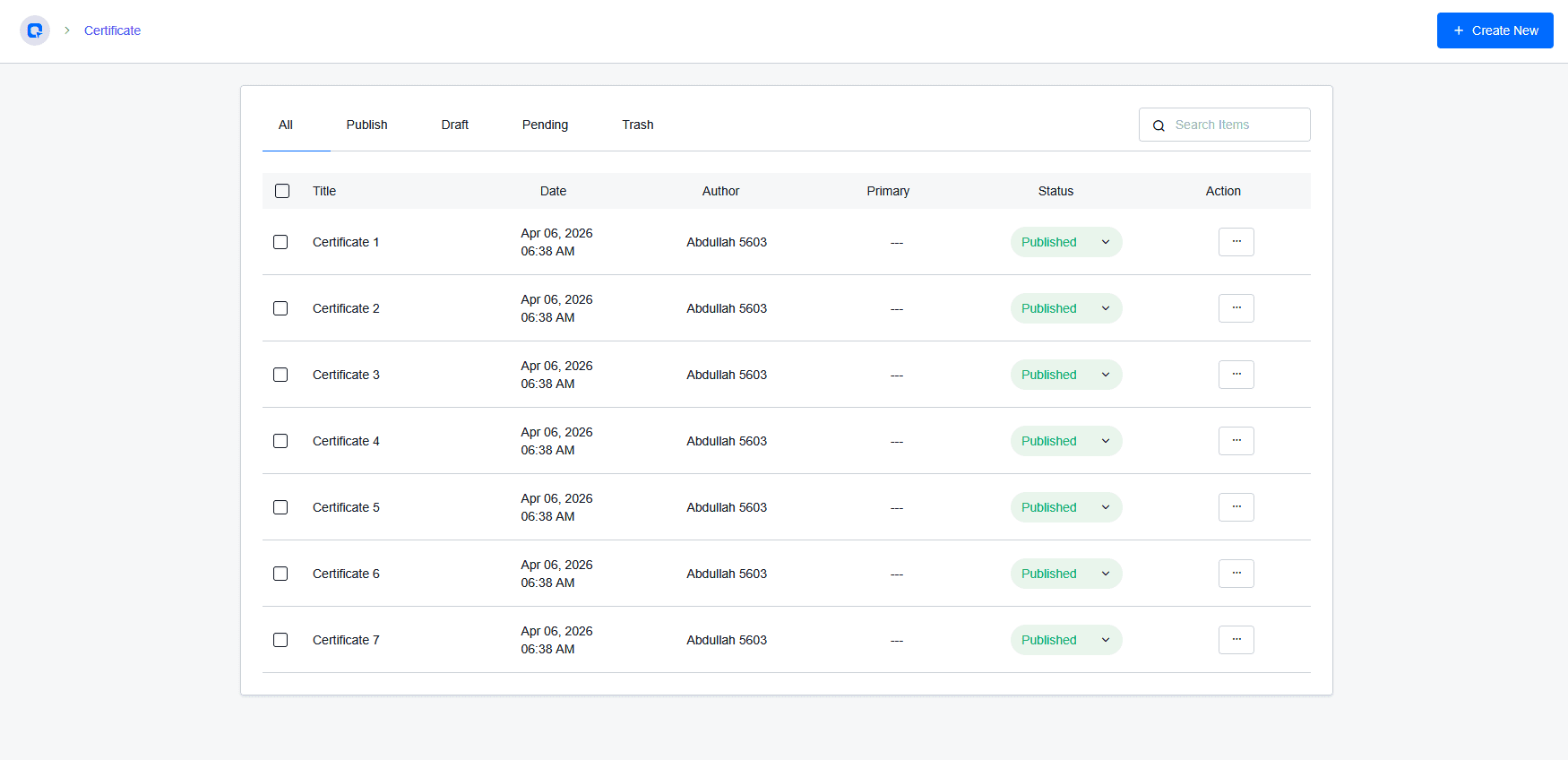
One of QuizPress’s most powerful features is its built-in certificate system. Once a user successfully passes a quiz, QuizPress can automatically generate a professionally designed, branded certificate.
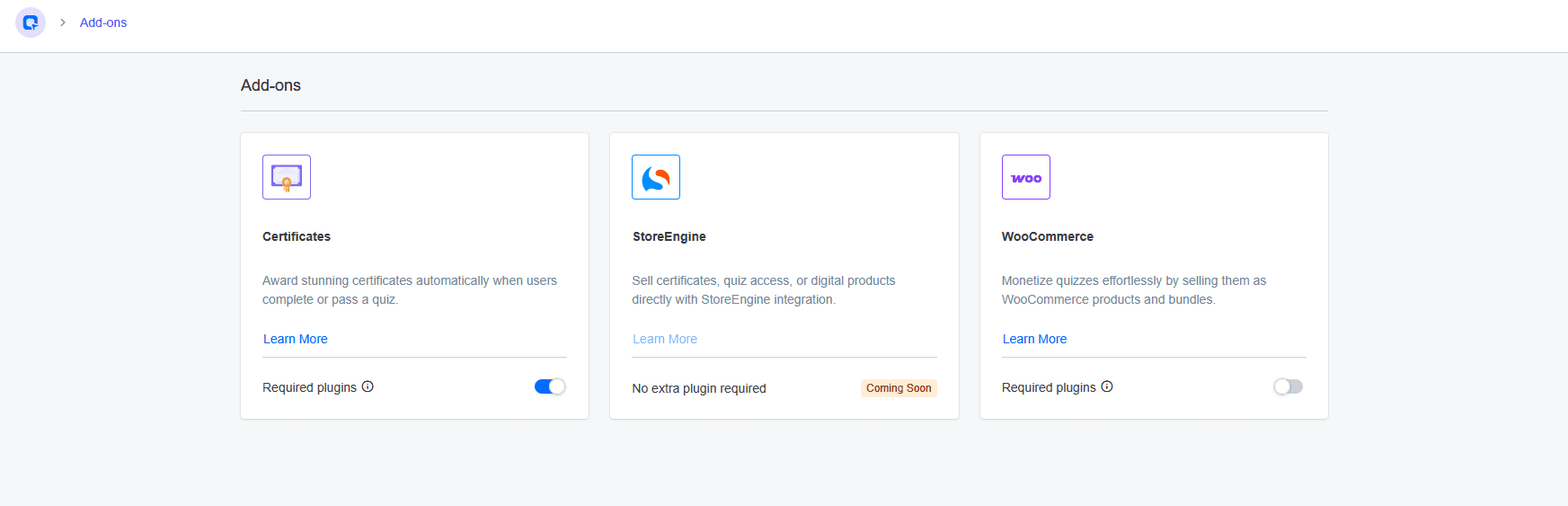
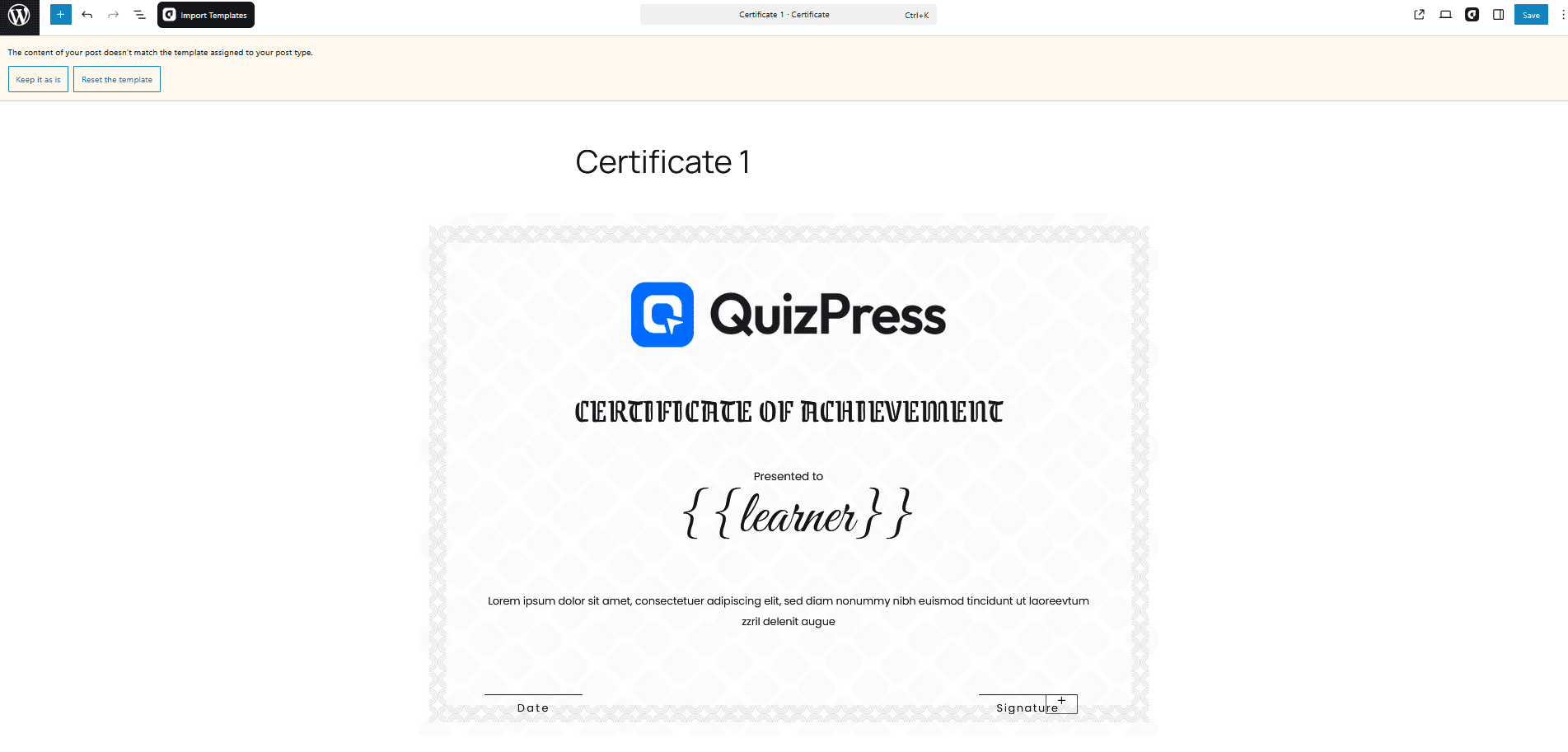
To fully customize certificates, QuizPress integrates with aBlocks, allowing you to design visually rich, flexible certificate templates without coding.
With this setup, you can:
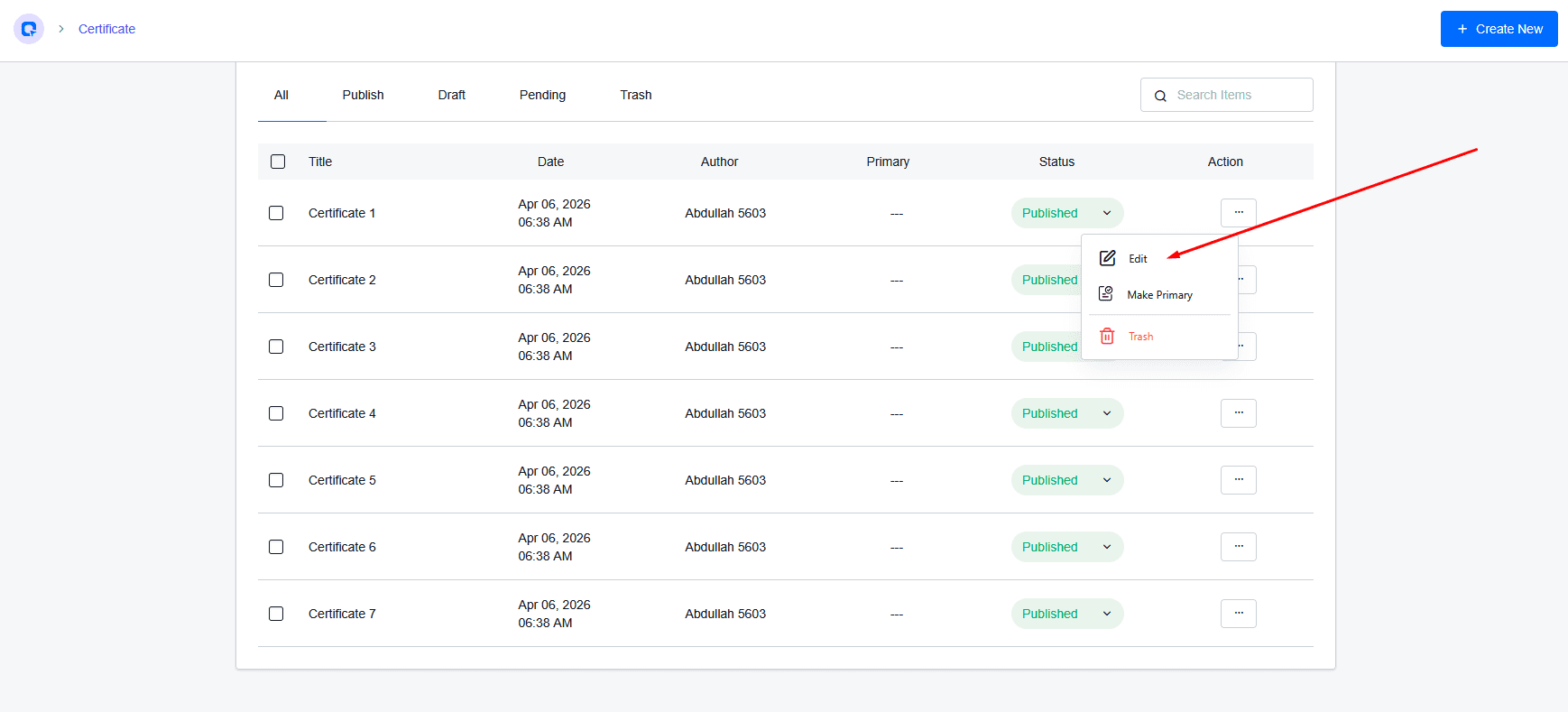
Customize certificate templates using aBlocks (add logo, colors, typography, layout, and dynamic fields like username or score).
Set conditional certificate issuance (e.g., only award certificates if the user meets a minimum score).
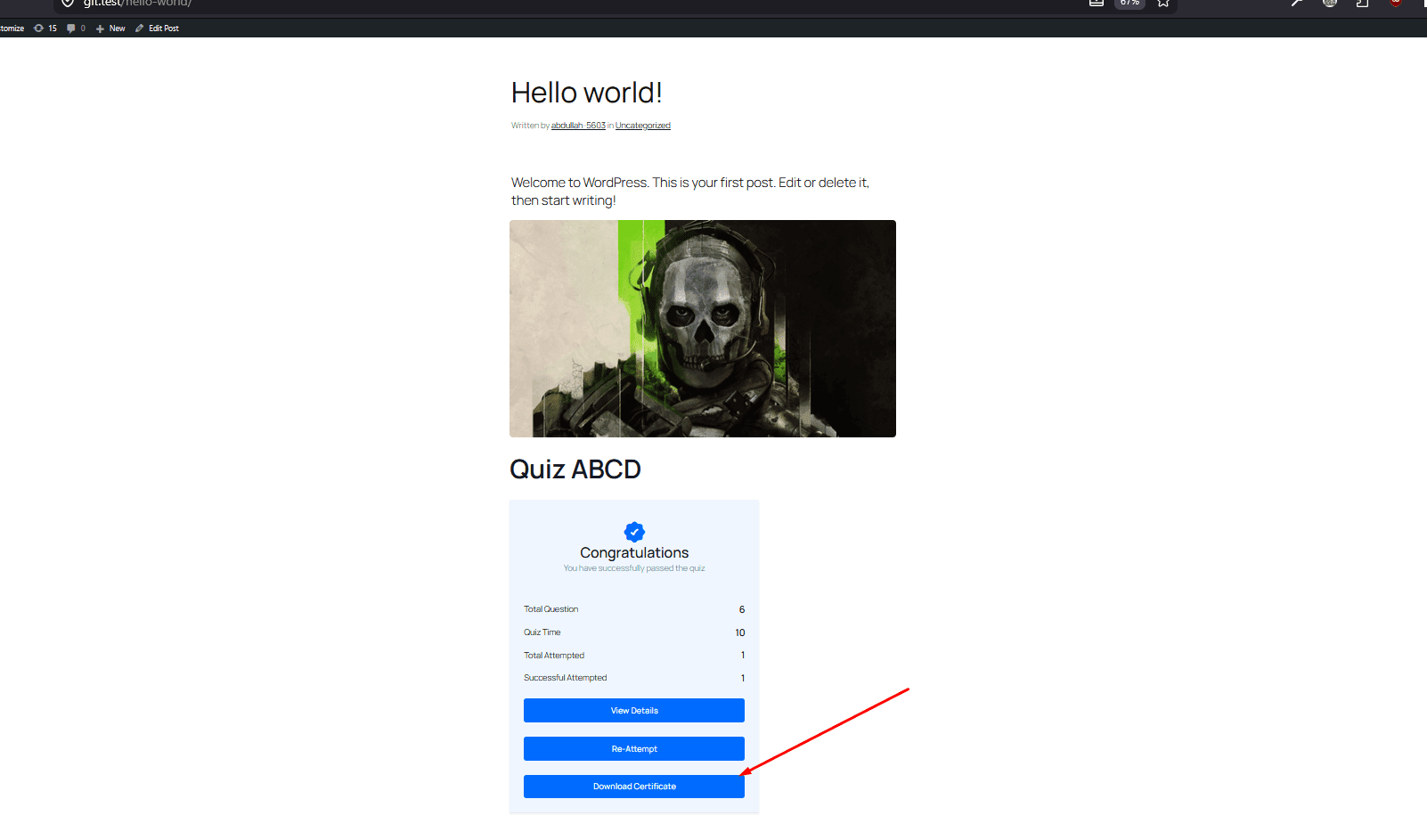
Sell certificates as premium add-ons through WooCommerce integration.
This feature is especially valuable for online course platforms, corporate training programs, professional certification providers, and any use case where proof of completion or achievement matters.
Step 8: Publish Your Quiz
When your quiz is ready, click Publish. QuizPress will generate a shortcode that you can paste into any WordPress page, post, or widget area:
[quizpress id="YOUR_QUIZ_ID"]Alternatively, use the QuizPress Gutenberg block to embed your quiz directly within the block editor without needing to copy and paste shortcodes manually.
Step 9: Test Your Quiz
Always run through your quiz completely before making it available to your audience. Specifically:
- Test every question and verify that the correct answers are marked accurately.
- Confirm the scoring calculation produces expected results.
- Preview the quiz on a mobile device to check layout and usability.
- Verify that the results page, feedback messages, and certificates display correctly after submission.
Taking 10 minutes to test your quiz thoroughly will prevent a poor first impression with real users.
QuizPress vs Other Popular WordPress Quiz Plugins
|
Feature |
QuizPress Pro |
Quiz Maker (AYS) |
QSM |
|
Question Types |
20+ |
10+ (Free: ~7–8, Pro: 10+) |
12+ |
|
Certificate Issuance |
✔ Yes |
✔ Pro only |
✘ No (requires Certificate Addon) |
|
Sell Certificates |
✔ Yes |
✘ No |
✘ No |
|
Question Bank |
✔ Yes (built-in, reusable & randomizable) |
✘ No (basic categories in Pro) |
✔ Pro / Addon (advanced question bank) |
|
Real-Time Analytics |
✔ Yes |
✔ Pro only |
✔ Pro / Addon only |
|
WooCommerce Integration |
✔ Yes |
✔ Pro only |
✔ Pro / Addon only |
|
Import / Export |
✔ Yes |
✔ Yes |
✔ Yes |
|
LMS Integration |
✔ Academy LMS |
✘ No |
✘ No |
|
Gutenberg Block |
✔ Yes |
✔ Yes |
✔ Yes |
Pro Tips for Creating Better Quizzes in WordPress
1. Keep It Focused
The ideal quiz length is 5–15 questions. Longer quizzes see significantly higher abandonment rates – split large topic areas into multiple shorter quizzes instead of one giant assessment.
2. Use Images in Questions
QuizPress supports image-based answers. Visual questions increase engagement by up to 40% and are especially effective for product recommendation quizzes, geography tests, and design challenges.
3. Write Meaningful Feedback
For each question, write a short explanation that appears after the answer is submitted. This transforms your quiz from a testing tool into a teaching tool — far more valuable and shareable.
4. Gate Results with Email Capture
Enable QuizPress’s built‑in lead capture so visitors must enter their name and email address before viewing their quiz results. Combine it with Mailchimp for an automated nurture sequence.
5. Randomize Questions for Exams
Enable question randomization and set a maximum question count drawn from a larger pool. This ensures each attempt is unique and prevents cheating in educational or HR contexts.
6. Test on Mobile Before Publishing
QuizPress renders responsively, but always preview on a real mobile device before going live. Pay special attention to image-based questions and file-upload interactions on iOS and Android.
Conclusion
Adding a quiz to your WordPress website is one of the highest-impact actions you can take to increase engagement, collect leads, and deliver real value to your audience. With QuizPress, the entire process — from installation to a fully live, auto-graded quiz complete with certificates and analytics — can be completed in under 30 minutes, with no coding required.
Whether you need a simple, fun poll, a professional exam system for your online course, or a lead-generating personality quiz for your marketing funnel, QuizPress provides the features and flexibility to handle it all from a single plugin. Install it, explore the settings, and experience firsthand the difference that well-designed interactive content can make on your WordPress site.
Frequently Asked Questions
Is QuizPress free to use?
QuizPress offers a free version for basic quiz creation. The Pro plan unlocks advanced features, including certificates, in-depth analytics, WooCommerce selling, and the full question bank. Visit quizpress.pro/pricing for details on the current plan.
Can QuizPress issue certificates automatically?
Yes. QuizPress auto-generates branded certificates immediately when a user successfully passes a quiz. The certificate template is fully customizable, and you can even sell certificates as premium products through WooCommerce.
Does QuizPress support multiple quiz formats?
Yes — Quiz, Exam, Survey, Poll, and Personality Test are all natively supported. Each format has its own dedicated settings, scoring logic, and result display options.
Does QuizPress work with LMS platforms?
Yes. QuizPress integrates natively with Academy LMS, making it a natural choice for WordPress-based online learning platforms that need a robust, standalone assessment system.