












The QuizPress Certificate Builder allows you to create visually appealing, professional certificates for your quizzes, surveys, exams, and assessments. With dynamic fields, drag-and-drop design, and flexible customization options, you can generate certificates that recognize user achievement and engagement.
Key Features
- Drag-and-drop certificate editor
- Dynamic fields (name, quiz title, score, date, etc.)
- Pre-built and blank templates
- Full design customization
- PDF export support
- Quiz-ready dynamic data
- Shortcode and automation-friendly
Prerequisites
Before using the QuizPress Certificate Builder, make sure the following requirements are met:
- The QuizPress plugin is installed and activated
- aBlocks plugin is installed and activated
- QuizPress Certificate Addon is enabled
- At least one quiz, survey, exam, or assessment exists in QuizPress
Install and Activate aBlocks
The Certificate Builder relies on aBlocks for block-based design and layout control.
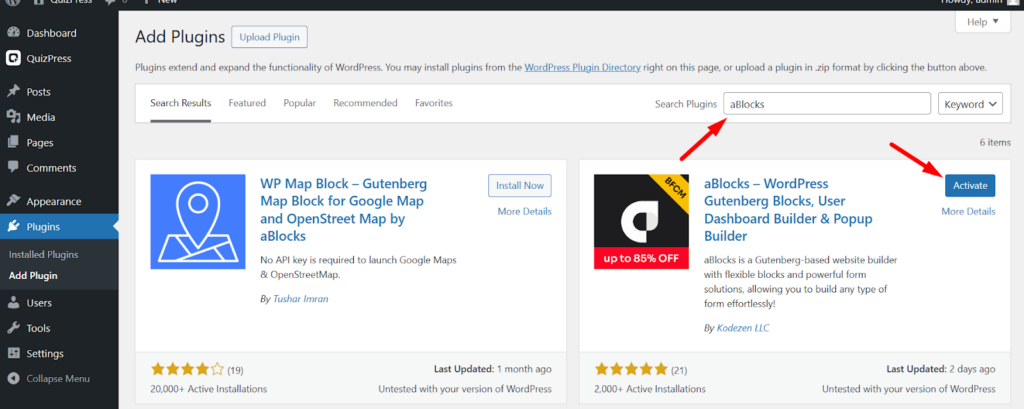
- Go to WordPress Dashboard → Plugins → Add New
- Search for aBlocks
- Click Install Now, then Activate
- Once activated, aBlocks will automatically integrate with QuizPress Certificate Builder
Enable the QuizPress Certificate Addon
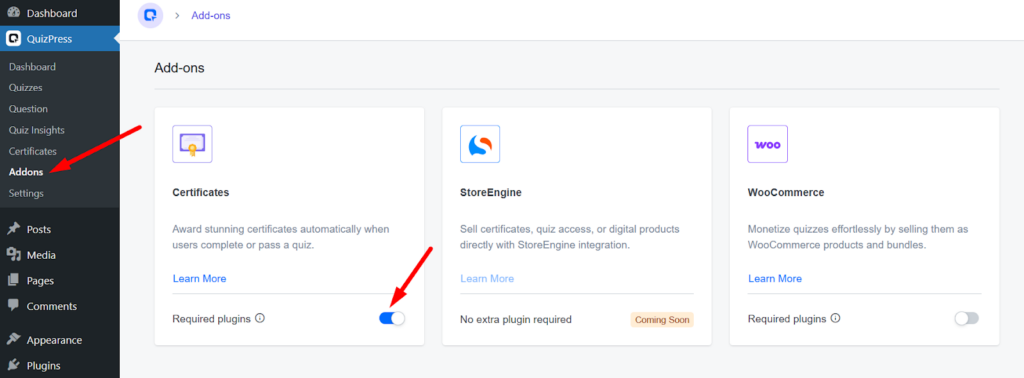
- Navigate to QuizPress → Addons
- Locate Certificate Addon
- Toggle the addon to Active
- The Certificate Builder menu will now be available in QuizPress
Step-by-Step Guide to Creating a Certificate
Access Certificate Builder
Go to WordPress Dashboard → QuizPress → Certificate Builder. View existing certificates or create a new one.
Create a New Certificate
Click Add New Certificate. Enter a certificate title and optional description
Select a Template
Choose from available templates or start with a blank canvas.
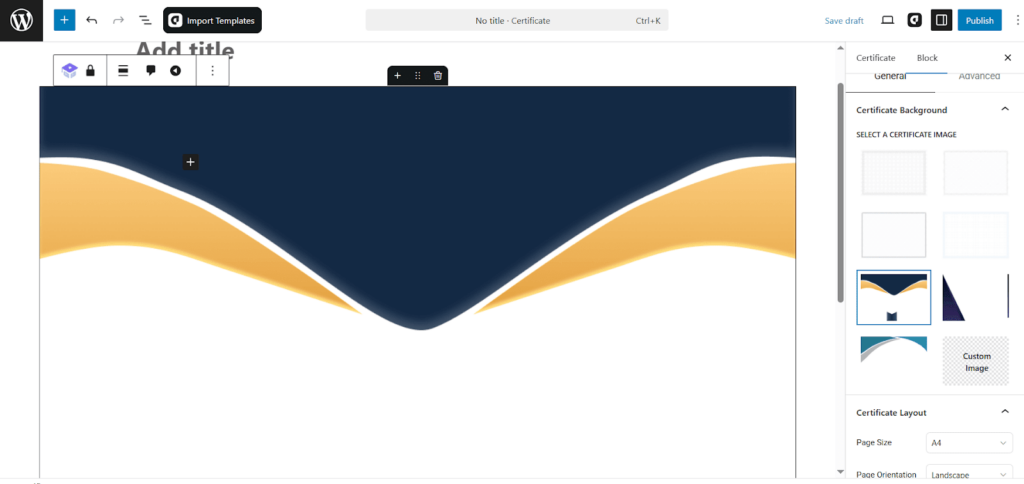
Customize Certificate with Dynamic Values
You can personalize certificates using dynamic placeholders that automatically pull data from quiz results.
The following values are supported:
- {{learner}} – Displays the participant’s name
- {{quiz_title}} – Shows the quiz, exam, or assessment title
- {{completion_date}} – Outputs the quiz completion date
- {{total_questions}} – Displays the total number of questions in the quiz
Simply insert these placeholders into any text block within the certificate layout, and QuizPress will replace them with real data when the certificate is generated.
Customize Certificate Design
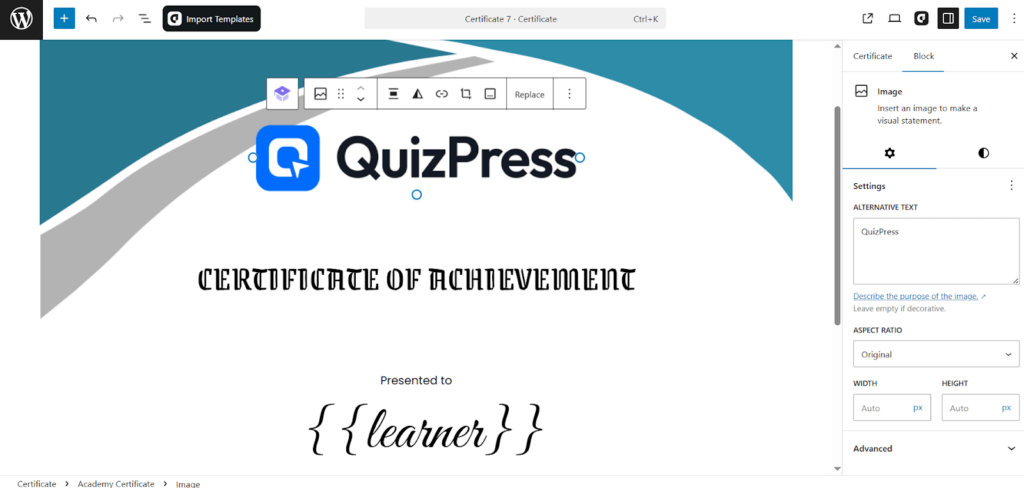
- Adjust layout, add background images, and upload your logo.
- Use the design panel to modify text style, spacing, and placement.
- Preview the certificate in real-time to ensure it looks exactly as you want.
Once you’re satisfied with the design, click Save. The certificate template is now ready to be used with quizzes in QuizPress. Certificates can be exported as PDF for preview or offline use.