










Displaying a quiz on your WordPress website is essential to make it accessible to your learners or audience. After creating a quiz with QuizPress, the final step is to publish and show it on a page or post so users can interact with it. This guide will walk you through the simple steps to display your quiz anywhere on your site using shortcodes or built-in settings. Whether you’re running an educational platform, an online course website, or a training portal, showing your quiz properly ensures a smooth and engaging experience for your users.
How to Show a Quiz in WordPress?
Step 1: Copy the Quiz Shortcode
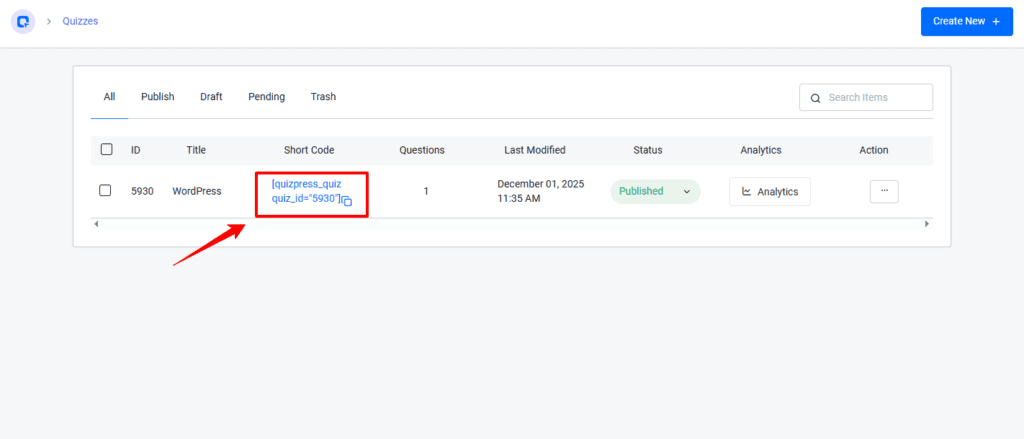
- Go to the Quizzes page and you will find the shortcode of the quiz you created
- Example: [quizpress_quiz quiz_id=”15″]
- Copy this shortcode.
Step 2: Create a New Post
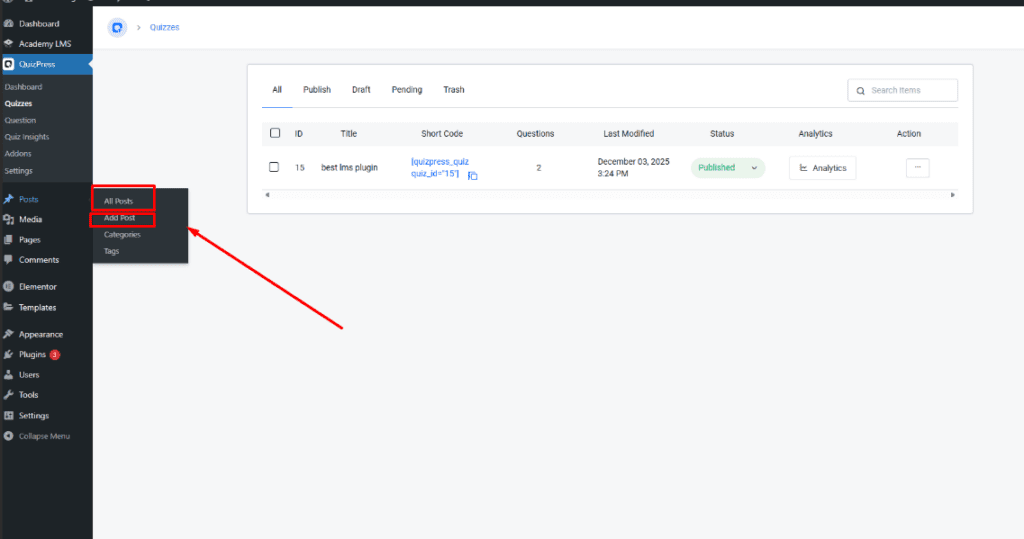
- From the Posts menu, click on “Add Post”
- A new post editor page will open
Step 3: Add a Shortcode Block
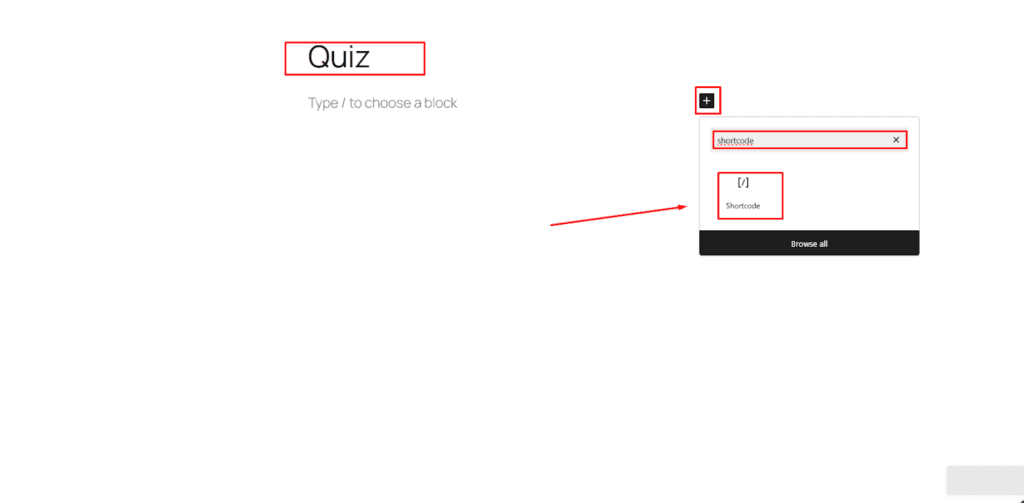
- Click the “+” button in the post editor
- Search for “shortcode”
- Select the Shortcode Block
Step 4: Paste the Shortcode and Save
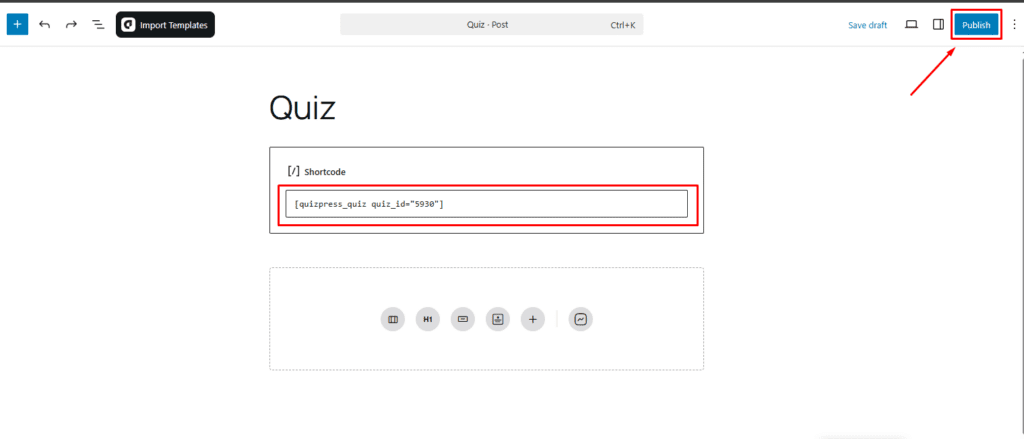
- Paste the copied shortcode inside the Shortcode Block: [quizpress_quiz quiz_id=”15″]
- Click the “Save” button in the top right corner
- Publish the post
Step 5: Result After Completing the Quiz
- After finishing the quiz, a “Congratulations” message will appear
- Click the “View Details” button to see detailed results
Step 6: Answer the Quiz Question
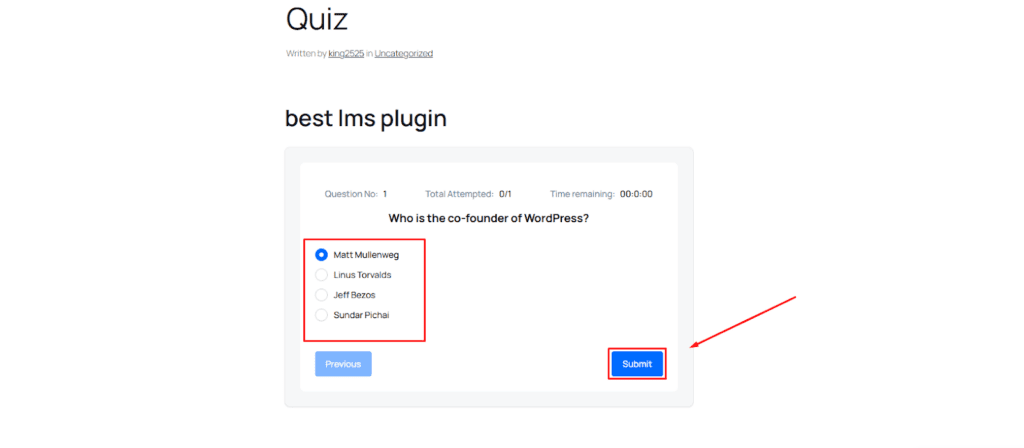
- Read each question and select the correct answer
- Click the “Submit” button to submit your answer
This is how you can display a quiz on your WordPress website.