












QuizPress is a powerful and user-friendly WordPress plugin that helps you create engaging quizzes directly on your website. Whether you are running an educational platform or a training website, QuizPress makes the entire process simple and intuitive.
What is a Quiz?
A quiz is a question-and-answer based game or test used to assess a person’s knowledge, skills, or understanding of information. Simply put, a quiz is a method where questions are asked and you try to provide the correct answers.
How to Create a Quiz in WordPress Using QuizPress
Install the QuizPress plugin to start creating quizzes.
Step 1: Accessing the QuizPress Plugin
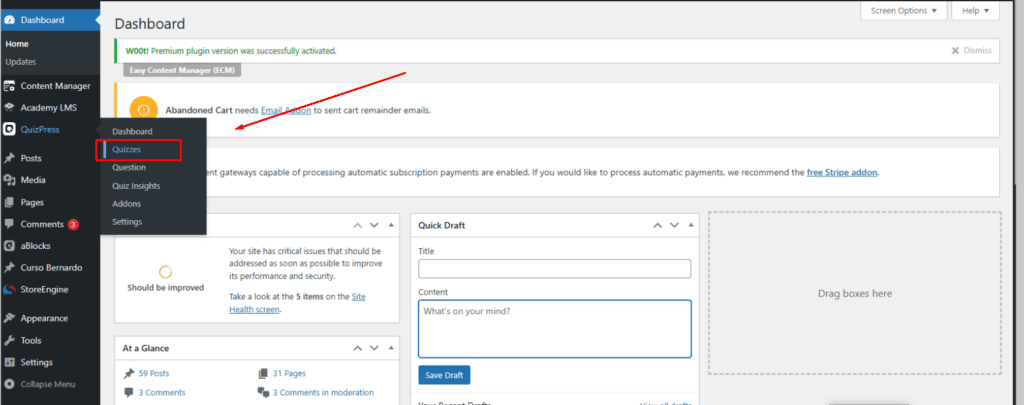
To access the QuizPress plugin, start from your WordPress Dashboard, then click on the QuizPress menu in the left sidebar and select Quizzes from the submenu.
Step 2: Creating a New Quiz
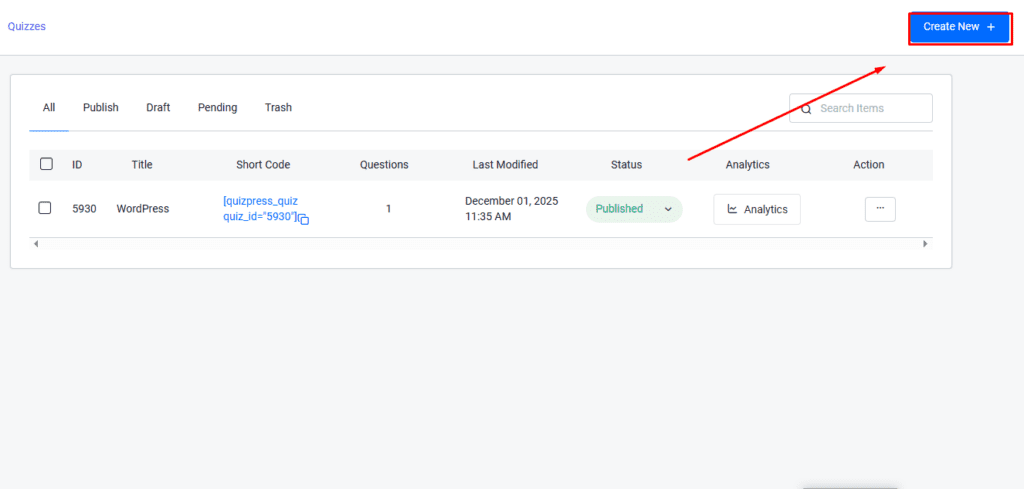
After navigating to the Quizzes page, click the “Create New +” button located at the top-right corner.
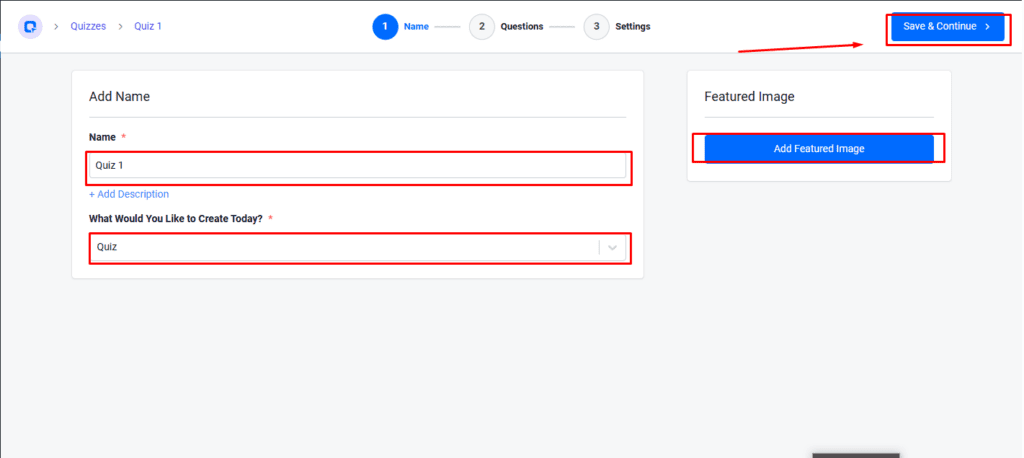
In the Name section, enter the name of your quiz in the Name field (for example: “WordPress”). From What Would You Like to Create Today? dropdown menu, select Quiz. Optionally, you can add a featured image for your quiz by clicking the “Add Featured Image” button on the right side and uploading an image. Click the “+ Add Description” link to add a description for your quiz. Once all the information is filled in, click the “Save & Continue >” button.
Step 3: Create Quiz Questions
To add a question to the quiz, click the plus (+) button.
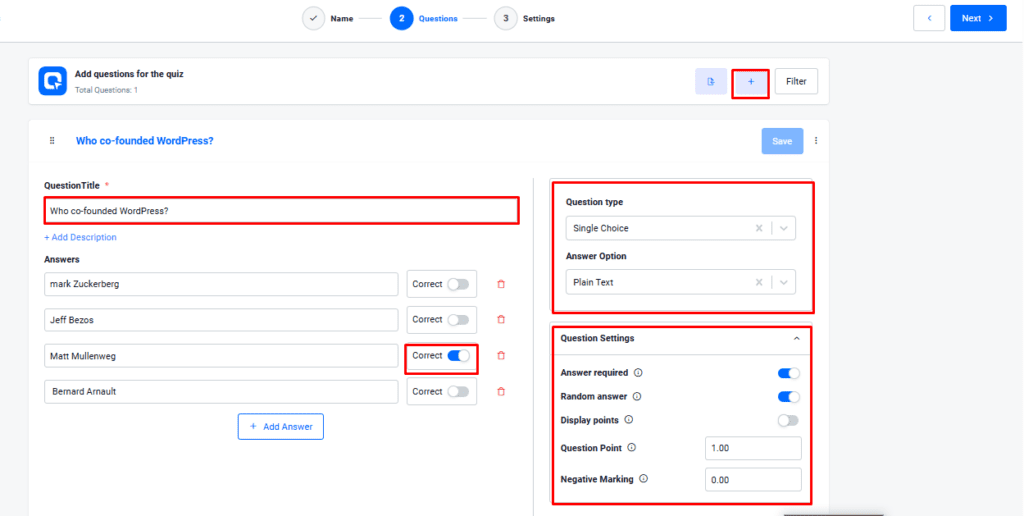
Questions are the section where you create your actual quiz by adding questions. To add a new question, click the plus (+) button, which will open a new question entry form. Type your question in the “Question/Title” field and enter the answer options in the fields below. Select the correct answer by clicking the toggle button next to the appropriate option. You can also adjust the question type and question settings as needed. Once all the details are entered, click the “Save” button to save the question. Repeat this process to add multiple questions and build your complete quiz.
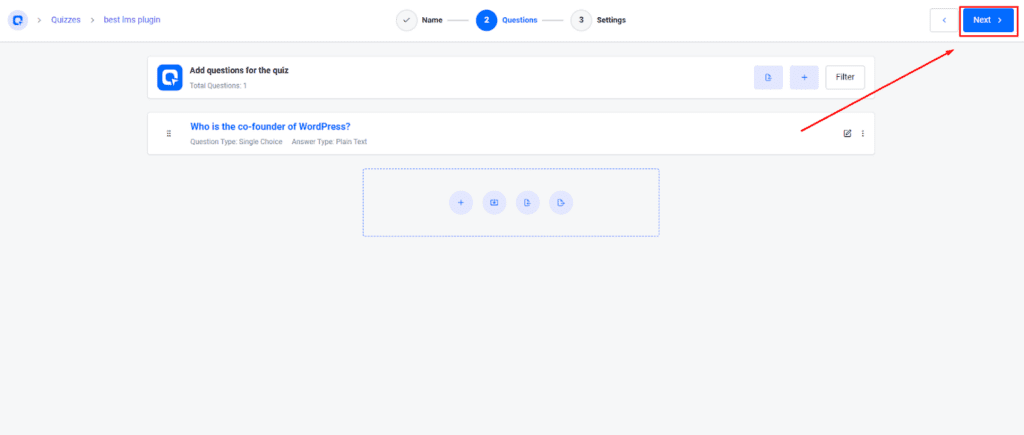
When you have finished creating all your quiz questions, click the “Next” button to proceed to the next step.
This way, you can create a quiz.”
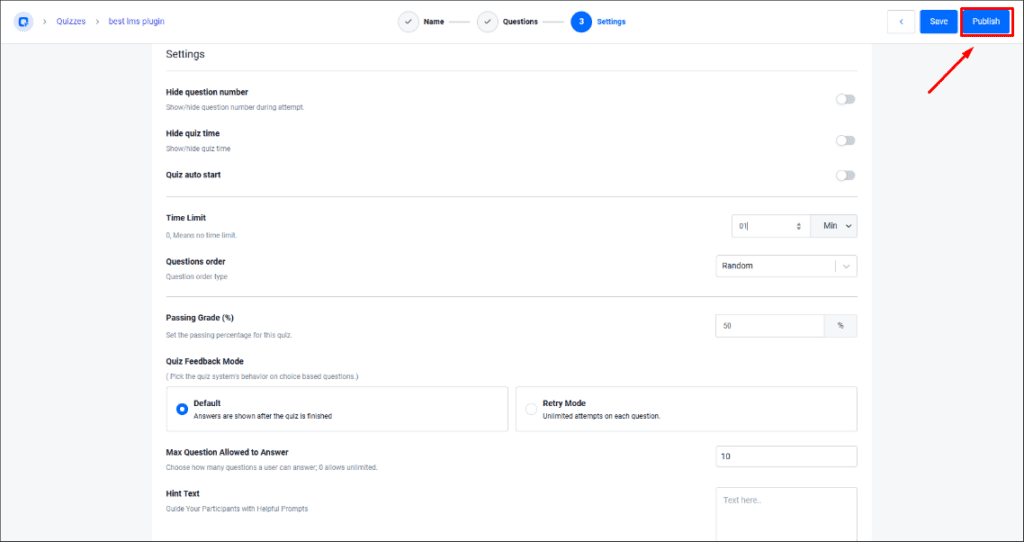
After completing all the quiz settings, you will see the “Save” and “Publish” buttons in the top-right corner, after save then publish the quiz.